
-
Microsoft System Center Configuration Manager 2007 – Installation (Part 3)
Posted on March 3, 2013 by Michael in Latest News, Studying, Tutorials
Time to get hands on now and prepare our server for installing SCCM 2007 R2. Now before we start I am going to run through some of the hardware/software requirements and also the prerequisites. (I’ll also include extending the AD Schema).
Firstly let’s cover off hardware requirements (both client and server).
If we look at the table below you can start to get an idea of what sort of specification is required. This is minimum/recommended specification.
Client Site System Processor 233/300MHz 733Mhz/2GHz (Single Role/Multiple Roles) RAM 256Min / 385 Recommended 256mb/1GB (Single Role/Multiple Roles) Disk Space 350MB 5GB/15GB (Single Role/Multiple Roles) Operating System Windows 2000 SP4 and above Windows Server 2003 SP1 and above This means operating systems like: Windows 95, Windows 98, XP Home, XP Media Center, Vista Starter, Vista Home, XP Pro (Below SP2), NT Server, Pocket PC, Win CE 3.0 are all not supported.
Software
From a server point of view we will require IIS 6.0 or above, BITS 2.0, NLB (if using NLB), IE 5.0 or above. It is also worth noting SHV (System Health Validator) is only supported on Windows 2008 and above.
More common software which is required: MMC 3.0 and above, .NET framework 2.0 and above, SQL Server 2005 SP2 and above. *NOTE* You CANNOT use SQL Express. You will need to use a version like standard or express.
As you can see from the above, before we can even start installing we need to cover off those requirements so I’m going to now go and install the required roles on my SCCM server and also install Server SQL 2008 R2. (Once done return to here and carry on!)
Schema Update
Like most “major” Microsoft products (SCOM/Exchange) they require the schema to be modified to included additional attributes specific for SCCM. This only needs to be done once per forest, and if you have multiple Domain Controllers just make sure the changes have replicated between all the DC’s.
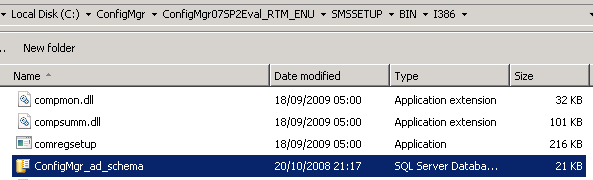
Microsoft give us two ways to update the schema, a simple file called “extadsch” which does it all for us, or via an LDF file. The LDF file can be found here: (C:\ConfigMgr\ConfigMgr07SP2Eval_RTM_ENU\SMSSETUP\BIN\I386 – In this case I’m installing it from the extracted CD on to the C:\ of the server your location maybe different)
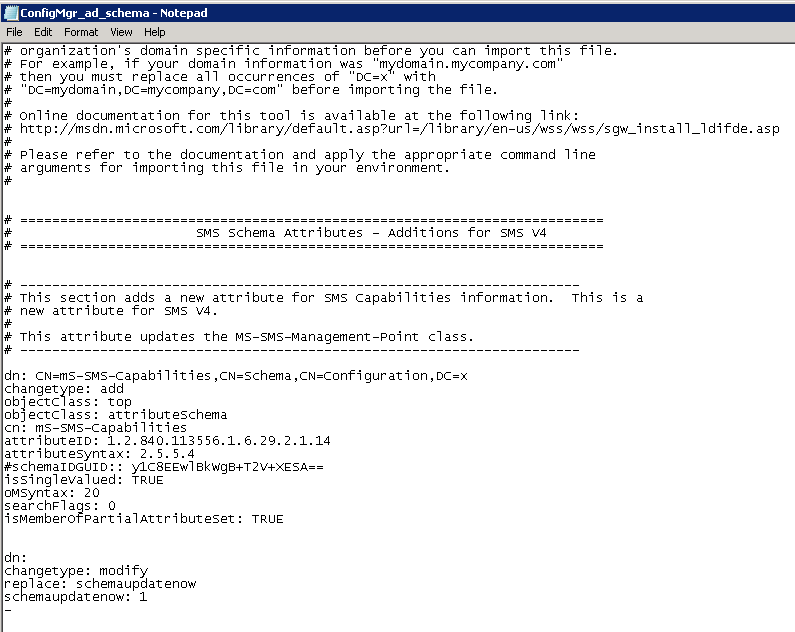
If you open the LDF file up in notepad you can see step by step exactly what it is doing. Please note if you are going to use this method you will need to change the values of the LDF file, at present you will see multiple entries for DC=X you need to update this to suit your own environment. For this example it would be to replace DC=X with DC=riccioni, DC=ad


To run the command you would use:
- Ldifde – I –f configmar_ad_schema.ldf –v –j c:\schemalog.txt (I’ve included a log file so we can see any errors/issues during it running)
However I am going to use the extadsch.exe method to update the schema.
Browse to the location (C:\ConfigMgr\ConfigMgr07SP2Eval_RTM_ENU\SMSSETUP\BIN\I386 – again this depends on the location of the installation media)

Open up a command line and browse to that location and then run the .exe application

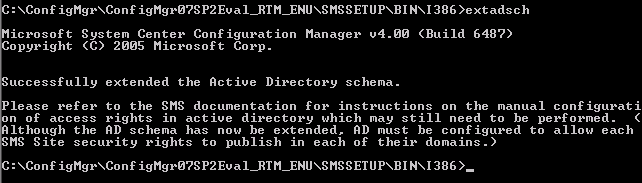
You are left wondering has this run, has it failed? Well if you browse to c:\extadsch.log we can check the status and see if it has failed anywhere.
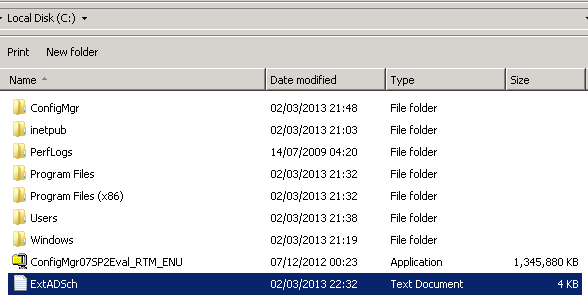
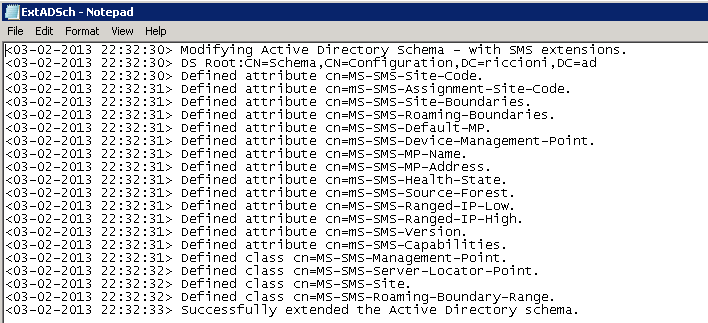
Luckily for us, it’s run through correctly!
We now need to open up the tool called ADSIEDIT, (Start > Admin Tools > ADSI Edit), as we need to add an additional container for SCCM to use (this is not automatically created for new installs) IF however you are upgrading from previous version the container will already be there).
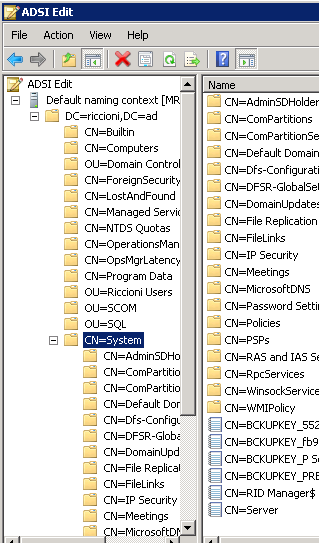
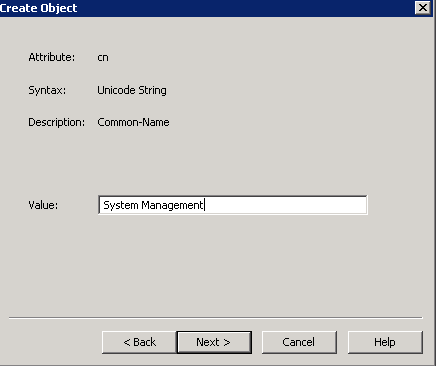
Browse to > Domain > System > and right click, create a new object container called “System Management”.
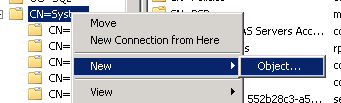
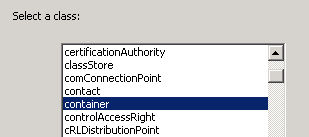
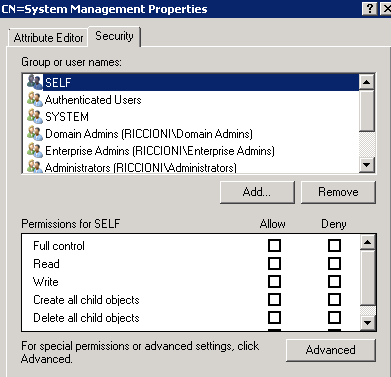
Once this is done, right click the properties and select security. We need to give the correct permission to this server in order for this sever to populate this newly created container.
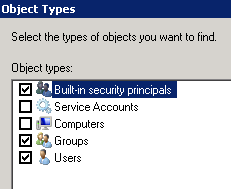
Make sure you select Object types and tick “computers”
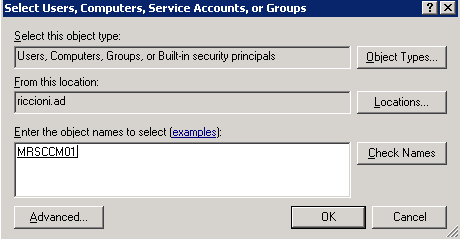
We will want to apply permissions to all child objects as well so select “advanced”
 Select the computer object and click edit
then select “This object and all descendant objects”
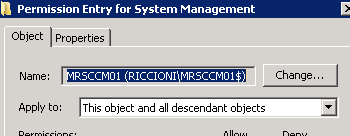
click OK to come out of this and click apply/OK to apply the changes then exit ASDI Edit.
Once this step is done we can finally start with the SCCM installation. First we want to run pre-requisites checker, (as with all things Microsoft there are always MANY pre-req’s!)
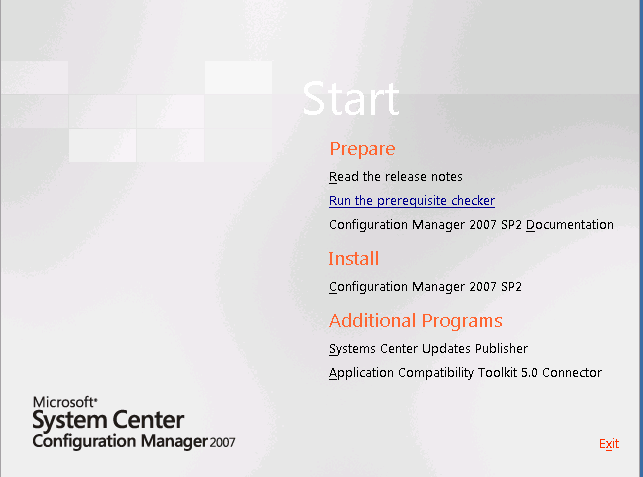
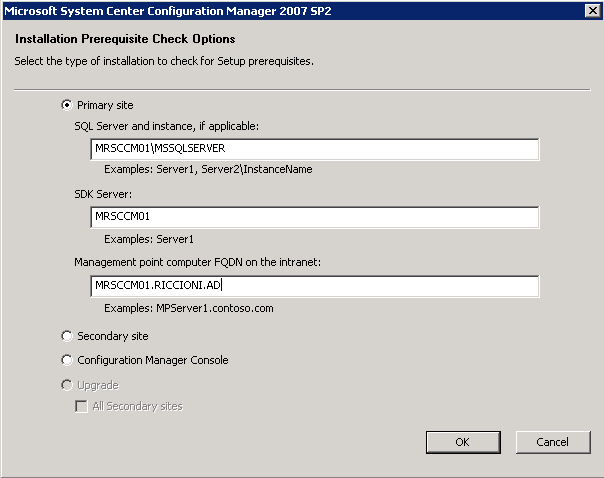
Enter the requested information and then click Run. (I’ve yet to install anything which has not come back with at least two errors and multiple warnings…..so let’s see what awaits us)
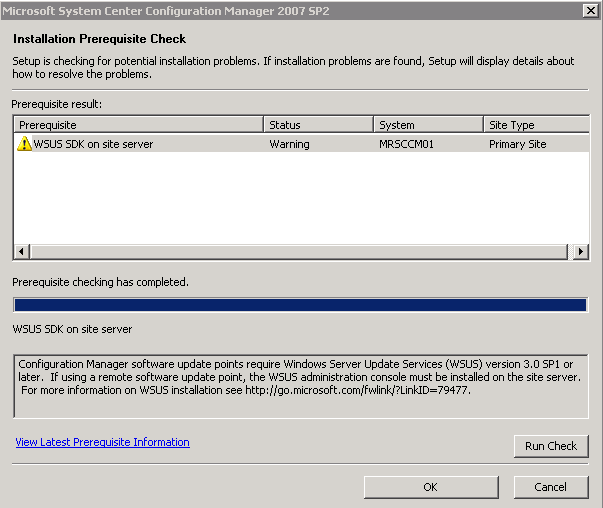
And there we go, it’s failed on a few and has given me a warning regarding the service pack of WSUS.

If you double click on error/warning it gives you a description in the bottom box.

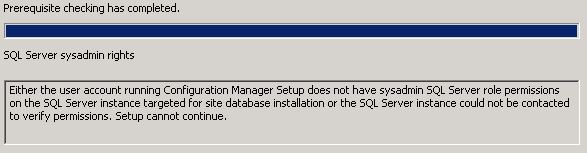
Once I’d corrected these I re-ran the pre-req checker and I can live with the warning it gives regarding WSUS, which means I’m happy to continue with the installation.
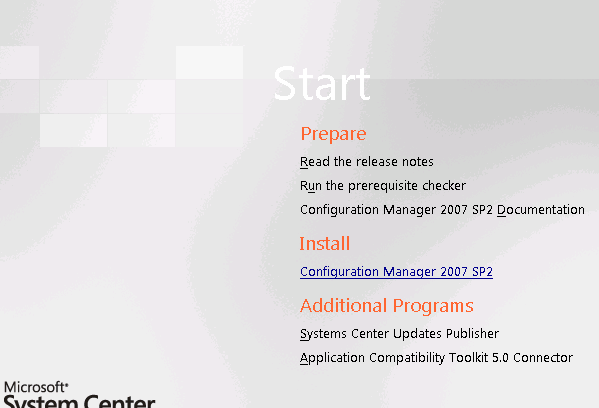
It’s a fairly straight forward next next next type installation as you’ll see below, but let’s go through it step by step.
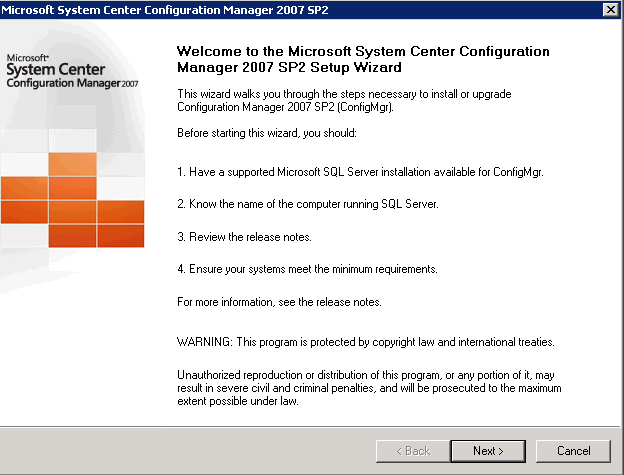
Select Next, and as this is the first installation we will be installing a new configuration manager site server.

Accept the usual terms and agreements

Like any installation we want to chose custom settings, as we want to be able to change the values to suit our environment.

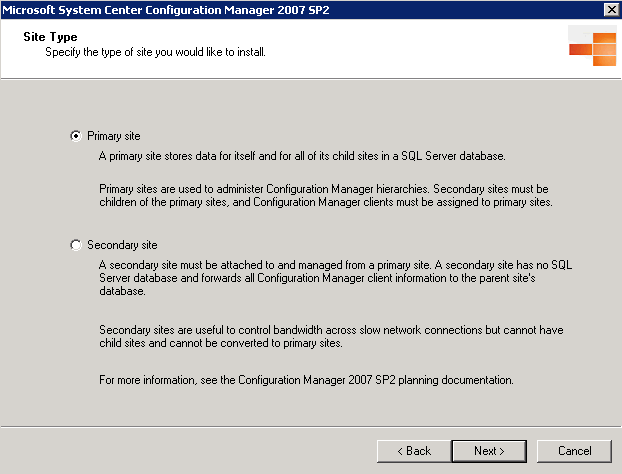
We will be installing a Primary site
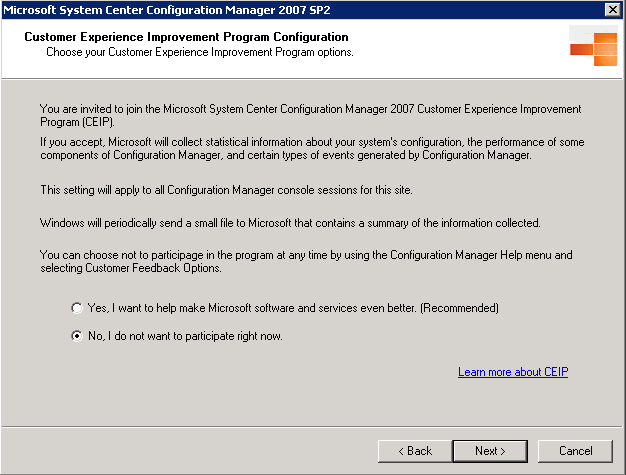
It’s up to you if you wish to send data to Microsoft, I personally never do.
Even though i’m installing an evaluation from Microsoft (which comes with pre-populated key), I’ve decided to blank it out just to save any issues…

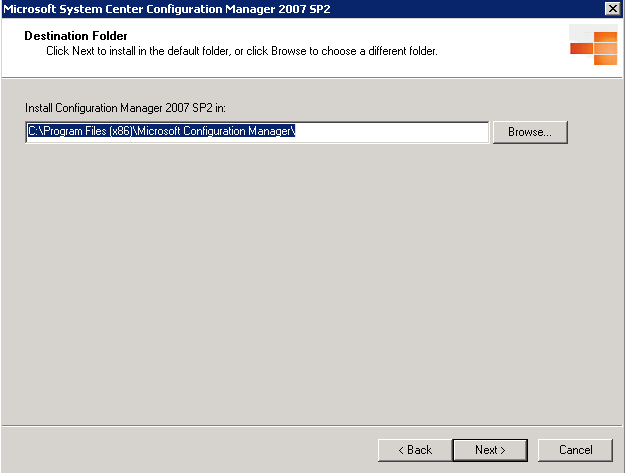
chose your installation location
This is important. You cannot have duplicate site codes within your SCCM Site. It is also a “pain in the backside” to change, so think carefully about your naming convention before deploying SCCM in your environment.

Now, as I currently don’t have a fully working PKI infrastructure, I’ll be running in mixed mode. Native Mode allows those of you with full PKI infrastructure’s to take advantage of managing agents over the internet.

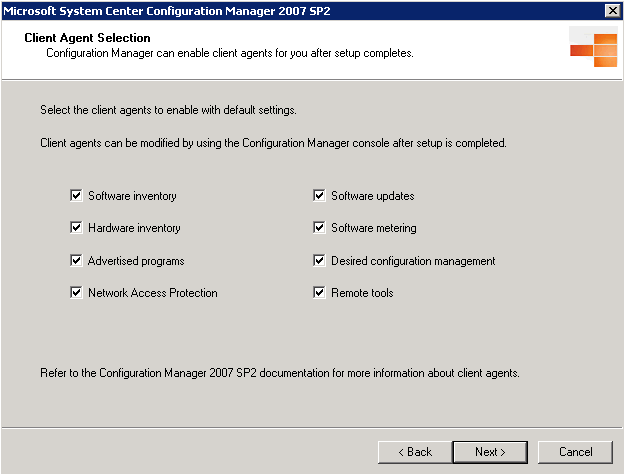
I’ve chosen to install all options.
I left the default site database name, although you can change this.

The next steps I am just going to accept the defaults
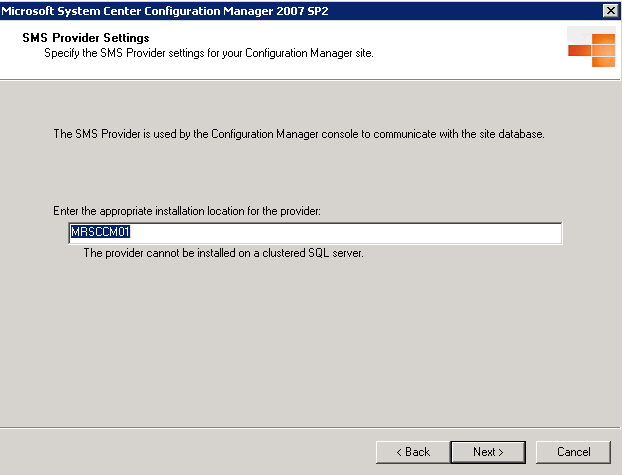
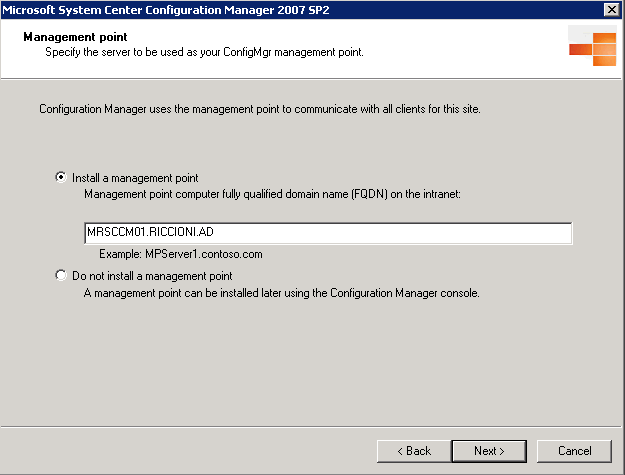
If we had selected Native mode, we would be able to specify the HTTPS settings, but as we are running in mixed mode we will simply be using port 80.

Since it’s initial release there will be a number of updates available, I’m going to download all of these to c:\SCCMUPDATES
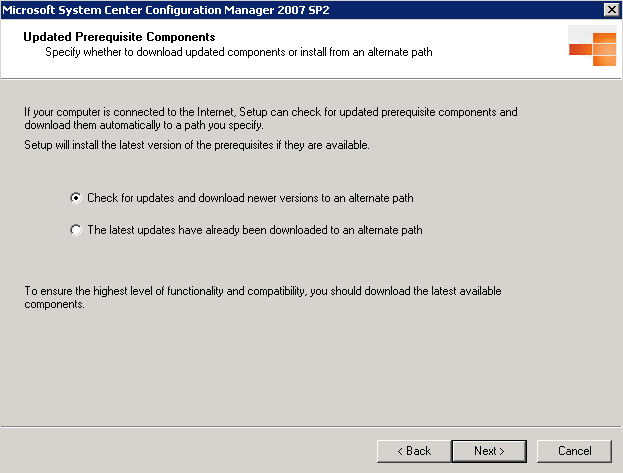

Great, 89 new updates…..I’m going to leave this for a while and come back to it later!
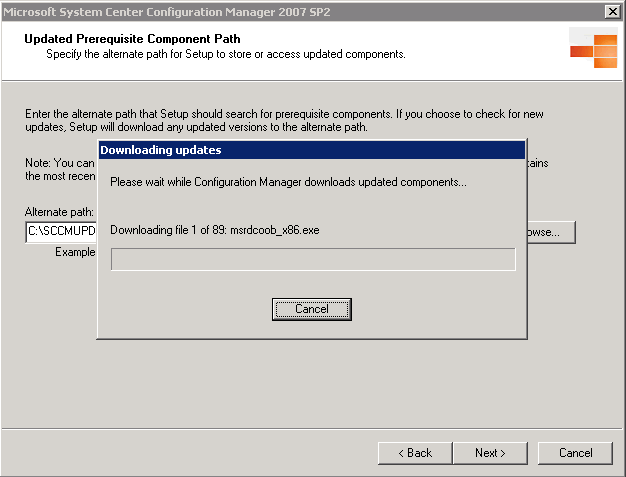
Ok so we’ve now downloaded all the prerequisite components, we should be just about there.

A quick overview before installation allows us to just confirm/check we are happy with the proposed installation.

Once happy, select next and SCCM will begin to install
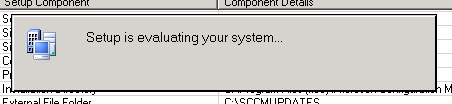

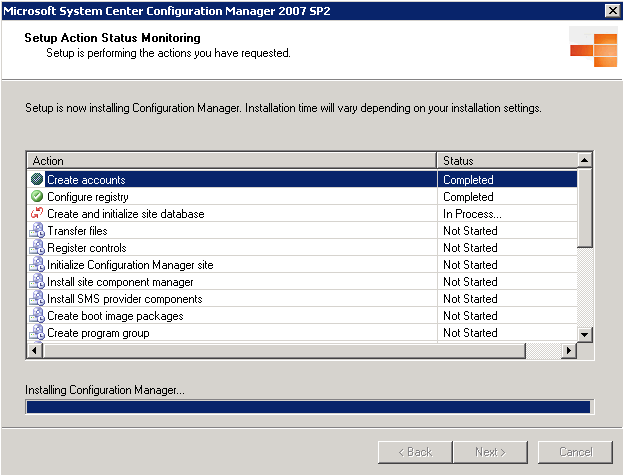

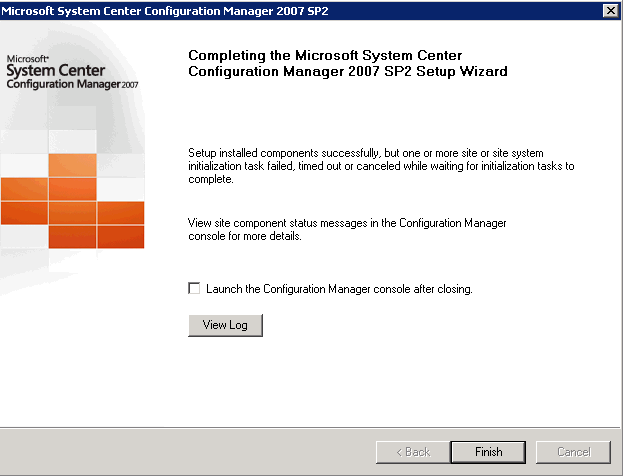
We are finally there!
SCCM is now installed, if you go to the start menu you will see the new SCCM 2007 folder group.

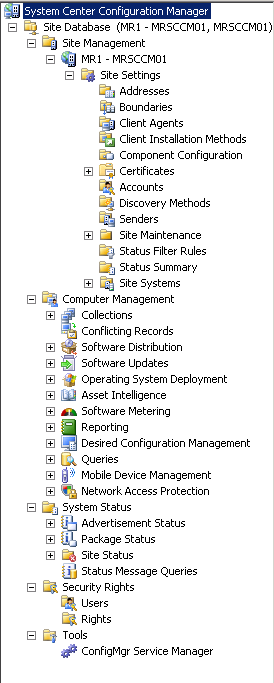
I’m going to launch ConfigMgr Console, to get a first look at the management console.
As you can see, at the time of installation there is now R3 available (we’ve just installed R2). But lets not worry about that!. Instead lets focus on the pane to the left.

I’ve expanded the major components, and as you can see there are a fair few options here, which hopefully we can cover off in the coming blogs!
And that’s it for now….
We’ve finally made it through the installation process and are now at the stage where we can being to configure and use SCCM 2007!, see you again soon for Part 4…..
As a Newbie, I am always searching online for articles that can aid me. Thank you
Sweet blog!
great blog! the information you provide is very helpful, why i was not able to find it earlier!