
-
Microsoft System Center Configuration Manager 2007 – Discovery Resources (Part 4)
Posted on March 4, 2013 by Michael in Latest News, Studying, Tutorials
Now that we’ve installed SCCM, it’s time to start discovering resources.
Before I jump straight in, I’m going to cover off some of those discovery methods, as well as the configuration of them.
In this blog we will be looking at:
- Discovery
- Inventory
- The DDR (Data Discover Record)
- Types of Discover (the 6 types)
- Configuring Discovery
- Tailoring discovery
Discovery / Inventory
What’s the difference? Surely both do the same?. Well nope..
Before you can inventory a (for example PC), you first need to discover that PC and deploy an agent to it.
Discovery is used for FINDING those end points in your network, and inventory is used to then retrieve information from those end points once they have been discovered.
DDR (Data Discovery Record)
The DDR contains information about discovered resources. It’s stored in a folder called “\inbox\DDM.box” – BUT it’s not stored there for long, once it’s polled by the database the record is removed.
This folder can be found here: C:\Program Files (x86)\Microsoft Configuration Manager\inboxes\ddm.box

Think of it as a simple inbox system. If a new record is created it is located in the inbox. Once the database polls this entry it’s removed (sent to the database), and no longer resides there.
Types of discovery
It may surprise you to learn there are six types of discovery (I certainly didn’t think there would be that many)…Those types are:
- AD System – systems within AD (computers/servers)
- AD User – users within AD
- AD System Group – OU’s, Global Groups
- AD Security Groups – AD Security Groups
- Network – Printers, Routers, Switches etc
- Heartbeat – If the device does not respond with a heartbeat after (say 30 days) SCCM considers it removed from the network and no longer exists.
Configuring Discovery
Now we’ve covered some of the basics, let’s fire up the SCCM management console and actually configure the discovery methods.
Expand your site management tree, and click on discovery methods. On the right hand side you’ll see the 6 discovery methods mentioned above.
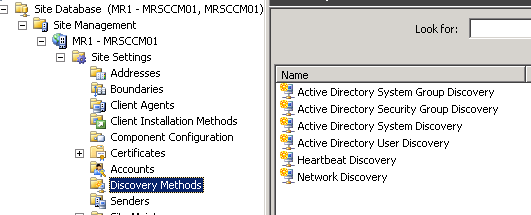
I’m going to start with AD System Discovery. Seeing as AD is the backbone, and already has all our computer accounts it would make sense to start here!
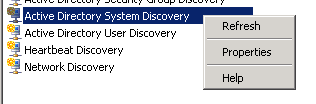
right click > properties
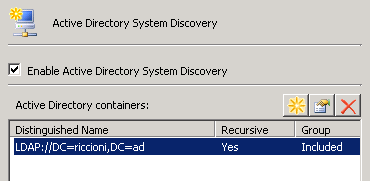
You’ll see it is not currently enabled, so tick the box to enable this, and then click on the little sun/start shaped icon.

I am going to be including the local domain and I always want to search groups, so tick the box next to “include groups”

When you click OK it will ask you where to search. You can chose an OU, but for now i’m selecting the entire domain

It will then populate the pane below
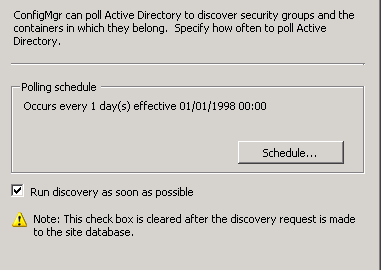
If we move on to the polling schedule tab you can see it is set to run every day. I’ve also ticked the box next to “Run discovery as soon as possible”
Finally we have the active directory attribute tab. Here you can choose custom fields to be pulled from AD.

If you are not sure what the attribute name is hope back in to ADSI edit, and have a look for yourself
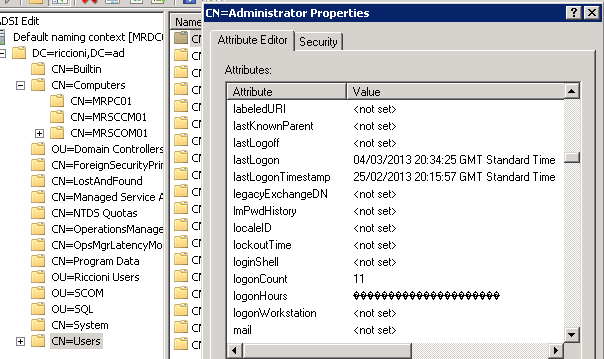
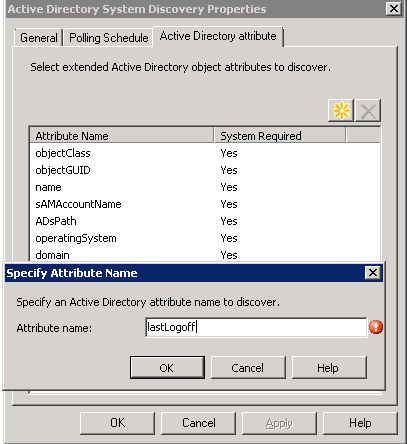
In this example I’m going to add the lastlogoff and lastlogon attributes.
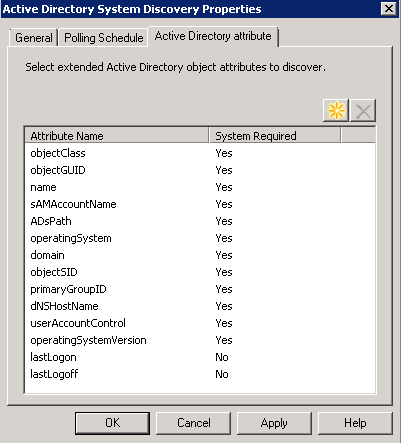
you will see both now appear in the list. Click apply/OK to start the discovery
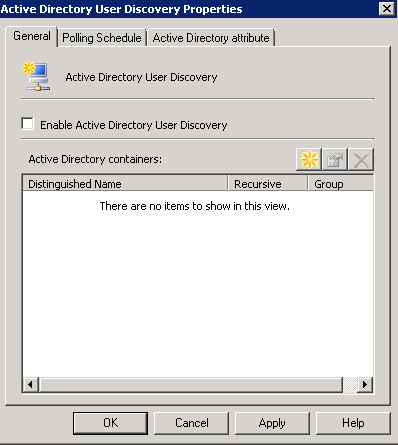
If we right click > properties on the AD user discovery you can see it’s exactly the same options but this time for user accounts. Depending on your environment you may or may not require software to be pushed to users but rather to machines (as an example). For now i’m not going to enable this as I have no need.
AD Security Groups, again has the same options (with exception of the attributes tab)
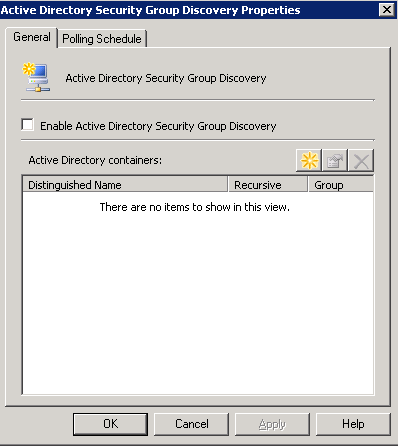
AD System Group is exactly the same as the above

Only the one option in the heartbeat discovery properties, it’s fairly straight forward. How long do you want the interval to be

Now lets move on to network discovery. Here we have multiple tabs and on the first tab we have multiple options explained below
- Topology – IP and basic information
- Topology and client – additional information about WHAT is on the end of it (i.e is it a router, a printer etc)
- Topology, client and client operating system – as suggested, even more information about the client (OS it’s running)

Moving on to the subnets tab, here you can specify subnets to “scan”

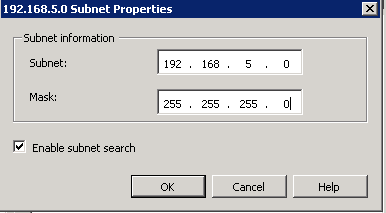

The domains is self explanatory, if you wish to scan a certain domain, enter the domain information to scan for devices within the domain

finally (for our purposes) the SNMP tab. If you use SNMP, and have a community name you can enter them in here

Well that was a fairly short(ish) and sweet introduction to discovering end points. Obviously everyone’s environment will be different but for the purposes of my home lab i’m only really covering off what I need to know for the exam for now. As always, any questions let me know and i’ll see you in part 5….
Adding this to twitter great info.
Informative article, just what I was looking for.
Do you have any tutorial video’s of the above?
Hayden, not currently. I have thought about adding video tutorials, maybe in the future when I have more time.