
-
Microsoft System Center Configuration Manager 2007 – Deploying Agents (Part 5)
Posted on March 10, 2013 by Michael in Latest News, Studying, Tutorials
Now we’ve scanned our network for resources, and we know what’s out there, it’s now time to start deploying the SCCM agent to our end points in order for us to be able to manage them.
You can deploy and install the agent in a number of different ways. We are going to start to cover some of these off in this next blog. As a general over view this blog will cover:
- Deploying via Boundaries (AD Site/IP Subnet)
- Client Approved & Auto Approved Installations
- Client Installation Methods
- Client Agents (10 different types)
- Client Push Installation
- A Look at the SCCM Client
Why would you want to deploy only within certain site boundaries? Well if you have a large organisation, you may have many different domains/subnet’s, and in some cases Team A may be responsible for Subnet 1 and 2, and Team B responsible for Subnet 3 and 4. This way both teams can make sure they are only managing end points on their own subnets/AD Domain.
Installation Methods
As listed below there are a number of ways we can actually install the SCCM agent on to our end points.
- Client Push – Easiest method
- Software update point (WSUS) – Can be included to auto install as part of the WSUS update
- GPO – Installation via a controlled GPO (via the .msi)
- Manual – Grab the CD and go round each workstation/Visit each workstation and run the .exe
- Login Script – Having a simple script to call the MSI or EXE file (NOTE this requires the account to have administrative rights)
- Software Distribution – If Microsoft releases an updated SCCM Agent, you can push the updated agent out to those end points with agents already on them.
- Imaging – Either via Ghost or Windows Deployment Services. It could be part of a “golden” image.
You will notice if you browse to your SCCM Server using it’s UNC path, you can find the location of the .msi (If you are using the GPO method)

For all other installations the .exe file is located here:

Client Agents
Now we know how to install the agents, it would make sense to understand what type of agents are available
- Hardware Inventory
- Software Inventory
- Advertise Programs
- Computer Client
- DCM (Desired Configuration Manager)
- Mobile Device
- Remote Tools
- NAP (Network Access Protection)
- Software Metering
- Software Updates
I guess that’s enough of the “talking” done! Let’s fire up the SCCM console so I can show you what I’ve just rambled on about….
*NOTE* as you will see going forward I have rebuilt an entire new Virtual LAB using Server 2003 and Windows XP. A couple of reasons:
- The Exam focuses on 2003 environment/XP Environment
- 2003/XP take a lot less system resources (currently running it all off my desktop)
- The Windows 7 VM’s I used were SP1 which 2007 SP2 doesn’t support (you need to download a hotfix which for the last 3 days has been unavailable on Microsoft’s site!) – So rather than wait around for it, it was quicker to build a new environment!
Fire up the SCCM console, and first I’m going to create a new boundary. I’m basing this on an AD site (although you can specify subnets/or single IP address) as shown below
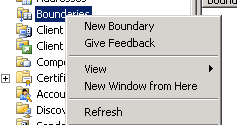


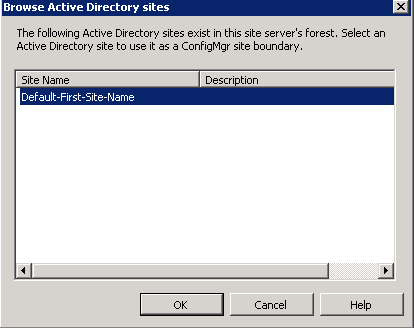
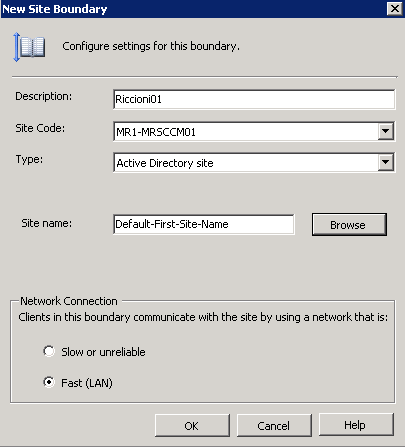

Ideally this is the information you want to set before you start deploying, otherwise if there are multiple subnet’s, and you only need to deploy to one subnet you really don’t want to be discovering and pushing client installations to those end points sitting outside of your control.
Other settings we should check can be found under <site name> right click > properties
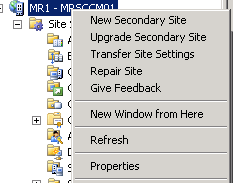
I’m leaving the default approval settings as is.
You can chose to encrypt the information sent between agent and server if you are particularly concerned, but just be aware of the additional resources this will use.
 We also need to be aware of what happens if there are conflicting records. E.G a machine is offline for a period of time, or is rebuilt with the same machine name. I’m going to leave the setting to auto create a new record.
Now we’ve covered off some of the basics, we can look at the types of client agents (as mentioned above). You only really want to enable the useful ones, otherwise you will be wasting system resources).
If we take a look at the types of agent available to us we can see:
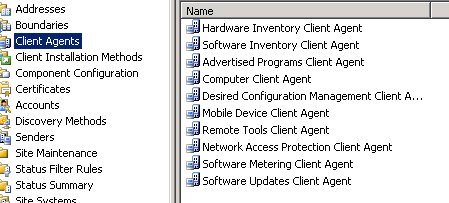
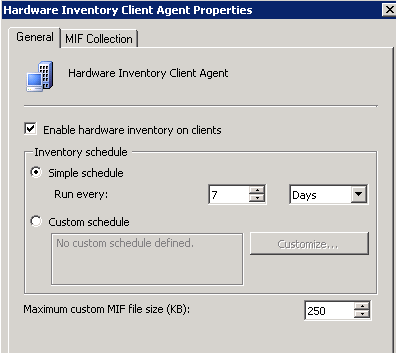
Hardware and software inventory are both pretty self-explanatory, and are enabled by default.
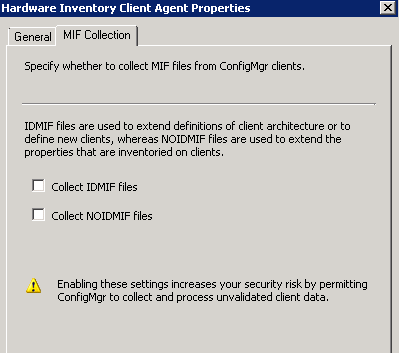
We will cover IDMIF and NOIDMF files later on
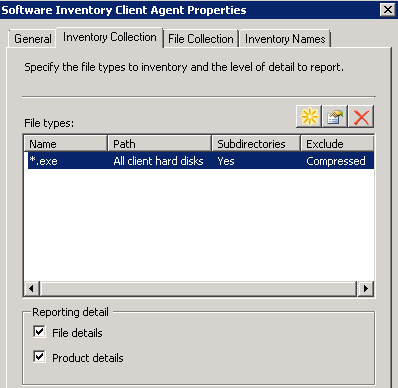
Within the software inventory settings, you can see we have the ability to include/exclude files from the inventory, (obviously if you change this to *.dll) this is going to give you a list of every single DLL file which is going to grow your database considerably!

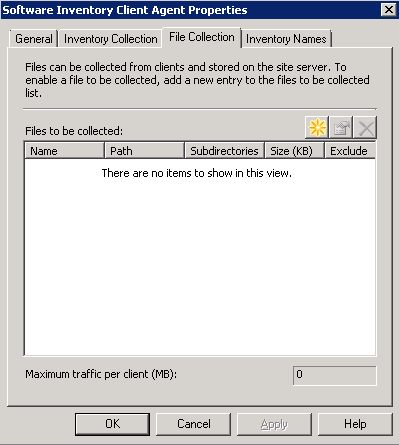
File collections is also one to be careful of. This will “pull” the file’s from the client machines. E.G if you wish to collect the file winword.exe (Microsoft Word) It will collect this file from the client machine in to the database. Not only does this affect your database size, but consider the network utilisation if you are pulling this file from all your clients.
Inventory Names – Listed the many manufacture names out there.

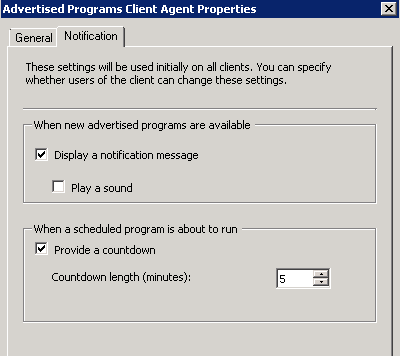
Advertised Programs – Allows you to deploy software to end points or to target users to deploy software to. We will cover this later on but I’ll enable it for now.

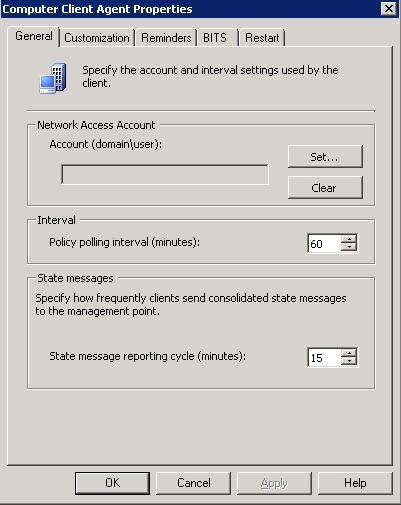
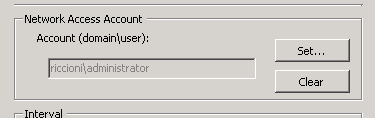
Computer client Agent – this is the core “component”. The computer agent. Without this we can’t do a lot! I’ve set the service account to use the administrator account.
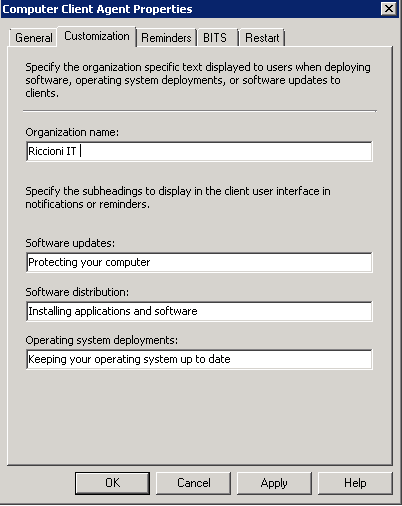
We can also customize the messages displayed to the end user if we are performing maintenance.

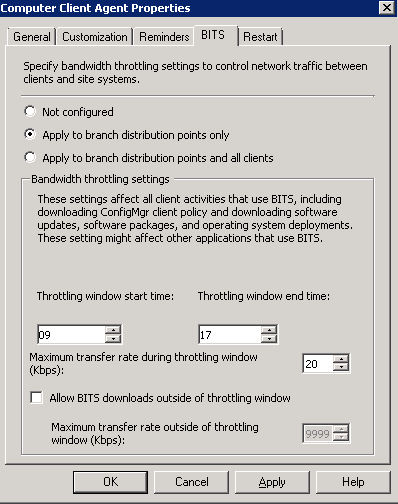
We can also use BITS to decide if we wish to set the level of network usage. (BITS is used to prioritise/throttle network traffic).
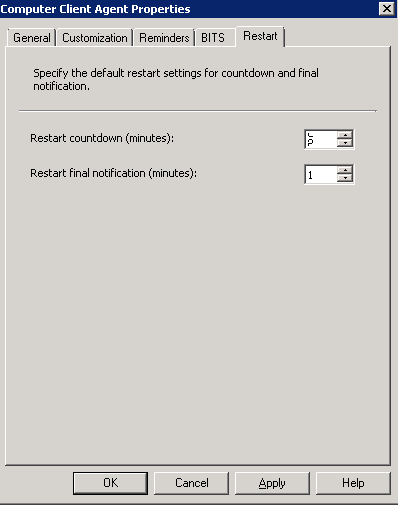
We can finally chose how long to display notices for before the machine is restarted (if required)
DCM – We will cover this in future blogs
Mobile – As above
Remote Tools – As above but allows for remote control of the user’s desktop via Remote assistance or Remote Desktop.
NAP – To be covered later
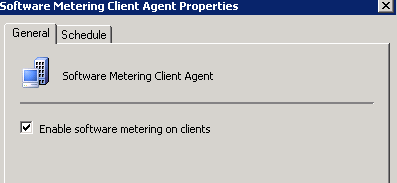
Software Metering – Also to be covered later
Software Updates – Again to be covered later

Deploying Clients
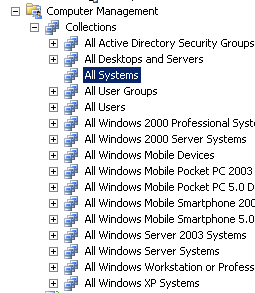
Finally we get hands on with deploying clients to our organisation. If we have a quick check of the discovered end points we can see it has populated all the machines in our environment.

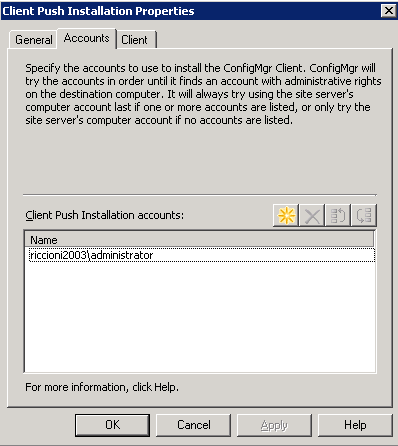
We will now also enable the client agent installation. You will see two options, the main one I will be using is client push. (Software update client point installation is used if you are installing or want the agents to be installed via WSUS) Back to client installation – Right click > Properties, and enable this. I’ve added the SCCM Admin account here as well as the credentials it will use to install the agent with.



The Site code is MR1 by default (as this is what we called out SCCM site).
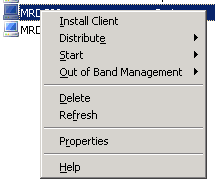
Right click the PC you wish to install the agent to and select install client. This brings up the agent install wizard (fairly straight forward), I’ve selected all the options for now, click finish.
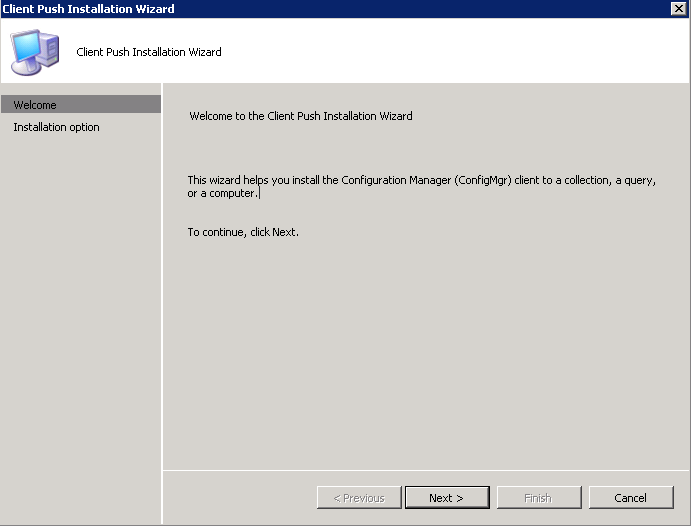
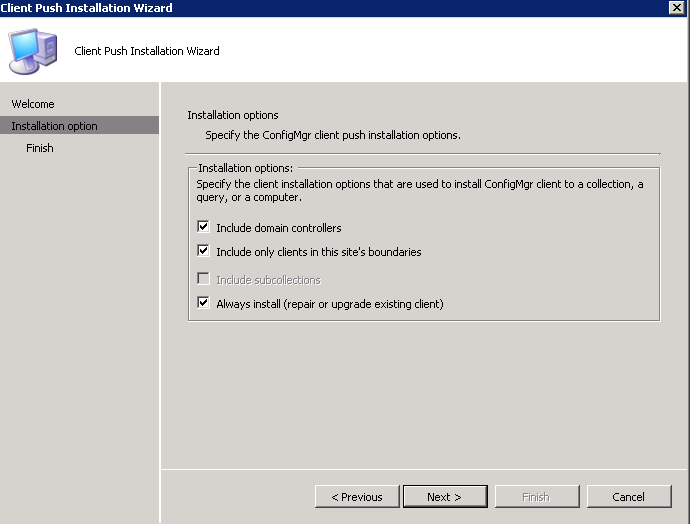

You will see when an agent is being installed the following process running on the machine (ccmsetup.exe), once complete you will notice a further task ccmexec.exe – this is the process which run’s and collect’s the requested agent information (hardware/software inventory for example).


Give this time to run and when we refresh the console we can now see the agent has been installed on to the selected endpoints.

From a client’s point of view, they will see the following appear in the control panel.
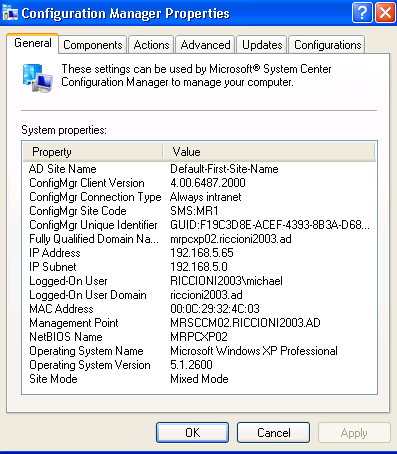
And there we have it, basic SCCM agent deployment covered…