
-
Microsoft System Center Configuration Manager 2007 – Operating System Deployment (Part 11)
Posted on March 17, 2013 by Michael in Latest News, Studying
Now were talking!.. Operating system deployments. I’m warning you now this is a fairly long blog, not because it’s particularly difficult but because there are many different parts which make up the overall “OS deployment”.
Ideally you need to be fairly familiar with WinPE (Windows Pre Installation Environment), .WIM file formats (Microsoft format for windows imagine management), and PXE booting, if you have never touched on them it will be worth your while having a quick 10 minute read up on each.
What types of images are we going to be working with then?
- Boot Image
- Install Image
- Capture Image
We will be covering off task sequences (which is how and in what order items are completed). As well as the PXE site system role (for those machines in your environment which PXE boot).As I said above, it’s not too complex just many parts. Let’s get straight in with enabling the PXE service point. We should be more than familiar with adding site system roles now so add the PXE service point as below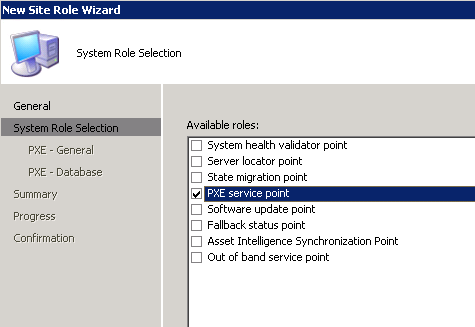
Select yes

Define the options you wish to use. (You may or may not want to set a password). You may not want to respond to requests on all network interfaces. It’s up to you
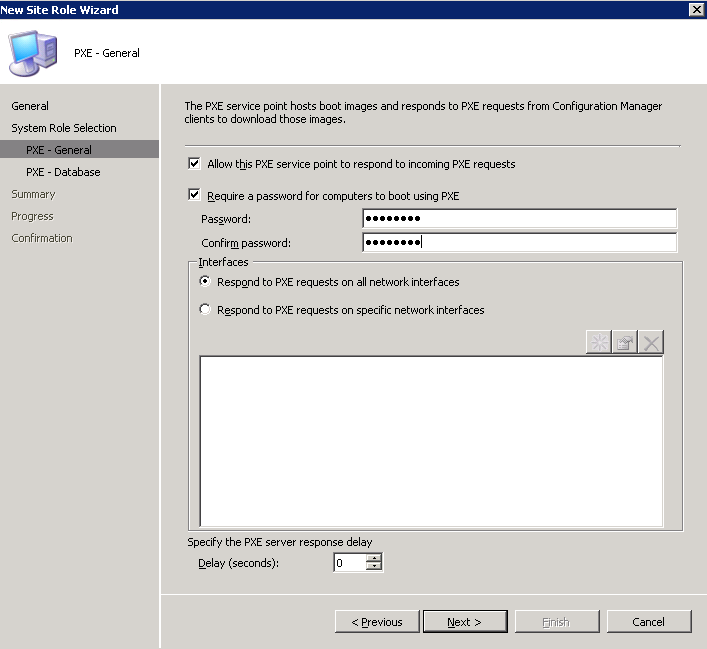
Again the below are fairly self-explanatory

Click finish

Now we can navigate to the OSD (Operating System Deployment) menu.

Before we start rolling out operating systems, we need to define a package to INSTALL the SCCM client. Otherwise we will be rolling these images out and won’t be able to manage them!
As the SCCM agent is a defined package already we can easily add this (I won’t explain to much as we covered packages in the last blog).
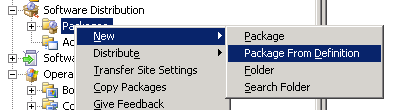

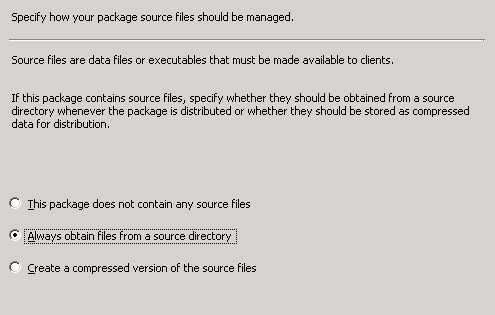
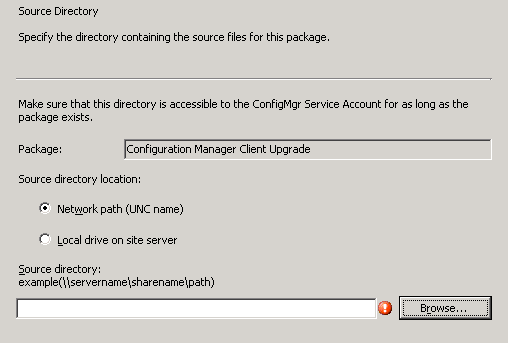

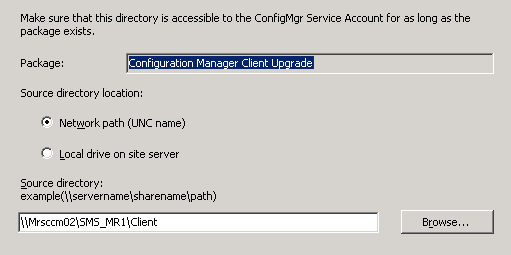
Now we’ve added the SCCM client package, if we navigate to boot images you will see by default we have an x86 and x64 version.

Right click > properties to change any of the default settings.
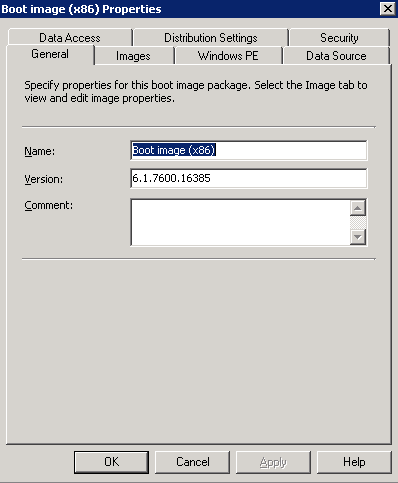

If you wished to add a new boot image you would simply select “Add boot image” then follow the wizard
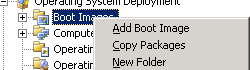

Now we have our boot image, we need to supply an operating system. (Once the system boots it needs to be able to install an OS)

Browse to the sources folder (in this case I’m using the windows vista CD)
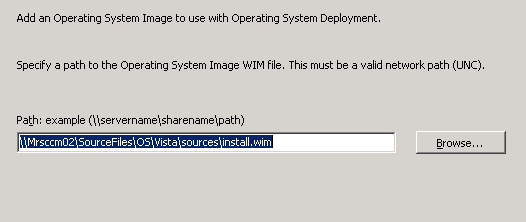
Fill out any required details

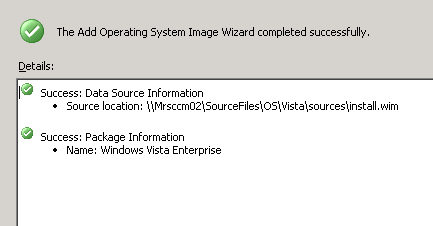
If you right click > properties you can again edit any of the settings you just entered
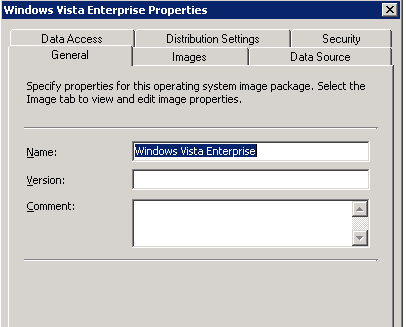

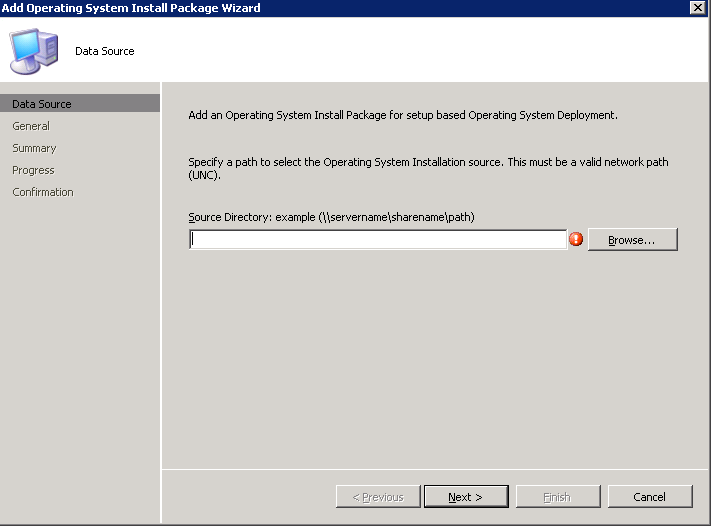
Now we need to supply the operating system install package. I have the vista OS copied to a folder, and in the below example I’m simply browsing to the CD stored locally. At present we can now boot, find an OS but we need to know the location of the installation packages…



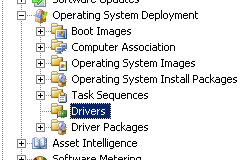
IF you have any special or required drives to be installed, you can supply these by right clicking drivers and creating a new driver location
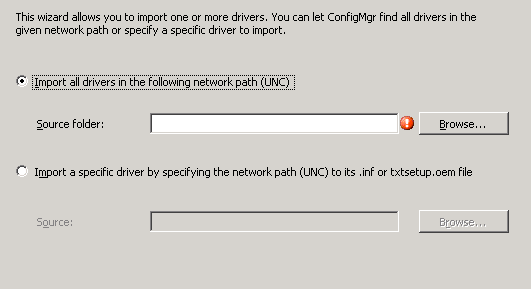
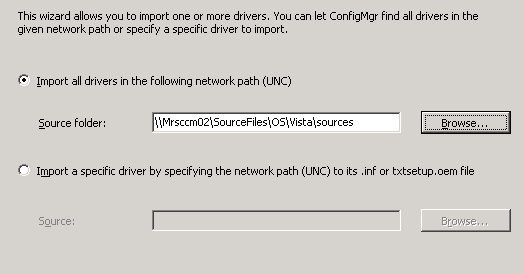

Once it has searched the location for drivers it will now try to import these

Type a name for these drivers


Select the location you wish these drivers to be added to

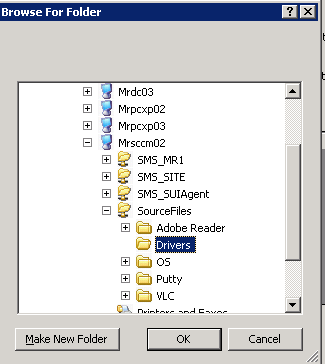
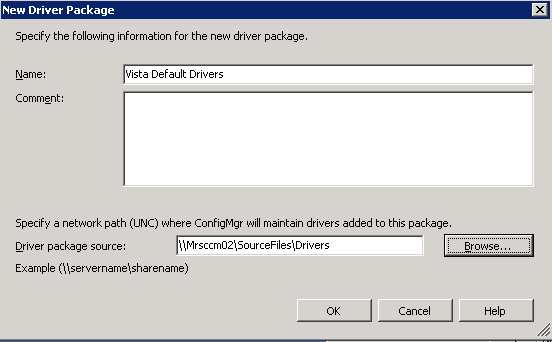
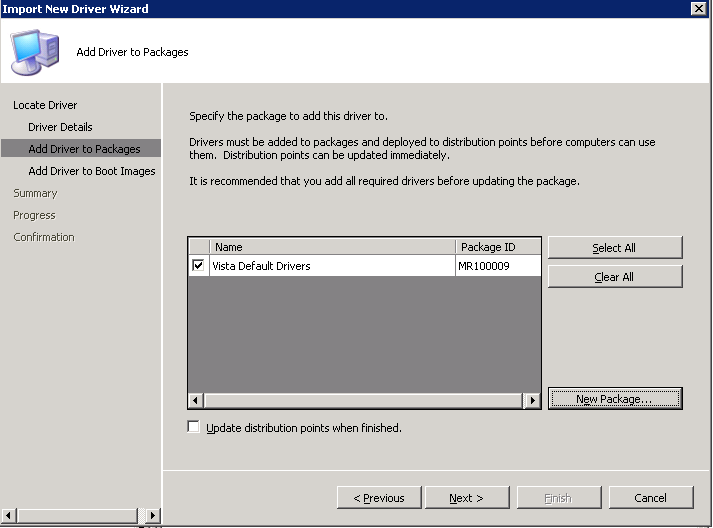
You can chose to inject the drivers in to the boot images if required
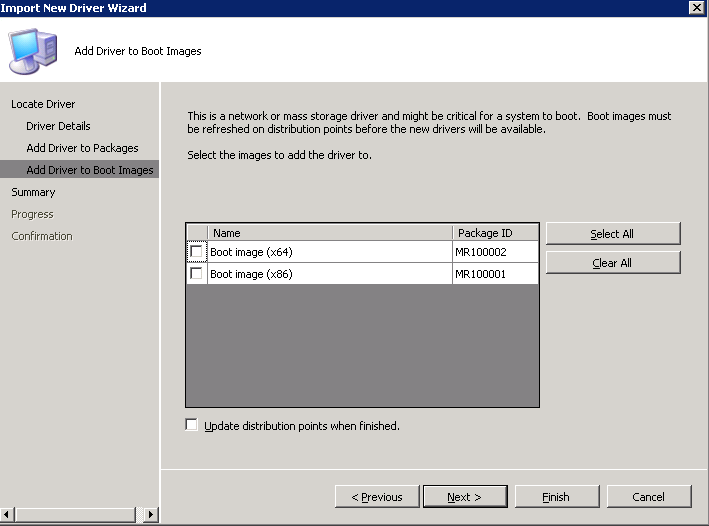
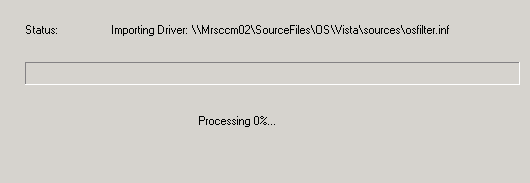
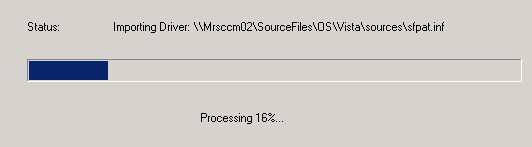
Once the drivers have been imported we can then continue.
Next we come to a task sequence. This is where we specify what actually happens and in which order

Right click > new task sequence, and we will select install an existing image package
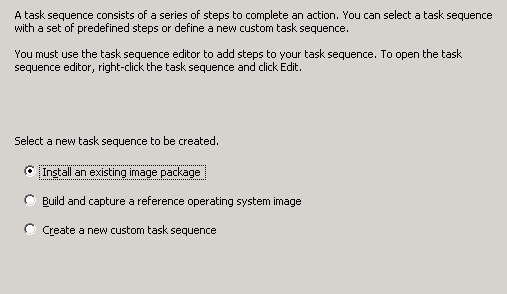
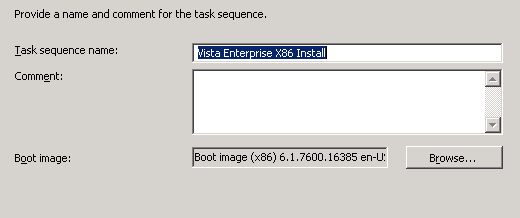
As usual fill out all the required details
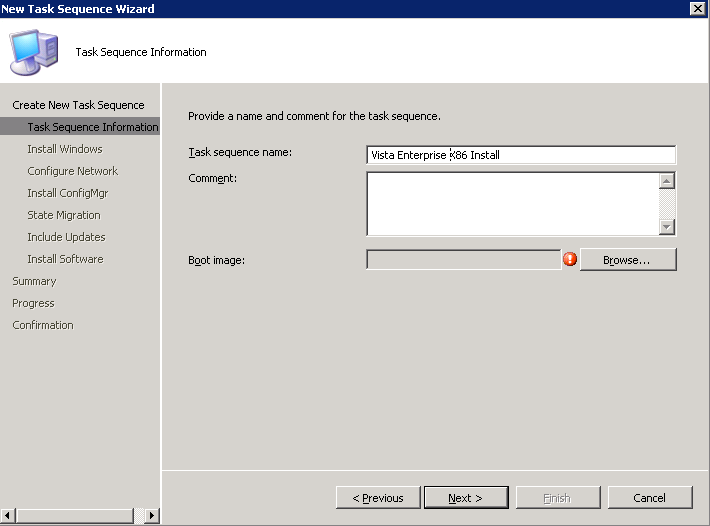
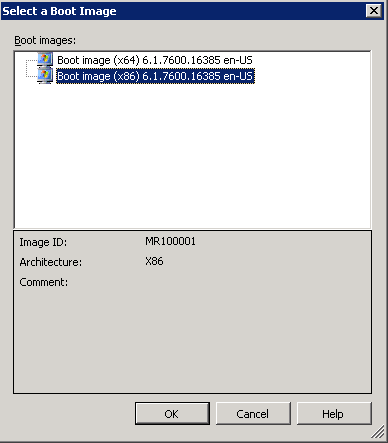
Select the required boot image
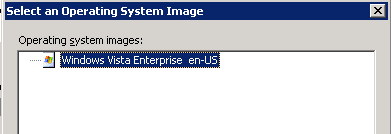
Select the operating system image

Choose if you wish the computer to be joined straight on the domain or simply a workgroup.


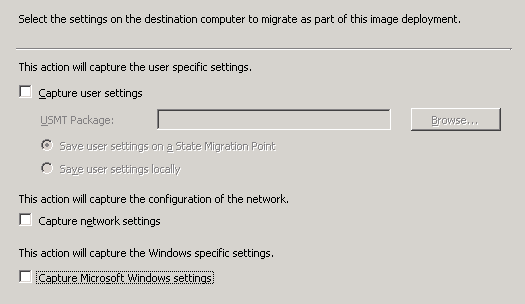
If you wish to capture any user/network or windows settings you can do so
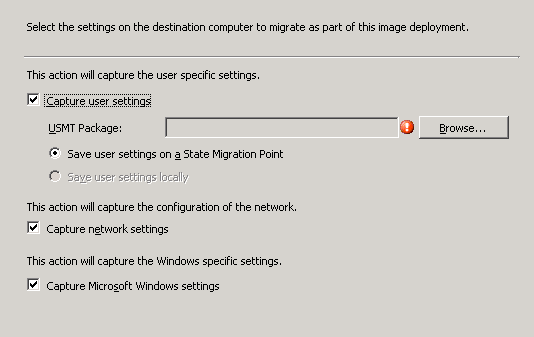
In this case I won’t be
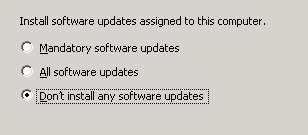
I don’t wish to install any updates for now
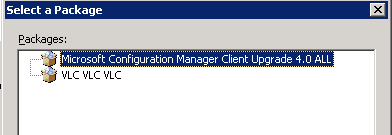
On the next page include the SCCM client agent as a package to be installed

Click finish and close

If you right click > properties you can see we now have lots of additional options and also the option to specify variables should something not complete successfully.


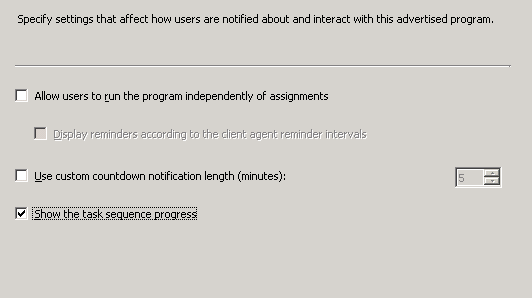
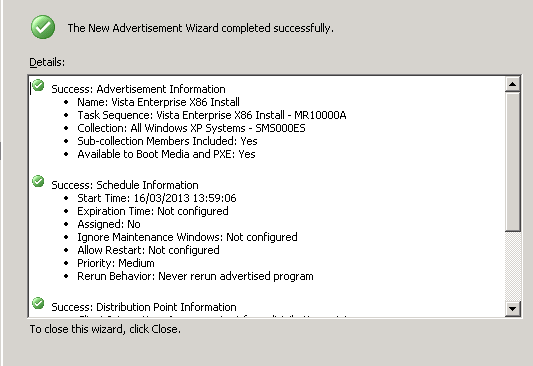
Finally we need to advertise this (like we did with the software deployments).
It’s the same as in the last blog so I won’t go in to detail again….
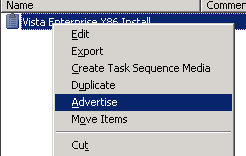
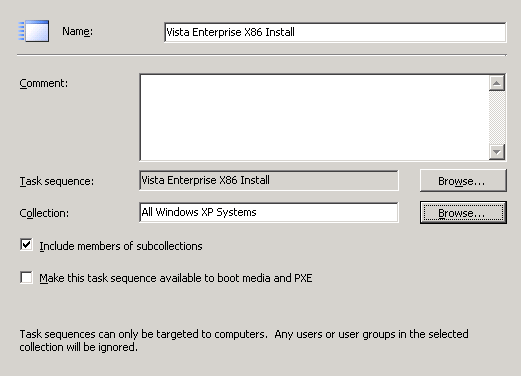
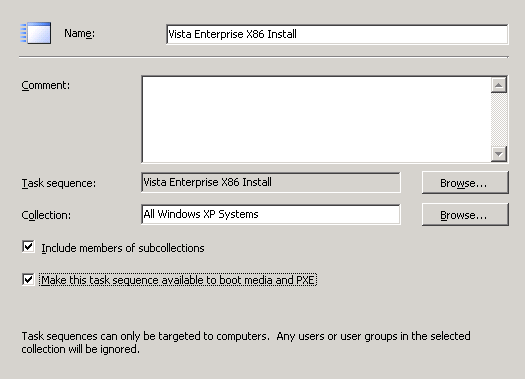
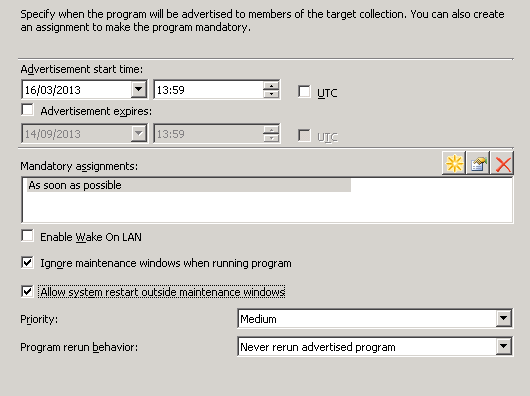
PLEASE PLEASE PLEASE make sure you choose to access the content from the server. If you download it, when the client formats the drive during the OS deployment well guess what there goes all the files needed to complete the deployment!

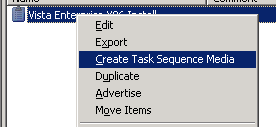
Now we have our sequence, if you wanted to create standalone media for this (say for an engineer to take out in to the field) right click and choose which ever option you require


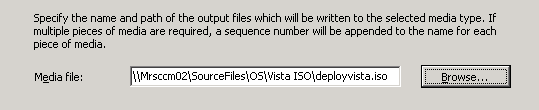
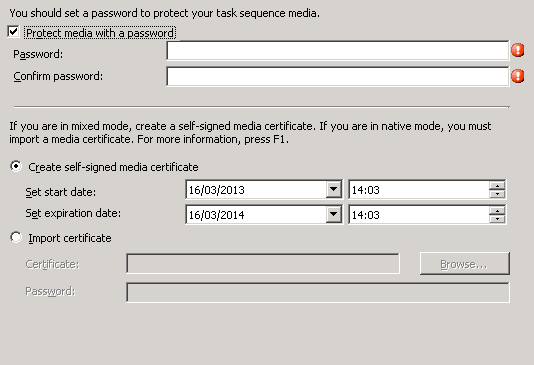


All fairly self-explanatory!
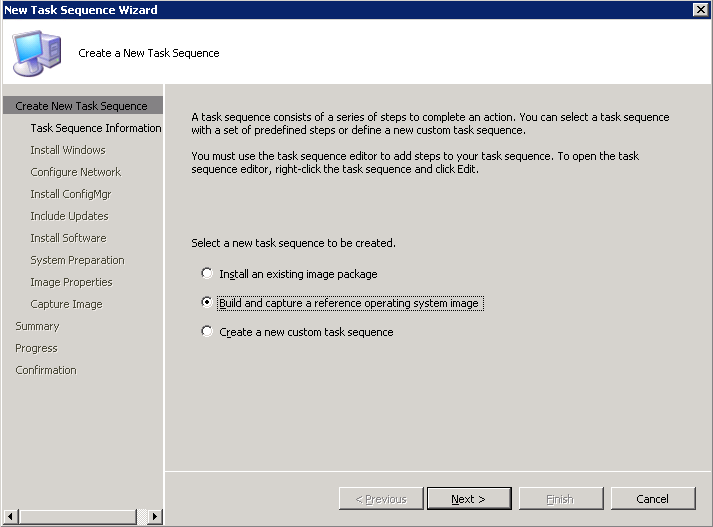
Using the same method as above (creating a task sequence) we will now build and then capture the OS image. We are effectively building it then sucking in all the information to create an operating system image. You will see every step is exactly the same as above with exception to the end where you actually do the capture.

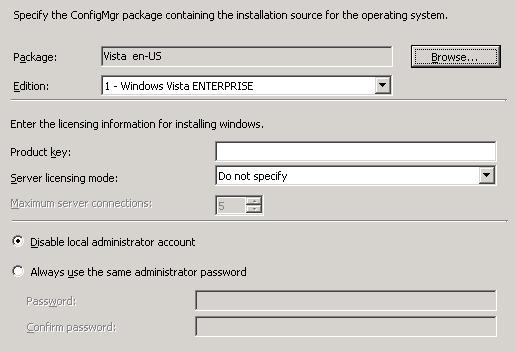


Here is the difference, we now specify a location for the .wim file to be created
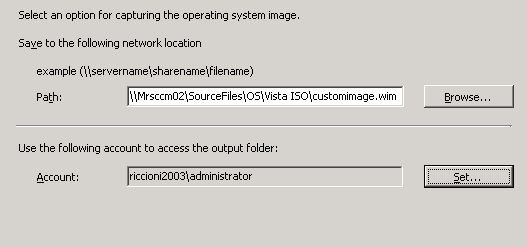

You can then click finish to complete the capture above.
There we have it, how to deploy an operating system via SCCM. Wasn’t too hard after all was it!