
-
Microsoft System Center Configuration Manager 2007 – Deploying Software Updates (Part 12)
Posted on March 20, 2013 by Michael in Latest News, Studying, Tutorials
A major part of any IT infrastructure is to make sure that all your clients are patched and full up to date. SCCM makes our lives easier (and if you’ve used WSUS – Windows Server Updates Services before) – you will seem the similarities (as SCCM works with WSUS).
This should be a fairly short blog (although as you’ll see the waiting for the SCCM server to pull down / query all the available updates will take the most time!).
We will look at covering:
- The WSUS Installation – as SCCM works WITH WSUS
- Software Update Client Agent & Site Role
- Deployment Templates
- Deployment Packages
- Updating Computers
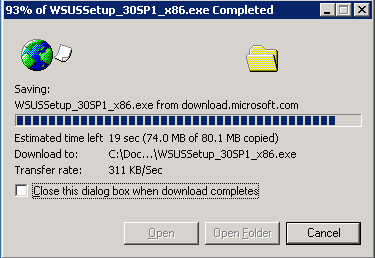
Before we go any further, if you haven’t already you will need to download WSUS. In this example I will be installing WSUS 3.0 SP1 (and then applying SP2).
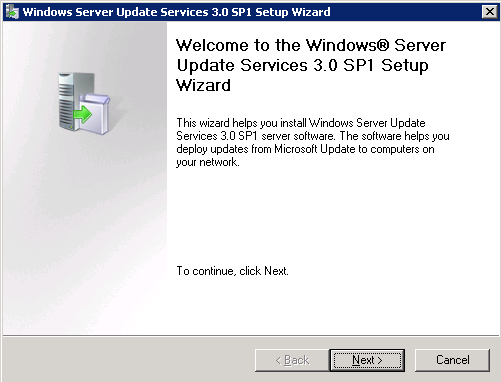
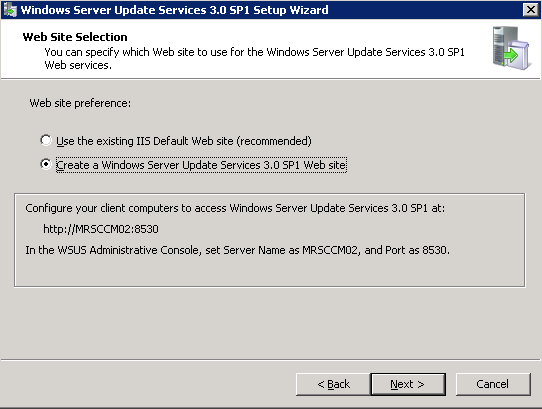
Once you have the installable download from Microsoft, run the installation and follow the installation wizard. When you get to the part regarding IIS (personally) I always chose to install to a NEW IIS website. It just helps with maintaining and also if any corruption should occur you are only effecting this, and not additional sites which all run under the default website.
Also please make a note of the ports used for this new IIS instance as you will need to update SCCM later with them!

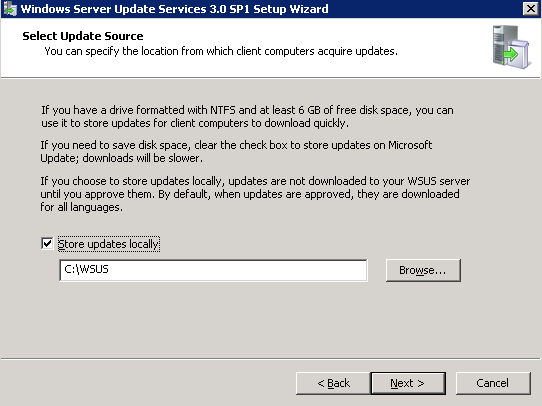

*Remember make a note of the below ports*

Now we have completed the WSUS installation, we can move back over to the SCCM console and complete the required configurations steps within here.
Like with most other SCCM “features” we need to make sure the agent is enabled. Browse to Client Agents and make sure the Software Updates Client Agent is enabled.

You will see we have a couple of other configurable options within here, whether or not to force installations to clients as well as hiding the deployments from the end user.

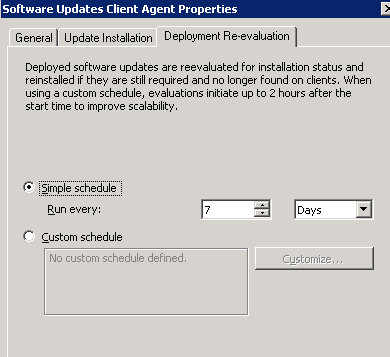
We can chose a schedule for “re-evaluation” deployments. I.E if an update has previously been installed but can no longer be found.
Now we have configured the agent settings, we need to add in a new site system point.
Right click and select “software update point”
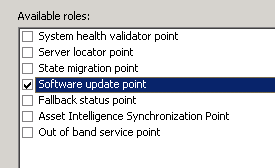
Follow the usual installation and select finish

Now let’s go in to the properties of the newly installed site role.
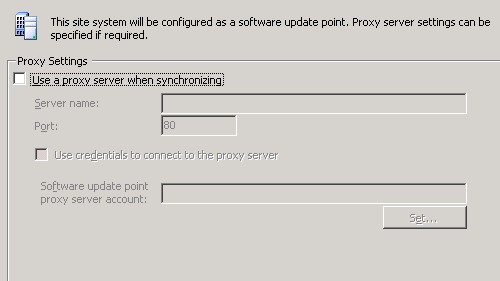
Remember when I said to make a note of the IIS port numbers, this is where we need to enter those two port numbers (as they are not using the default IIS ports).


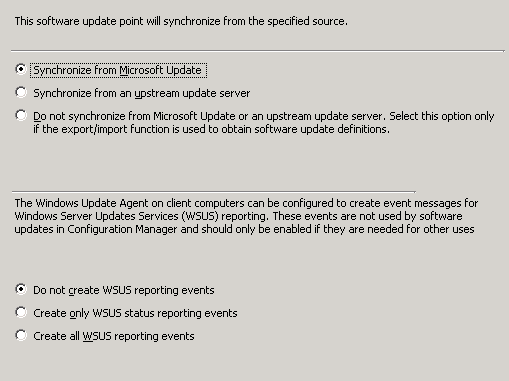
We will be directly synchronising from Microsoft Update. We can also choose whether or not to create reporting event. (E.g do you want to see what is going on with the client – the installation progress/update progress). It’s up to you but I would recommend in this case selecting create all WSUS reporting events.
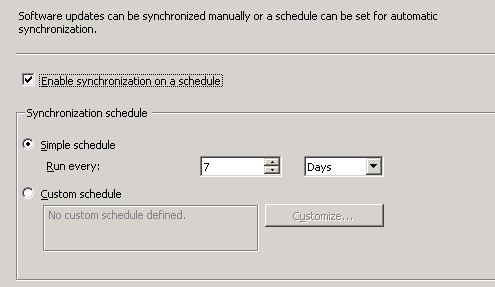
By default updates are synchronised every 7 days, depending on your environment you can chose longer or shorter, but 7 days is all we require for now
Next we can select which type of updates we wish to sync.

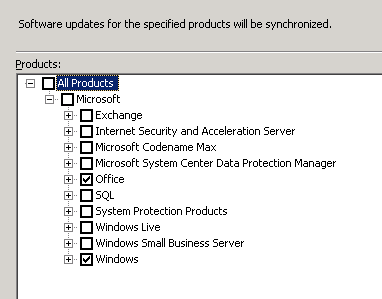
We can also pick for which products we wish to synchronise. There is no point sync’ing all the products (Exchange/IAG etc.) if we are only Server 2003/SQL 2005 and XP/office
Again, save yourself some time and space and only sync the required languages. Simply deselect any you don’t require.


Now we have configured this part. Let’s run a synchronisation with Microsoft. Browse to Software updates > Update repository > Right click > Run Sync
You will notice there is only one folder listed within the update repository at the moment

Here’s where you may as well go and do something else…Personally I left mine for a day as if you check the sync log you will see just how time consuming and how many updates will be processed


When this finally finishes, refresh the console and you will now see folders of all those updates you ticked during configuration.

We can then drill down in to all updates

And if we look at all those for XP we can see it lists Unknown and Total as 4 (in the majority of the cases) as SCCM currently does not know the status.
You will also see Deployed is: No

Before we can deploy the updates, we need to create a deployment template. Browse to Deployment Templates and select New
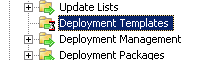
Follow the wizard as below

Select which collections you wish to include in this template

In this example I’ll be deploying to all XP machines

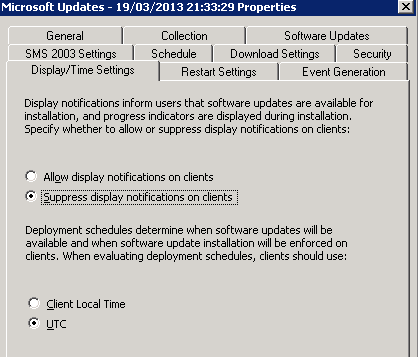
I will choose to hide the notifications
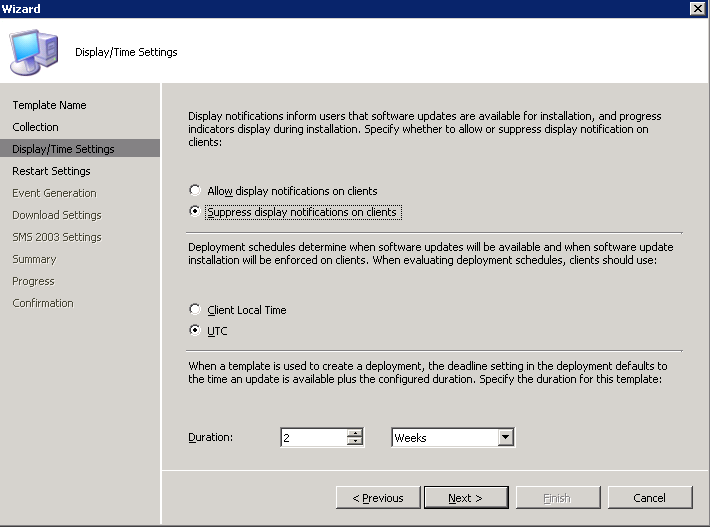
As well as choosing not to restart if required

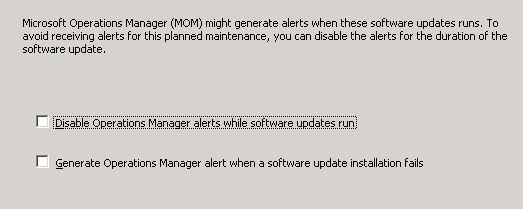
I don’t have MOM running so can ignore this but these are the same settings as covered in a previous blog
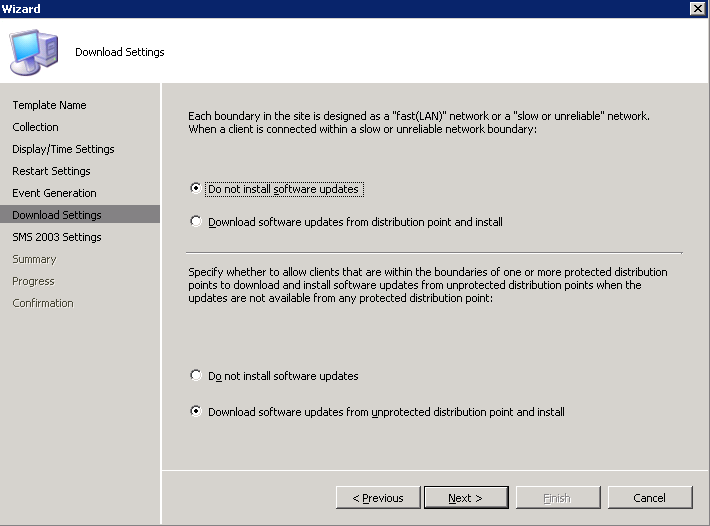
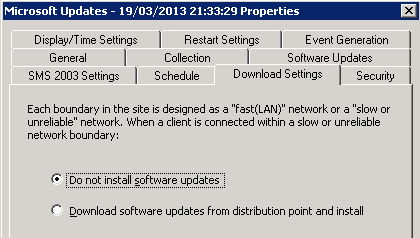
If you have boundaries setup you can chose to not install or download the updates from the local distribution point.
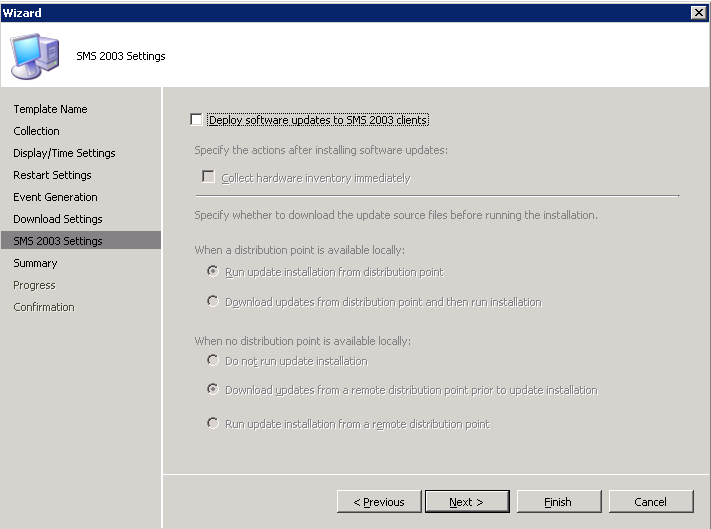
Not applicable for this lab but if you still have an older SMS environment (2003) you can choose to deploy to them.
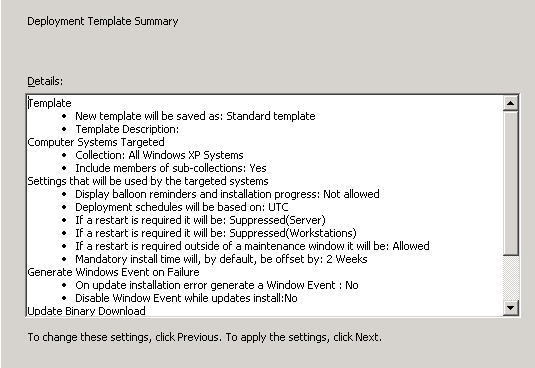
Review the settings and click Finish

We can now go back to the list of updates available. Right click a single update (or select multiple updates), and right click > Update list

We will now create a new update list
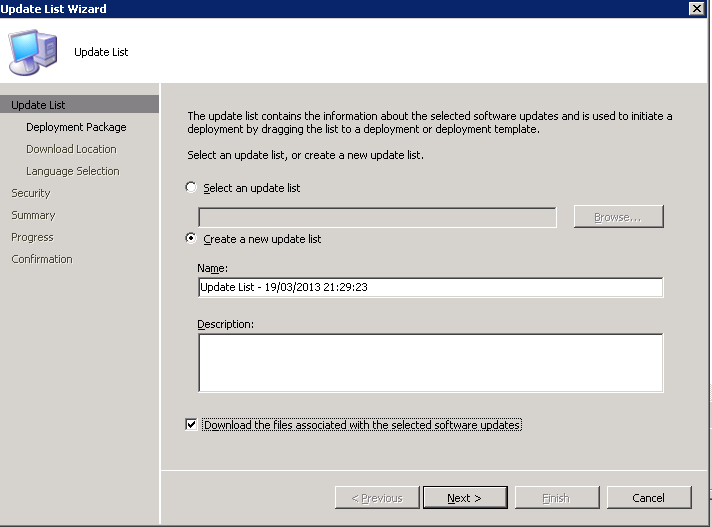
Choose the name, and package source (I’ve created a folder in c:\sourcefiles\updates)

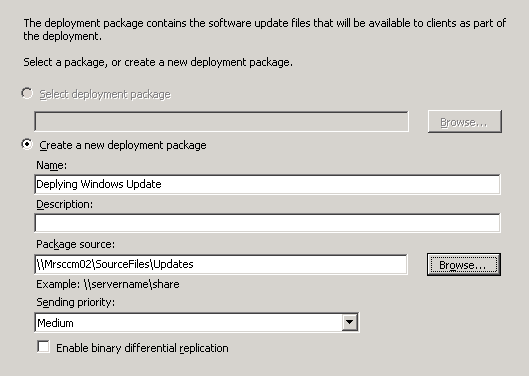
Choose a distribution point (in our case we only have the one)

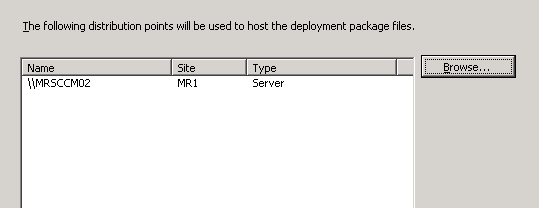
Choose to download the software from the internet (or if the SCCM server has not “outside world” access, you can choose to download from a secure share on your network)

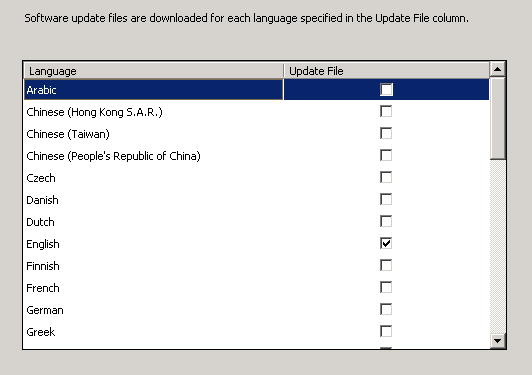
Again select the languages you need
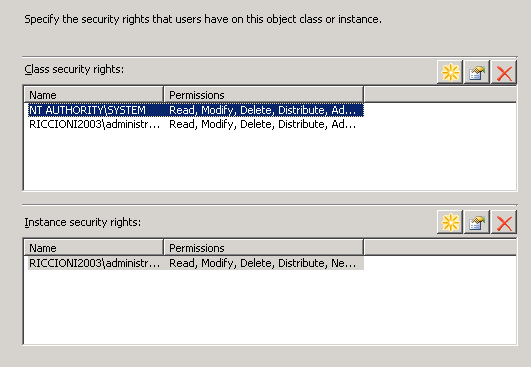
Select any additional security
Review and click finish


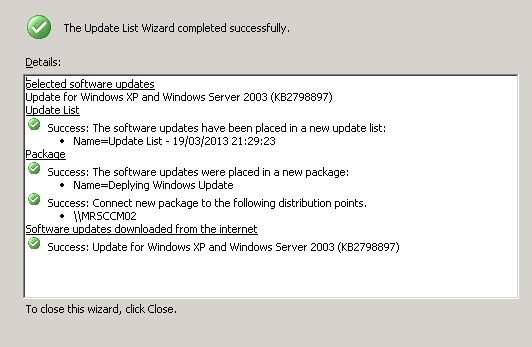
If we now check the update lists you will see the new list we have created

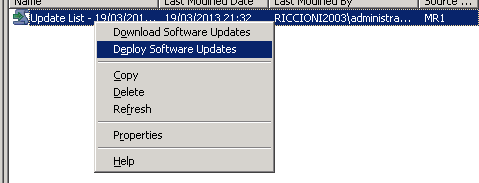
If we right click on here we can now deploy the software updates
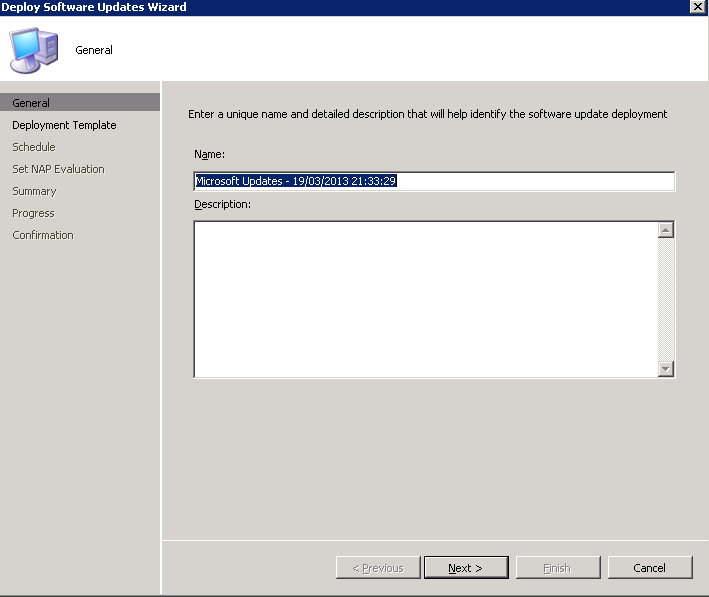
Name the deployment
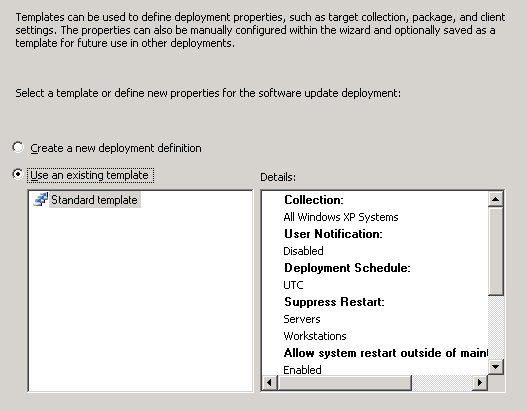
Chose the existing template (we created earlier)
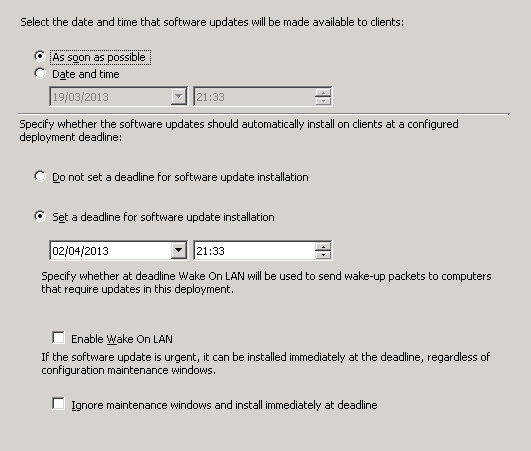
choose when to deploy the updates, and if a deadline is required/WOL is requires.
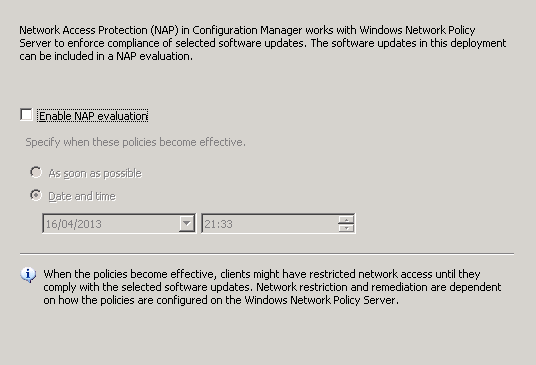
If you are using NAP you can chose to include this as a requirement
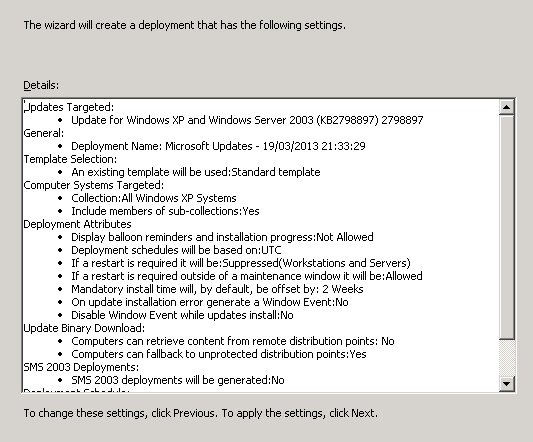
Review and Finish

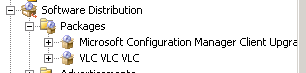
You may think it should appear in packages (where we deployed adobe and VLC from) but if you check it’s not listed
This is because it is actually listed under deployment management. If you drill down you will see the new deployment package located in here.

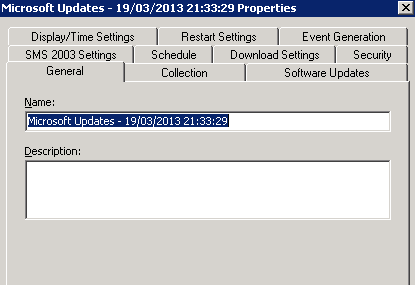
If we right click > properties, we can see all of the configuration options we have just configured.

And finally, once the update has been deployed if we refresh the console we should now see it showing as deployed to one workstation (I only have MRPCXP01 powered on at present).

Next up software usage and how we meter it….