
-
Upgrading Your Skills to MCSA Server 2012 – Server Core Basics (70-417)
Posted on September 29, 2013 by Michael in Certifications, Studying
Uh-oh, it’s that “scary” time…Server Core. Hopefully the following basics will show you and put to rest any issues people may have with server core. Personally for some types of server this is perfect, but anyway lets crack on. Following on from the Server GUI Basics post, it’s time to have a quick look at the basic management tasks you will most likely need to perform upon first installing Server Core.
Let’s start by firing up the server core installation…
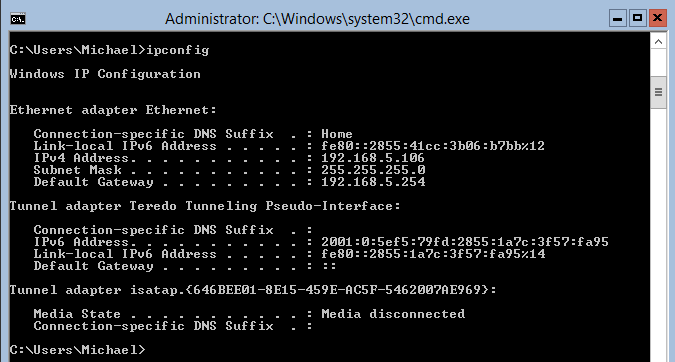
So we can see some of the basics work (ipconfig) for example, shows the current DHCP address it’s picked up.
Quick show of the hostname shows it’s the default hostname. Ideally before I do anything else I want to change this…

I’m going to show you two ways to do this. 1 Method via the standard command prompt and another via a “server core for cheats” menu…
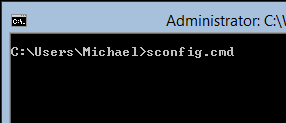
First up the easy way…Type sconfig.cmd from the command line and hey presto you are presented with a new menu
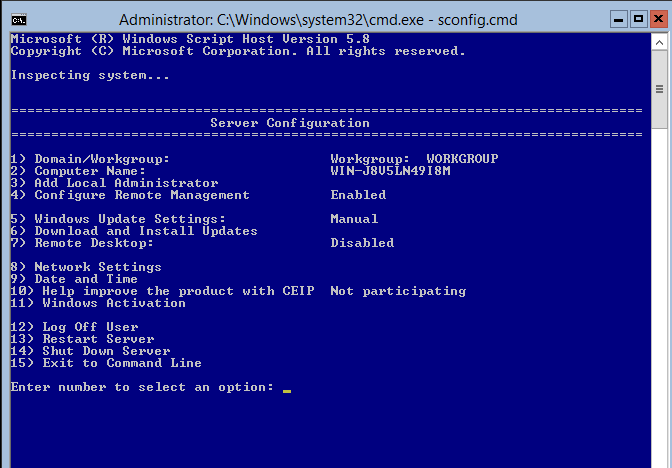
Here you can see we can now manage the most basic of settings. Server name, domain join, network card settings etc..
Certainly will make life a lot easier configuring server core, but unfortunately you still need to know the original way to configure these items as I’m sure they will be in the exam.
Anyway, continuing with this method, I’m going to rename the server. I entered 2 for option 2 and then simply typed the new hostname

Now how easy was that!? For those traditionalists out there, let’s take a look at renaming via the standard command prompt
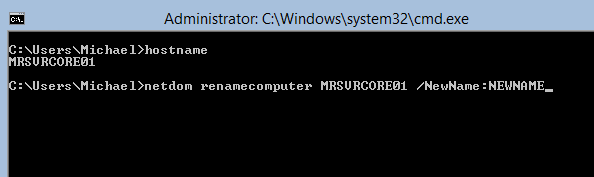
Still fairly straight forward would you not agree? netdom renamecomputer EXISTINGNAME /NewName:NEWSERVERNAME – Fairly straight forward really…
Now we have the server renamed, I’m going to join the server to the domain. We will again be using netdom like the above example, this time type the following:
- netdom join <MRSVRCORE01> /domain:riccioni.ad /userd:administrator /passwordd:yourpassword

Now in your environment that would be fine, unfortunately for me i’m using my home router as the DHCP/DNS server still, which means this server asks my home router what riccioni.ad is, the poor sky box has no idea.
Let’s configure up the network settings on the this server, and then try a domain join again. I’ll again show you both methods, the easy way and the original way!..
Let’s go in to sconfig.cmd, and this time it’s option 8 for network settings.
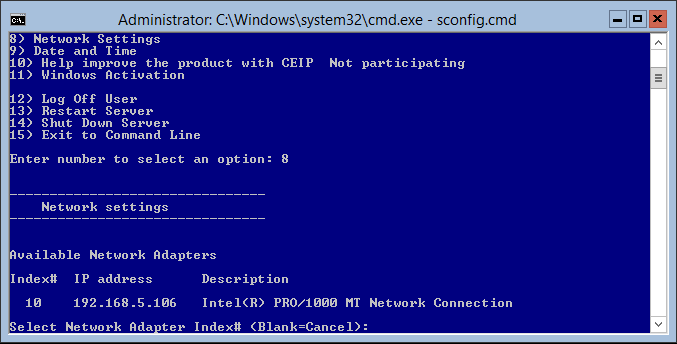
Then the number 10 for the network adapter I wish to edit, followed by option 2 which will allow me to set the DNS server

Finally enter the DNS server (in this case MRDC01) – and it’s been set

Now if I try a simple ping of riccioni.ad I get a reply, which *should* mean I can now join the domain!
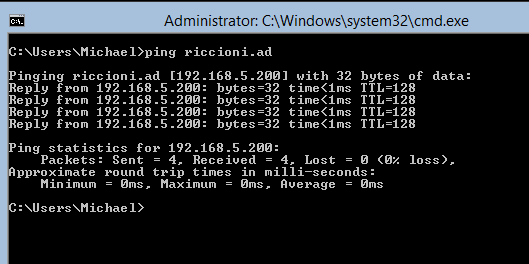
Enter the command again and this time success

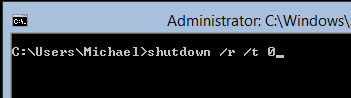
Now another tricky task, shutting down the server. I’m sure most of you have used the shutdown command before, but if not and to get familiar with it simply issue shutdown /? Which will display a list of switches and commands which can be used with it

In this case I want to restart the server instantly so I will issue shutdown /r (restart) /t (timeout) 0
After a reboot we actually get to see a bit of colour!, let’s go ahead and sign in as the administrator


And we are back to good old command prompt. This time I’m going to set the static IP of the server.
To start with we can issue:
- netsh interface ipv4 show interfaces
This allows us to see the current network adapters available to us
Let’s go ahead and configure the Ethernet card with a static IP
- netsh interface ipv4 set address name=”12″ source=static address=192.168.5.201 mask 255.255.255.0 gateway=192.168.5.254

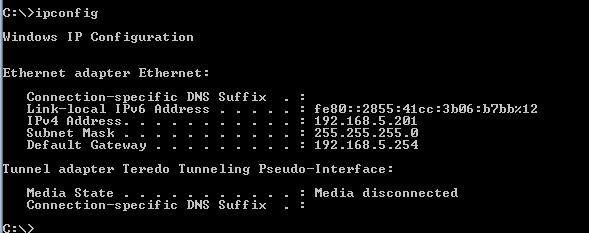
A quick ipconfig shows the new settings have been applied…Again nothing too hard so far.
I’m now going to enable remote desktop and I’m going to cheat (well take the easy way out) and use sconfig.cmd for this…
Option 7, followed by option 2 and job’s a good one

There we have it. We’ve just setup a server core installation with
- Server Name
- Network Interface Details
- Joined Domain
- Enabled RDP
One last note, as was mentioned in the GUI basics, DCPROMO is no more, and in fact the only time you CAN use it is if you are deploying a server core READ ONLY domain controller, as shown below.
There we have it, proving that server core is really not that difficult after all!