
-
Upgrading Your Skills to MCSA Server 2012 – Managing Storage Part 1 (70-417)
Posted on February 18, 2014 by Michael in Latest News, Studying
Well It’s been a while since the last PowerShell blog, and already over a month in to the new year so about time I picked up on this serious of blogs.
For the first blog of the new year, we will be looking at managing storage via Server 2012 mainly:
- New Features
- Configuring iSCSI Storage
- Configuring Storage Spaces in Server 2012
- Configuring BranchCache in Server 2012
Looking at a quick overview of the new features, you are most likely already familiar with a few of these..
- Multiterabyte volumes
- Data deduplication
- iSCSI target server
- Storage spaces and storage pools
- Unified remote management of File and Storage Services in Server Manager
- Windows PowerShell cmdlets for File and Storage Services
This blog is going to jump back and forth between different topics, mainly because there’s a fair bit to cover, and will be split over two blogs so try and keep with it!
I’ll start with data deduplication, as I’m pretty certain you’ve most likely heard about this or know of this. But if not what do we mean by data deduplication?
Well data deduplication identifies and removes duplications within data without compromising its integrity or fidelity, with the ultimate goal to store more data on less space. (and what does less usage = ? that’s right it’s CHEAPER!).
Obviously there is a slight overhead to enabling deduplicaiton on a volume, in this case a background task run’s with low priority which performs the following:
- Segments data into small, variable sized chunks
- Identifies duplicate chunks
- Replaces redundant copies with a reference
- Compresses chunks
You are most commonly going to enable this on File Shares, software deployment shares and maybe even VHD libraries.
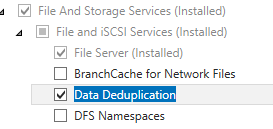
Let’s take a look at configuring data deduplication. Firstly add it as a server role


We will now apply this to a share, so lets now browse to server manager > File and Storage Services > and right click configure data deduplication
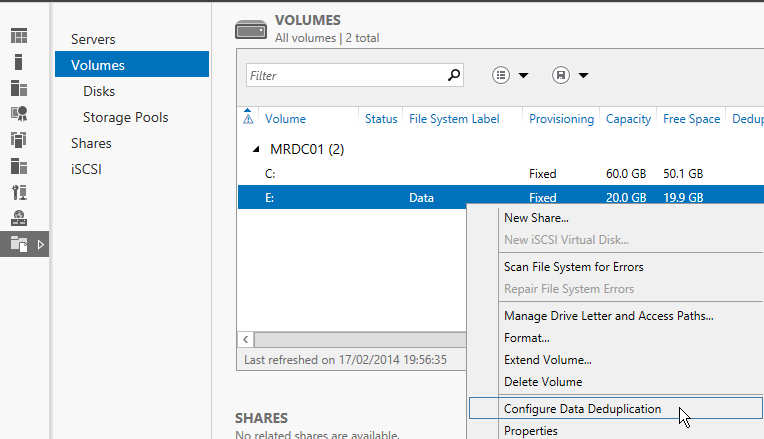
You can set how many days old the files should be as well as choosing a schedule, and file types to exclude

Now before I enabled data deduplication, I made a single 1GB text file and renamed it a few times in both the same folder and a different folder as shown below

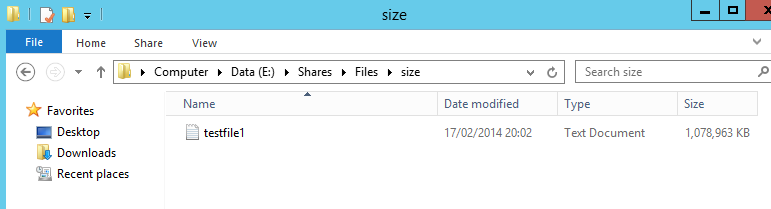
As you can see, three x 1GB files take up 3GB of space (not surprisingly)

I’m now going to kick off data deduplication manually on the data drive
- Start-DedupJob -Type Optimization -Volume E:

And to view the status of the job (as above and below):
- Get-dedupjob

Now the state is showing as completed, I will go back in to server manager and here you can see the status of deduplicated data

Checking the overview you can see we seemingly now have an entire free drive

Yet if we browse we still see the same size files, and all three files open correctly.

Moving on from data deduplication…
For those of you familiar with home labs, and virtual environments you are already more than familiar with Thin provisioning, and to some degree Trim storage, but for those of you who aren’t this is a new feature to Sever 2012 which is ON by default, so there are no features or roles you need to install.
Thin provisioning, is the ability to allocate storage space without the physical disk space needing to be there. For example, In my home lab I have a 250GB physical disk. I could provision a virtual disk on here for the size of 2TB. Now obviously the disk won’t store 2TB, but it means I can allocate sufficient space to a drive without the physical requirement being there. Useful if you have a JBOD setup or back-end SAN, allowing you to simply “throw” more disks in when needed (that’s a technical term…).
Trim storage however is the ability to reclaim storage that is no longer needed, if you are familiar with exchange (older version’s), it’s no different to reclaiming “lost white space”.
The best way to explain this is that the the file system can inform the underlying physical storage device that the contents of specified sectors are no longer important. This means those sectors can be used by another volume. It’s effectively saying there used to be data here, it’s since been moved/deleted and this space can be re-claimed so feel free to use it.
That’s all there is to say about those two topics, as mentioned they are on by default, so now I’m going to cover the new features within file server resource manager.
File Resource manager allows you to manage and classify data that is stored on file servers, many people don’t know this is already available in Server 2008 R2, you can already do the the following:
- File classification infrastructure
- File management tasks
- Quota management
- File screening management
- Storage reports
The new features Server 2012 brings to the table are:
- Dynamic Access Control – Allows you to use file classification to help you centrally control and audit access to files on your servers
- Manual classification – As you’d imagine the manual ability to classify files and folders
- Access-denied assistance – Allows you to customize the error end users will see (requires windows 8)
- File management tasks – Updates to file management tasks include AD RMS (Active Directory Rights Management Services) file management tasks, continuous file management taks and dynamic namespace for file management tasks
- Automatic classification – Allows you to get a more precise control on how data is classified by using windows powershell for custom classification, as well as updates to the existing content
I like the new features Server 2012 brings to the table, ad certainly whilst playing about with it in my home lab and I consider it much better than what was available in 2008 R2.
Before I continue, I just want to make sure before I start referencing them everyone knows the difference between Basic and Dynamic Disks….
If not it’s pretty simple:
- Basic Disk
- Disk initialized for basic storage (supported by MS-DOS and all version of Windows)
- Default storage for Windows
- Converting a basic disk to dynamic will cause NO data loss
- Dynamic Disk
- Supported by all version of Windows (back to XP and NT Server 4.0)
- Can be modified without restarting Windows
- Provide several options for configuring volumes
- Simple Volume – Uses free space from a single disk
- Spanned Volumes – Uses free disk space that comes from multiple disks (up to 32 disks). Cannot be mirrored, and if you lose one disk you lose all data
- Striped Volumes – Data is spread over multiple disks evenly, like the above if you lose one disk you lose all data
- Mirrored Volumes – Data is mirrored between physical disks allowing a level of redundancy (also known as RAID-1)
- RAID-5 Volumes – Data is spread over multiple disks (minimum of three disks). One of these disks is used for parity, meaning if a drive fails the data can be recovered from this parity drive.
- Converting a dynamic disk to basic disk will lose all data on the disk
Server 2012 also brings to the table something know as ReFS (Resilient File System). What does this do? Well it has the following advantages:
- ReFS provides the following advantages:
- Metadata integrity with checksums
- Integrity streams providing optional user data integrity
- Allocation on write transactional model
- Large volume, file, and directory sizes (278 bytes with 16-KB cluster size)
- Storage pooling and virtualization
- Data striping for performance and redundancy
- Disk scrubbing for protection against latent disk errors
- Resiliency to corruptions with salvage
- Shared storage pools across machines
Basically ReFS inherits features from the NTFS file system including bitlocker encryption, ACL’s, change notifications, mout points volume snapshots etc….
Because ReFS uses a subset of features from NTDS it means it is backwards compatible, if enabled older clients will still be able to read and write to ReFS partitions.
The whole driver for ReFS and the features it brings is to allow for even greater resilience, which i’ll show at a later date
Of course, like all these new features there are those features which sadly leave and are deprecated…. below are some of those which just didn’t make the cut
- Storage Manager for Storage Area Networks (SANs) snap-in
- Storage Explorer snap-in
- SCSIport host-bus adapter driver
- File Server Resource Manager command-line tools
- FRS
- Share and Storage Management snap-in
- Shared Folders snap-in
- VDS provider
That’s it for Part 1, not too much to show in terms of guides for this as it’s mainly describing the new features Microsoft want you to know about…