
-
Getting Started with VMWare ESXi 5.1 (Part 1)
Posted on December 1, 2012 by Michael in Latest News, Tutorials
As I’m asked on a regular basis “How did you get started with VMWare?”/ “Can you tell me how to configure VMware”, I thought rather than explaining it over and over I write it down for all to see!
Now this guide can be as simple or as difficult as you wish, if you just want to install VMWare ESXi and install a new Virtual Machine then just follow those parts. If you want to create separate VLANS for your VMware environment so you split the DATA (iSCSI/Fibre Channel)/LAN (Production) networks then follow that part.
I’ve tried to create this guide to cover off the very basics when it comes to getting started with VMWare.
As a brief outline below we will be covering the following:
- Installing VMWare ESXi 5.1
- Configuring VMWare ESXi 5.1
- Attaching additional storage (SAN)
- Configuration of the Physical Switch (for production traffic/Backend DATA traffic (iSCSI/Fibre Channel)
- Creating additional Vswitch for your backend traffic
- Creating a Virtual Machine
- Installing VMWare VCenter (to manage your VMWare environment)
- Configuring VCenter
If you follow both parts of the guide then we should end up with a network which looks like the below:
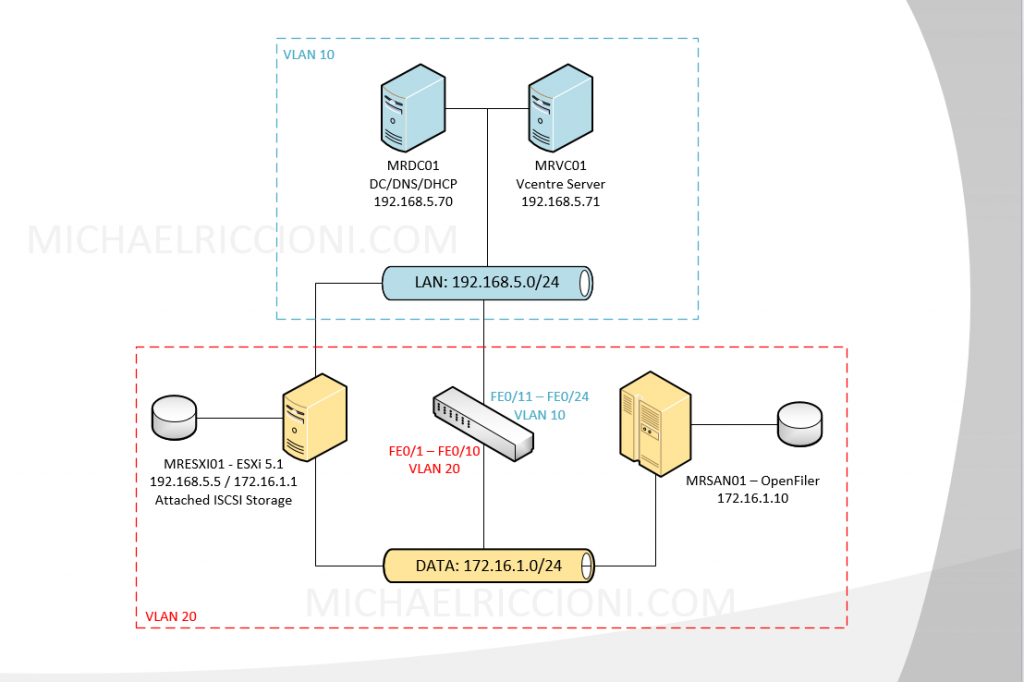
Note: In order to screen shot the steps, I’ve installed VMWare ESXi 5.1 in a Virtual Environment, but once the installation is done I will switch back to my ESXi Host which is currently running 5.1.
Firstly then you need to grab yourself a copy of VMWare ESXi 5.1 – This can be downloaded from VMWare’s website – http://www.vmware.com/uk/
Sign up for an account and then navigate to the downloads section, once downloaded we can begin.
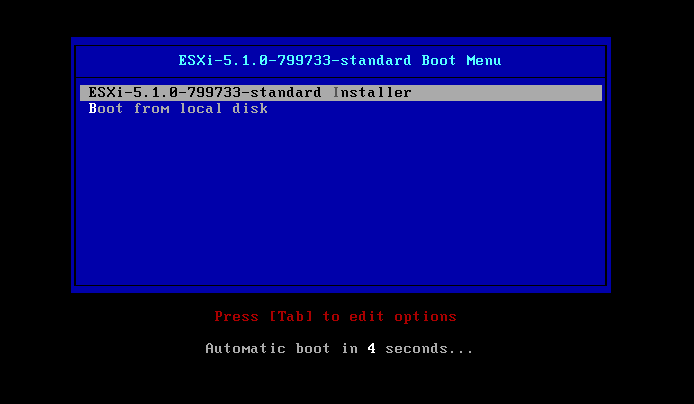
Boot your Host from the CD, and then select the standard installer option
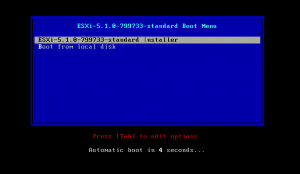
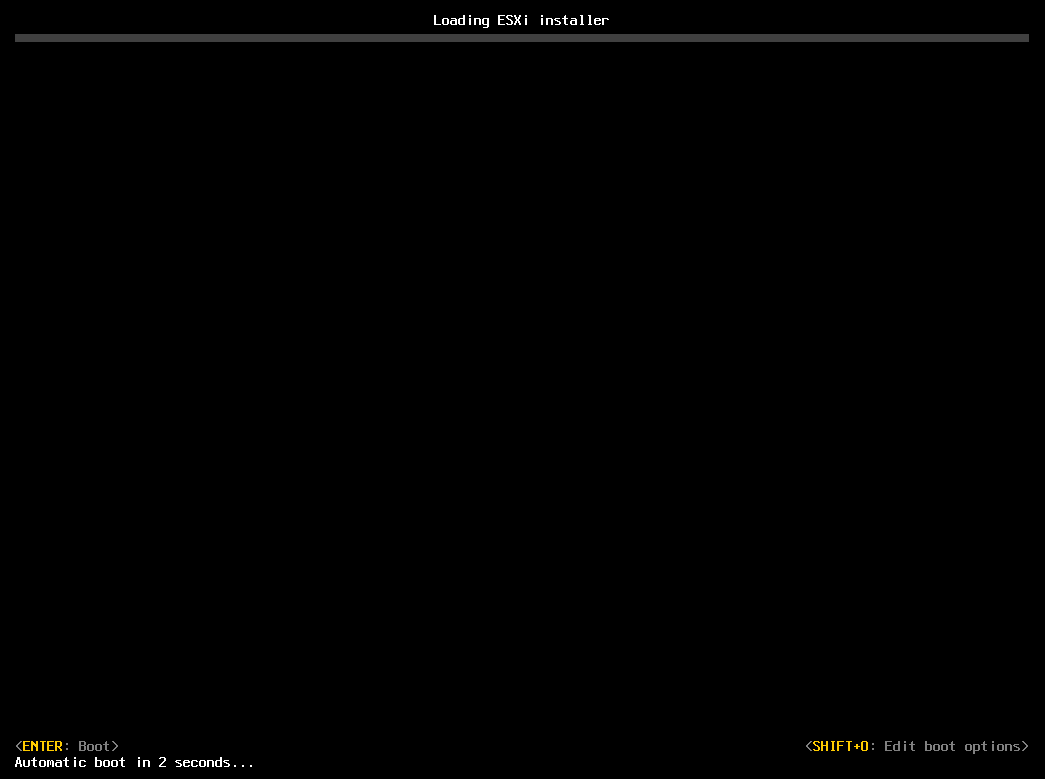
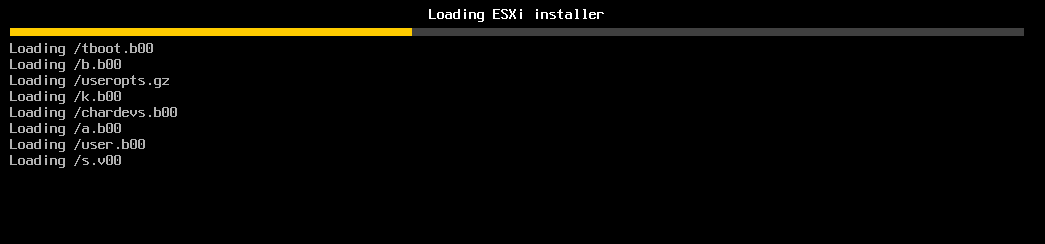
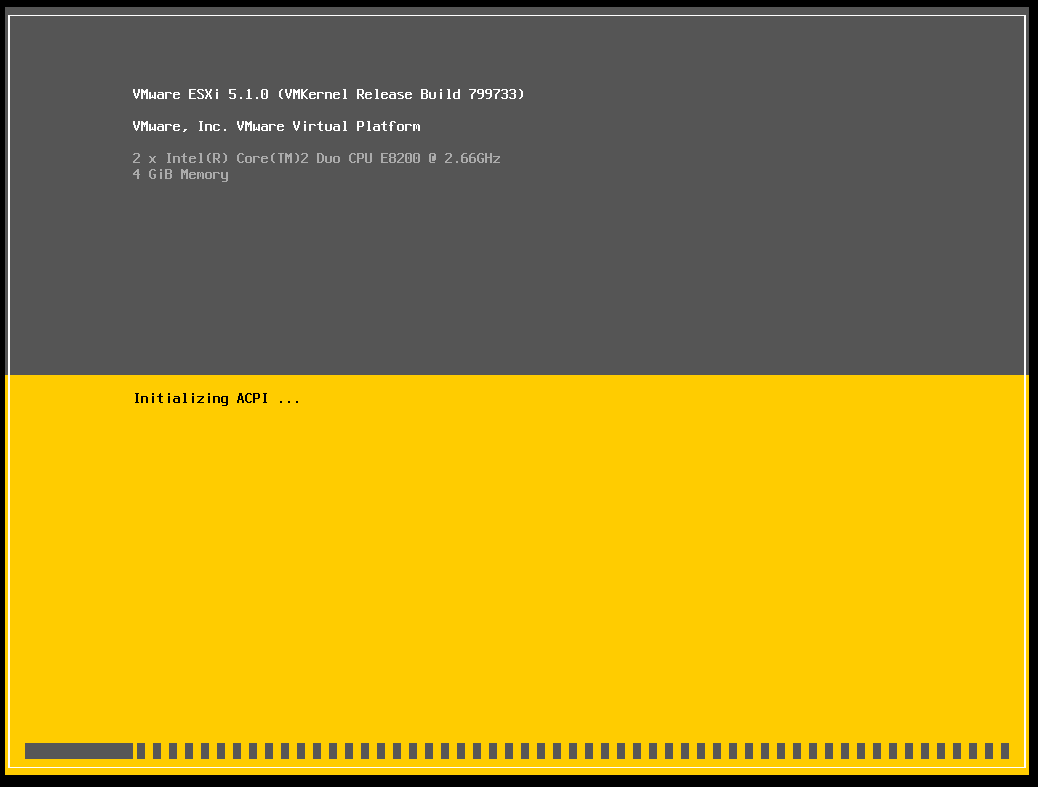
You will see the following screen’s as it goes through its boot process
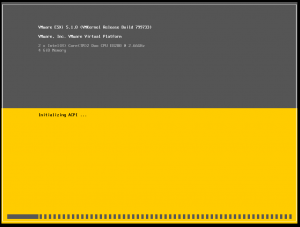
Once done we get to the installation, select enter to continue and then follow the next steps (fairly straight forward so far).
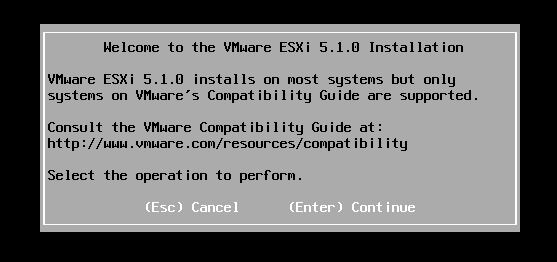
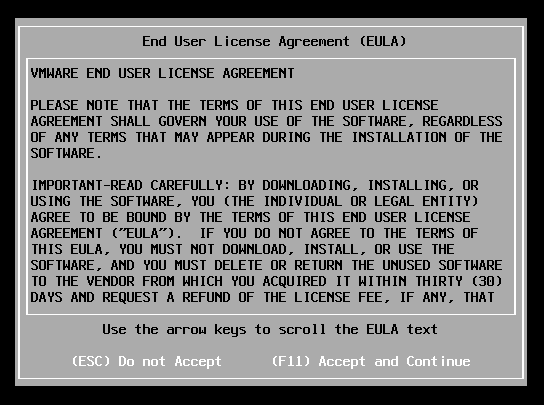
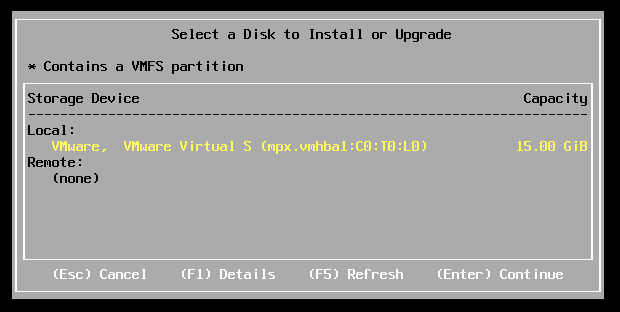
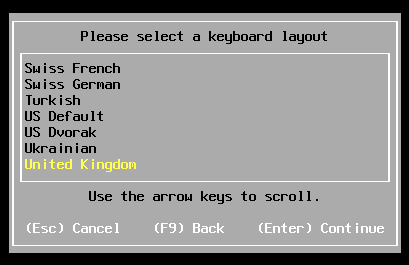
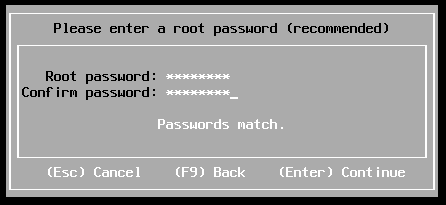


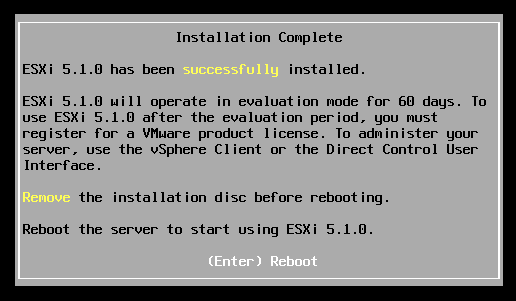
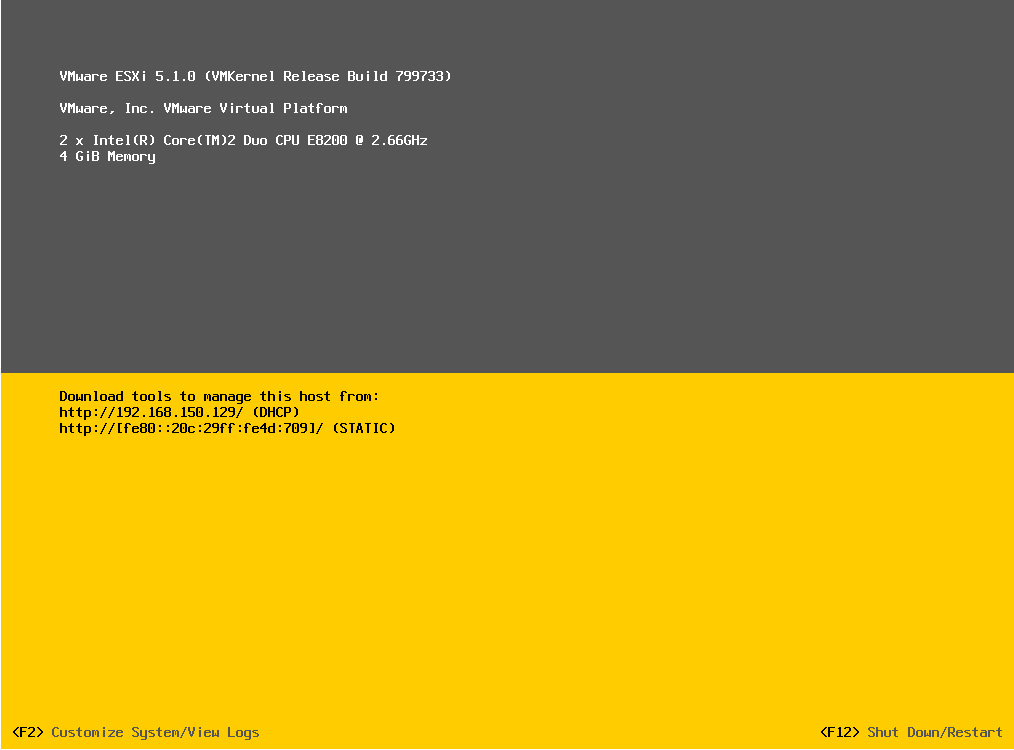
Now we have installed ESXi (didn’t take that long did it!? How long did you think it would take?), if we reboot the host will then come up and load the ESXi OS.
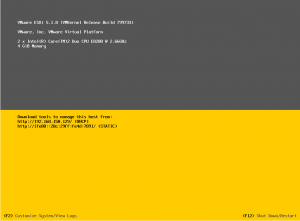
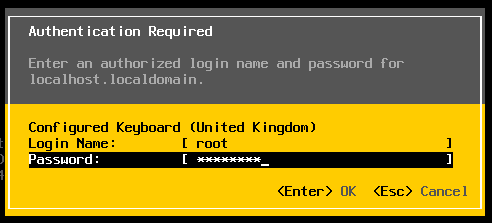
Press F2 to customise your system (enter the root password created when installing)
The main part we will focus on is the network. We want to manually assign IP information to this host (much like we do with servers).
As you can see everything is set to DHCP so go through the IP configuration and DNS configuration and change them to suit your environment.
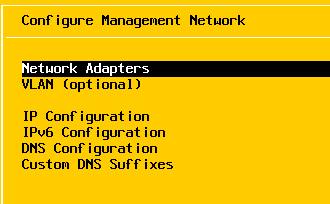
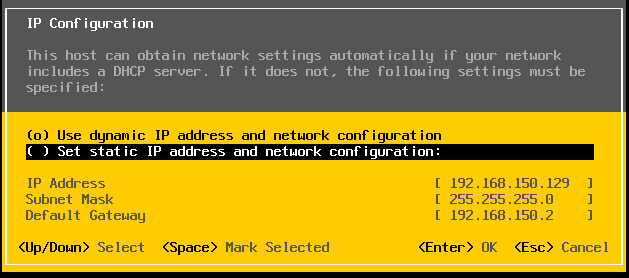
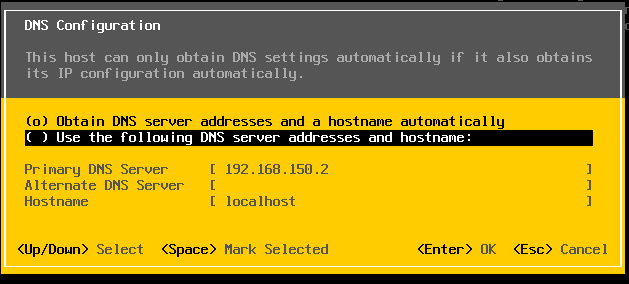
Once done, it will ask you to save changes and restart the network management of the ESXi host. Confirm this and now we can leave this underlying OS behind.
We can now configure the physical switch with the different VLANS (Skip this step if you don’t require this).
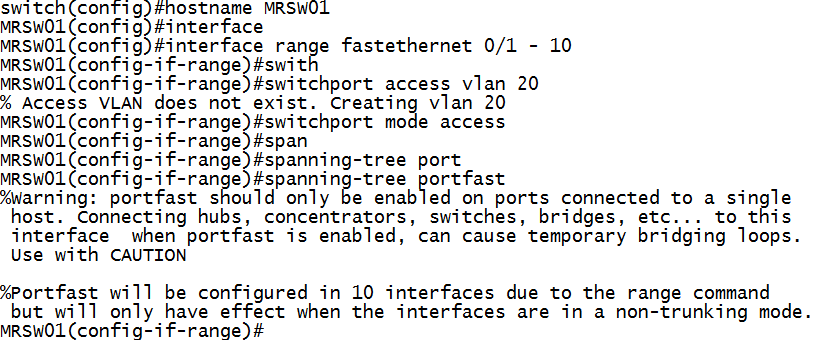
Fairly basic config if I’m being honest, I’m simply splitting the switch ports 1 – 10 VLAN 20 (for backend data traffic) and Ports 11 – 24 as VLAN 10 (for production traffic).
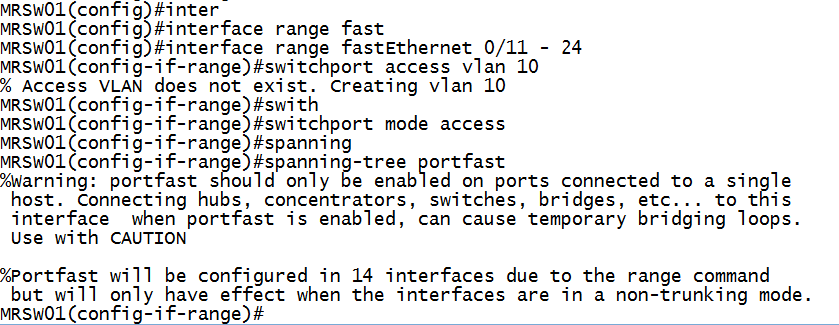
Now to configure VLAN 10 and the remaining ports
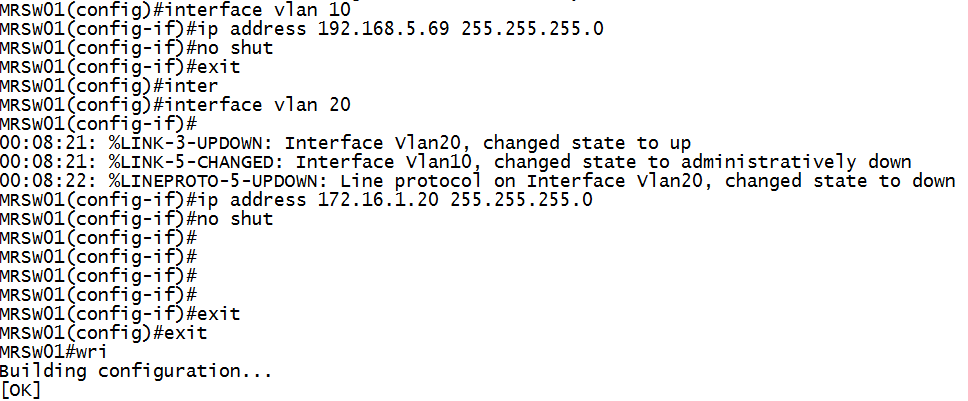
finally I will assign each VLAN a management IP address, and finally save the configuration…
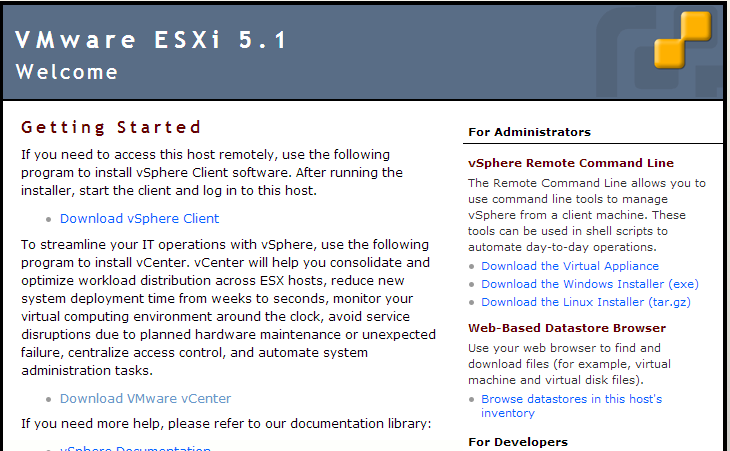
Now that’s done, from another computer connected to your network browse to the given IP address of the ESXi host (https://192.168.5.5) in my example.
You will be presented with the below screen. Select to download VSphere Client.
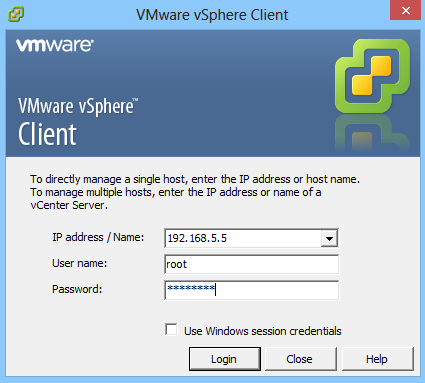
Once installed, log on to your ESXi host as below:
We are now going to create our first virtual machine (and in this example it’s going to be the VMWare Vcenter Server).
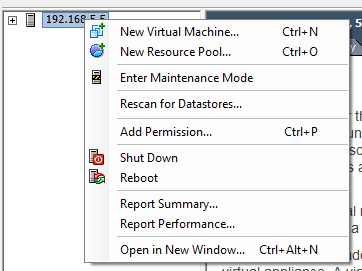
Right click the host, and select New Virtual Machine (it’s a standard next, next, next, finish dialogue box), just change any details you require as the screen shots below

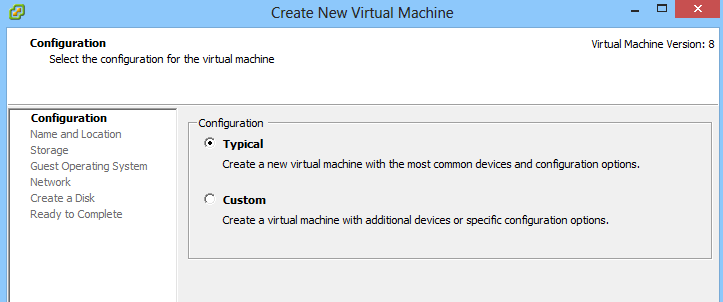
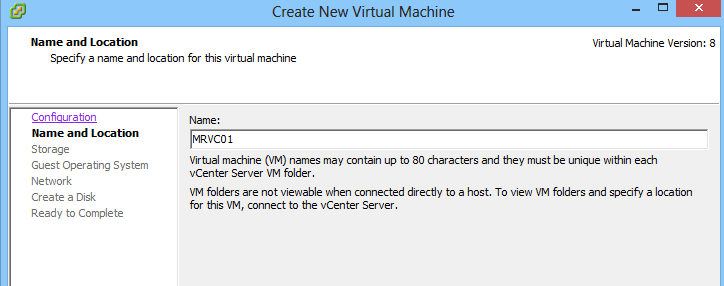
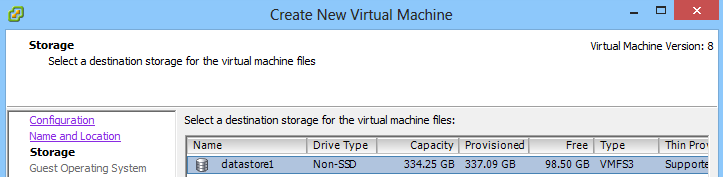
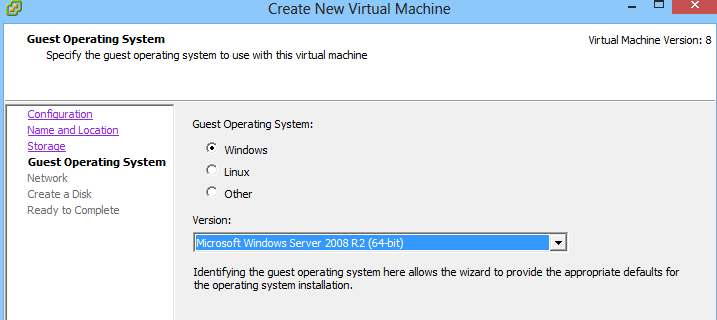
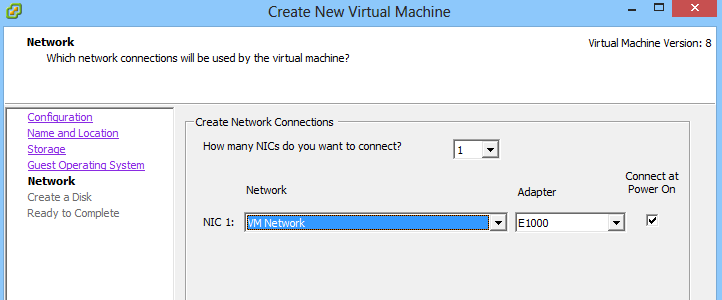
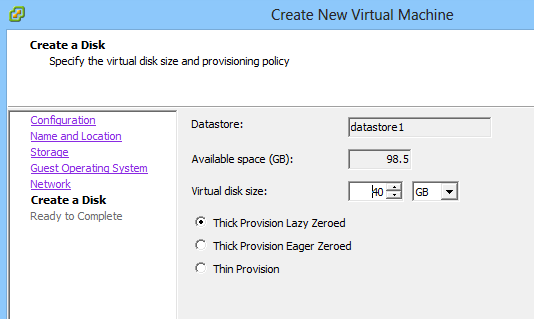
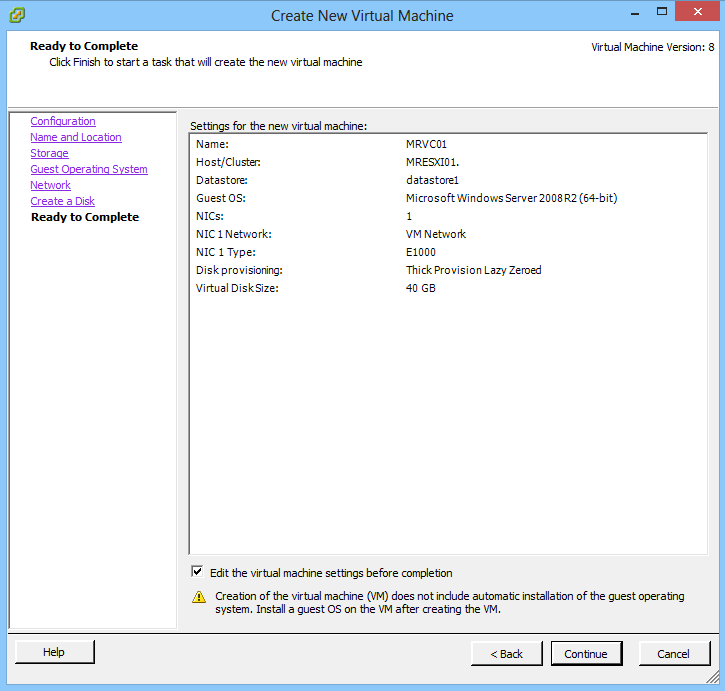
I always like to edit the virtual machine before completion (tick box at the bottom).
The reason for this is:
- I remove the floppy drive
- I give the virtual machine the maximum amount of ram possible (after all I don’t want to sit about waiting for my first VM to install) and it can be easily adjusted when you come to add additional VM’s.
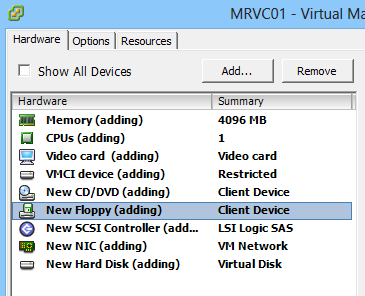
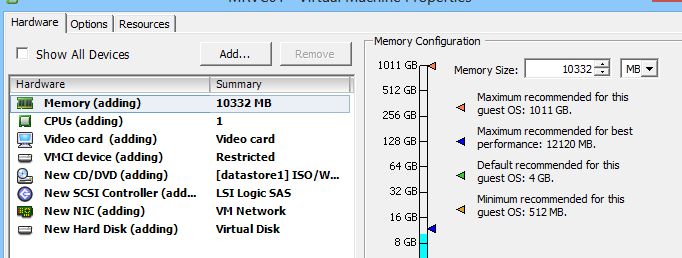
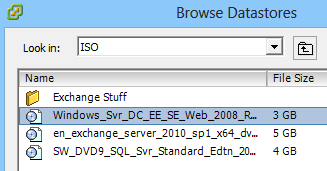
We now want to mount the ISO file, (I’ve already uploaded a few ISO’s to the datastore) to do this follow the below:
Go to the Summary Tab, Right click on Datastore1 (or whatever you’ve called it), browse datastore, then chose to upload files to this datastore.
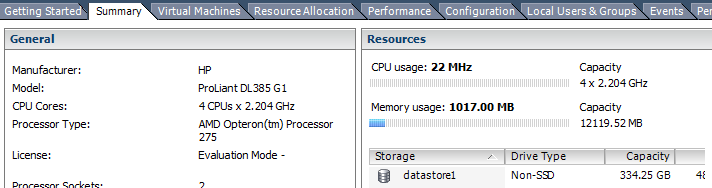
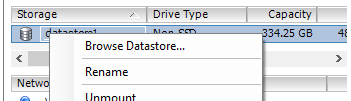
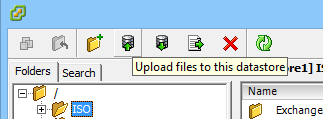

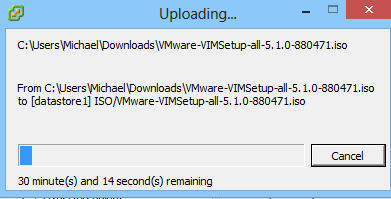
Now this is done we can mount the ISO and select “connect at power on”
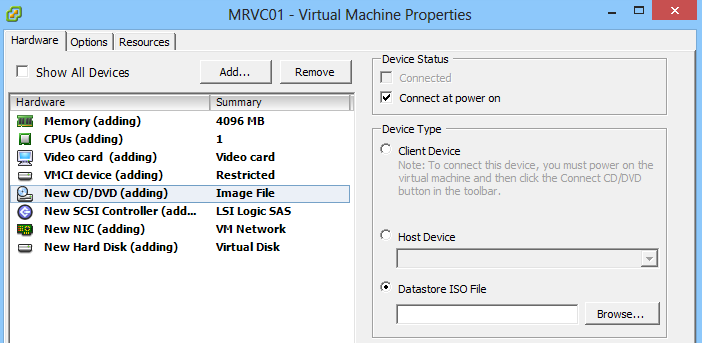
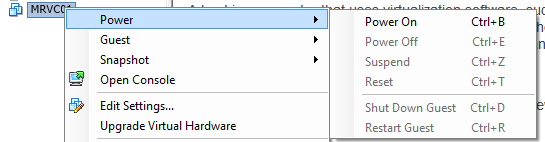
Right click the new VM and select Power on, and then right click and select console.
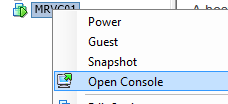
You will now see the installation process of your VM.
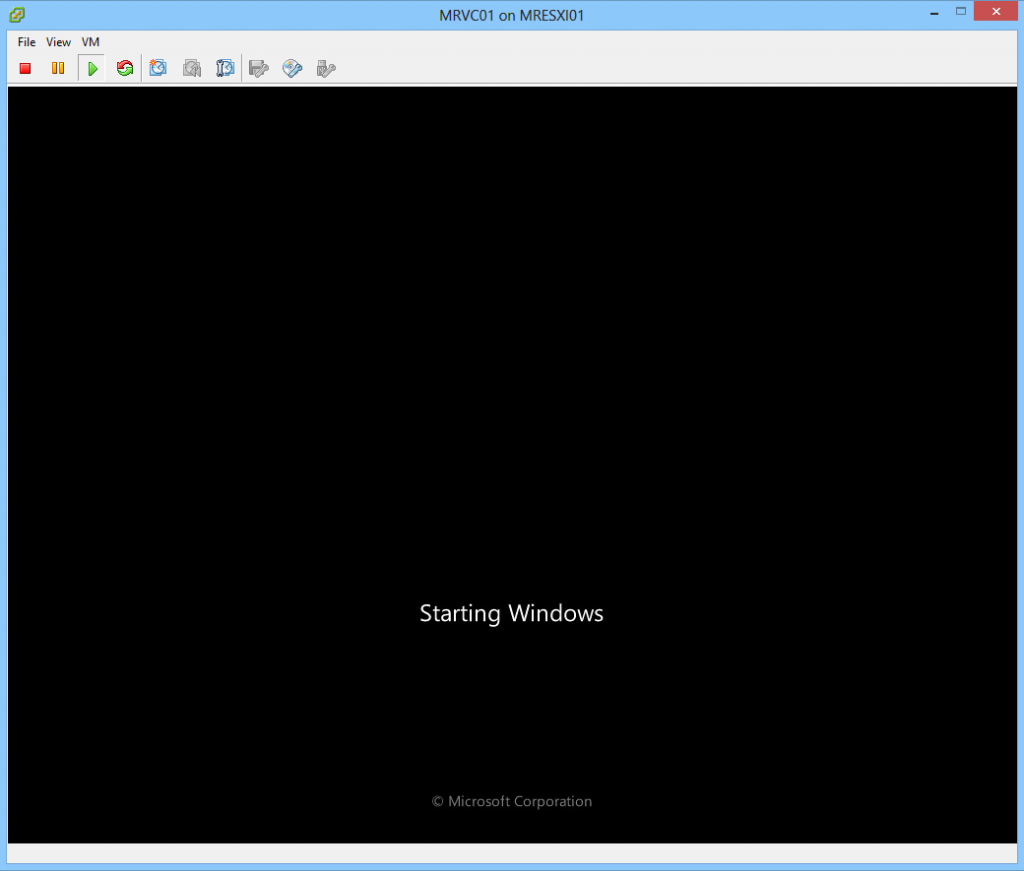
And that’s the basics done.
If all you require is to manage the ESXi Server like this, create/delete Virtual Machines then you are done! Easier than you’d first though I bet?
So what did we cover in the end in this part? Well we’ve gone through the below:
- Installing VMWare ESXi 5.1
- Configuring VMWare ESXi 5.1
- Configuration of the Physical Switch (for production traffic/Backend DATA traffic (iSCSI/Fibre Channel)
- Creating a Virtual Machine
The next part (Part 2) will focus on the following remaining points:
- Attaching additional storage (SAN)
- Creating additional Vswitch for your backend traffic
- Installing VMWare VCenter (to manage your VMWare environment)
- Configuring VCenter
Enjoy……and watch out for part 2

I am always browsing online for articles that can facilitate me. Thx!
I’ve been exploring for a little for any high quality articles or blog posts on this sort of area . Exploring in Yahoo I eventually stumbled upon this site. Just what I was looking for. Great work
Really helpful for clear view of the Esxi Installation and vcentre configuration. awaiting for the second part. Thank you very much.
Great Work…
Simply the Best….