
-
Microsoft System Center Configuration Manager 2007 – Remote Tools & WOL (Wake On Lan) (Part 15)
Posted on March 23, 2013 by Michael in Latest News, Studying
The ability to “remotely” control a client’s PC is one of the major benefits to any helpdesk or organisation. No longer is the need there to drive to the client site, you can do it from the comfort of your own desk/home/bed!
SCCM has a number or remote monitoring tools available to you as the administrator, and we will look at covering those off as well as the below in this blog:
- Enabling remote tools
- Enabling WOL (Wake on lan)
- Using remote tools
- Leveraging WOL in your environment
As always, lets make sure the remote tools client agent is enabled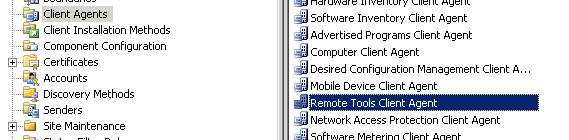
A few options you want to be careful of here. “Ask for permission when an administrator tries to access clients”. Remember if this is selected it means if you wish to remotely control a remote server someone will need to click the “allow” box in front of the server. Whilst it might seem like a good idea for client’s, I personally would chose to deselect this option and simply alert the client when you have remote control (which will be found in the notification tab)
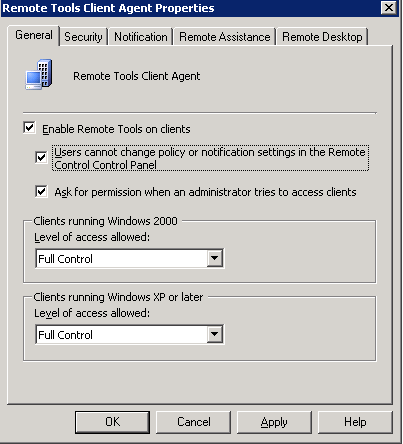
Here we choose which users can use the remote tools from the SCCM console

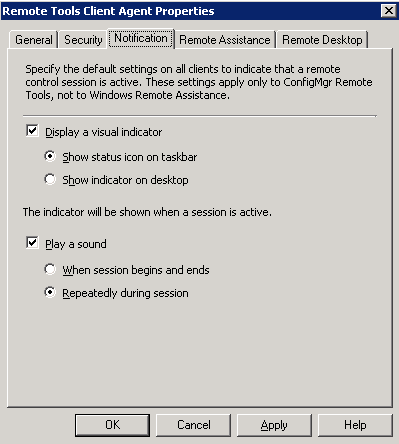
Here we can set the notification options for the client (when requesting/when you have) remote control
Choose whether to allow remote assistance or not

Likewise the same with remote desktop

Now we have these enabled and configured, lets browse to a collection

Right click the workstation and let’s see what remote tools we have available to us

As you can see we have a fair few. In this example I will send a request for remote assistance

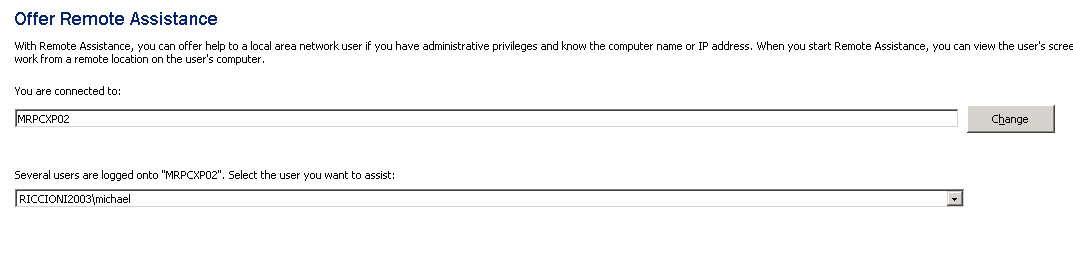
If we switch over to the client PC this is the alert they receive

From our side of things (the SCCM console) this is our view once the user accepts our request. As you can see we are in view only mode at the moment

You can chat with the user in the chat box

Now we need to take control select “take control”
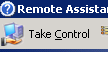
The user receives the following
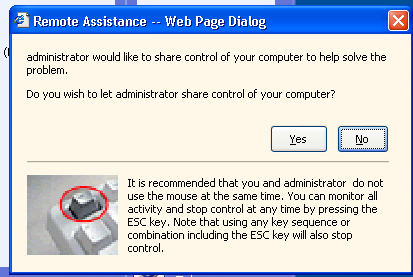
From our side we are alerted we are now in control

Allowing us to troubleshoot the problem
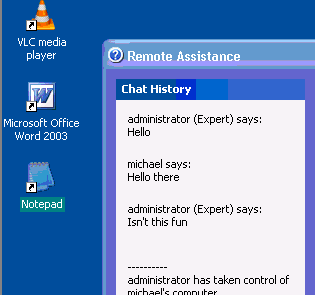
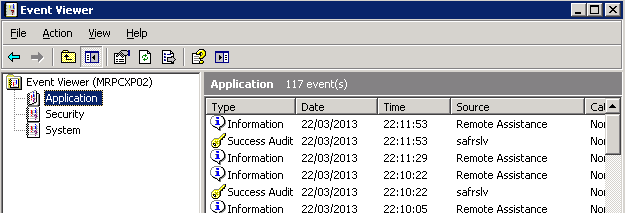
In another example, I can right click and select to bring up the clients event viewer. (Very handy).
That is pretty much that for remote tools, they are all fairly self-explanatory!
Moving on to WOL (Wake on lan). You have to remember there are a few steps you need to make sure are covered off BEFORE enabling it in SCCM.
- Wake on lan is enabled in the BIOS
- Wake on lan is enabled on the network card properties (from within the OS)
Once these are OK, we can move to SCCM and enable it from SCCM.Select your site and right click > properties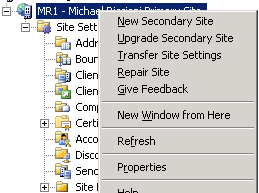
Select the wake on LAN tab

Enable WOL

You will be alerted to the below: (click OK for now)

View the advanced settings and make any changes you need to
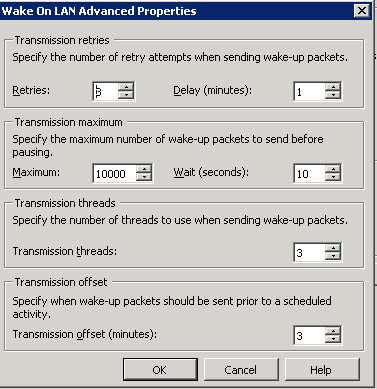
WOL is now enabled (click OK)
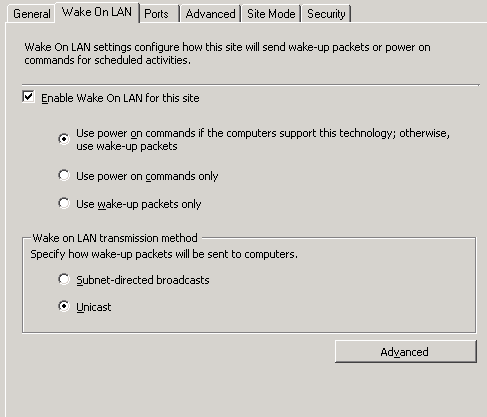
We now need to install the out of band service point site

Once installed double click to make sure the settings are how you want them
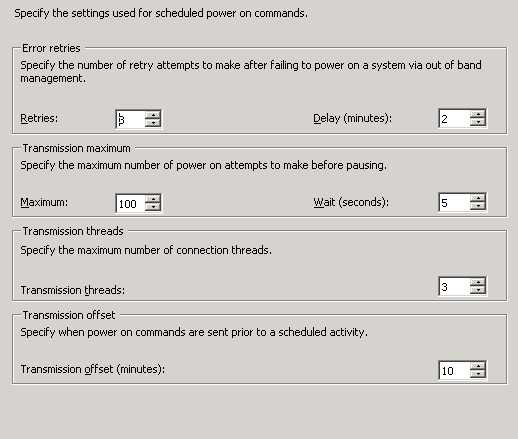
Review and click finish
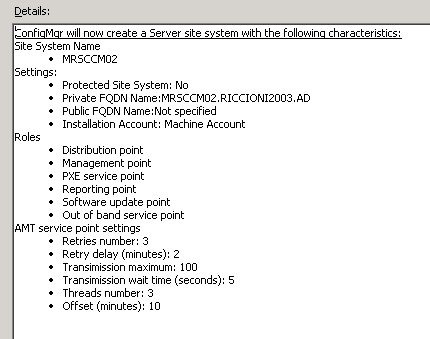
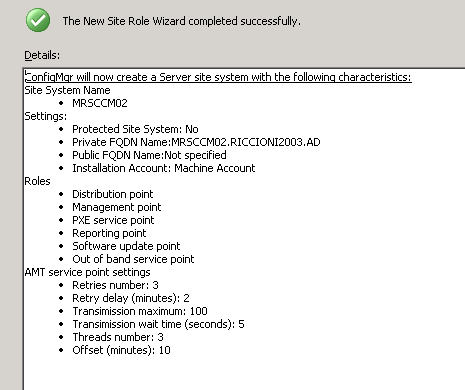
If we right click and select properties we are able to adjust any of those settings now

The final step is to enable WOL in the “advertisements”. For example installing VLC, we will enable SCCM to send a magic packet to wake up the client and install VLC

Simply select enable wake on LAN

And that’s that. A relatively simple and small blog, but an important one, especially if you can’t install software during the day and choose to do it out of hours, WOL will be very beneficial.