
-
Microsoft System Center Configuration Manager 2007 – Desired Configuration Management (Part 14)
Posted on March 23, 2013 by Michael in Latest News, Studying, Tutorials
In this blog we are covering DCM (Desired Configuration Management), and more to the point what exactly is DCM?
DCM allows you to monitor your client machines to make sure the clients are fully compliant and running the correct configuration you wish to enforce.
For example, with Adobe Reader there is a registry key you can add to help improved the optimisation. You can use DCM to check the client machines to make sure the registry setting is set to enabled (as this helps improve end user experience). If it find cases where clients are running with the registry key disabled it can alert you.
We will look at covering in this blog:
- The client agent
- Baseline & Configuration Items – Elements you wish to monitor
- Reports & Compliance – Allow you to report on the above captured data
- Preconfigured Baselines
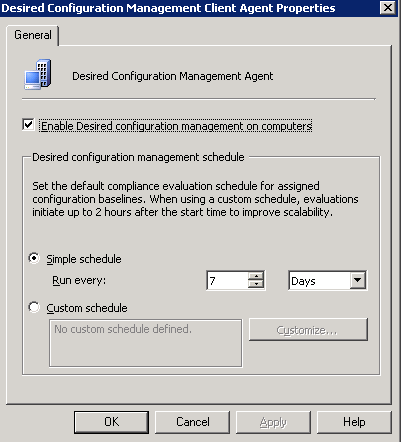
Let’s get started then, navigate to the client agents folder and let’s make sure DCM client agent is enabled.

There really aren’t too many settings, apart from the schedule you wish DCM to run. Like most default option’s its set to 7 days.
Now let’s navigate to the DCM component and expand this.
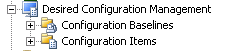
You will notice by default there are not set configuration items or baselines. Which means we will need to create our own.

Before I do this, I’m going to flick over to MRPCX02 and create a new registry key with a value of 5 in the VLC folder <HKLM\Software\VideoLAN\>
This is the registry key DCM will be scanning for

Right click configuration items and select NEW>Application configuration item

Enter a name, and chose a category (there are a couple of pre-defined categories) for making it easier to search, in this instance I will create a new group.
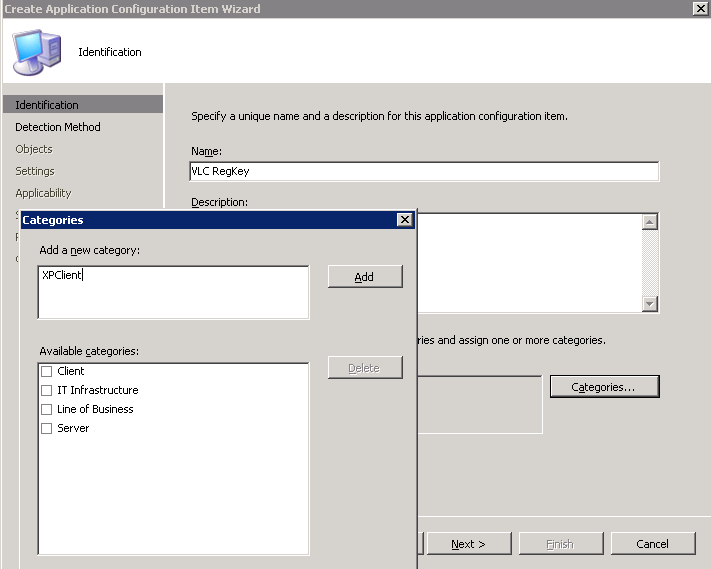
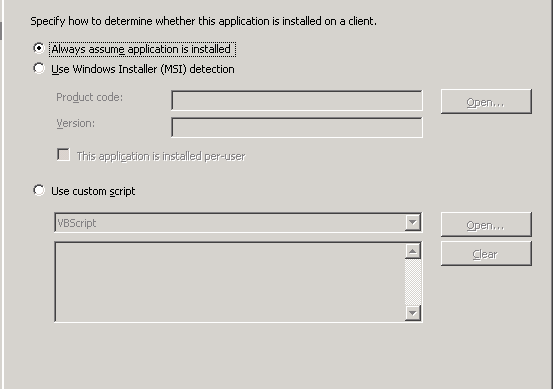
If you have access to the .MSI you can chose for DCM to scan for the MSI first before (to make sure the program is installed/should be installed).
In this case I will assume it is always installed.
On the next window we can chose to select the item we wish to scan for. Select Registry Key
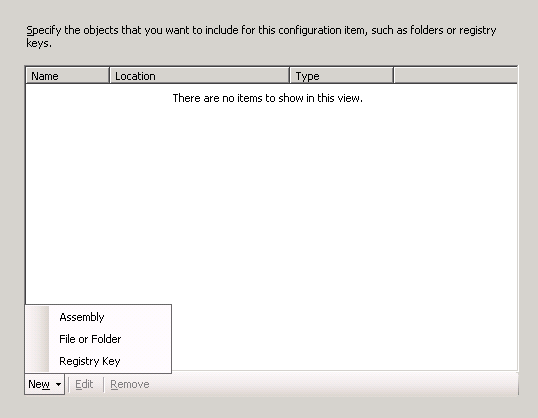
Enter the location of the registry key

You will see I’ve made a mistake in the screen shot below (It should read: software\VideoLAN\VLC\test)

We’ve now added the registry key successfully. Select next

The next part is where we configure what the setting of the registry value should be. Select Registry (you can see there are many options for monitoring IIS/AD etc..)
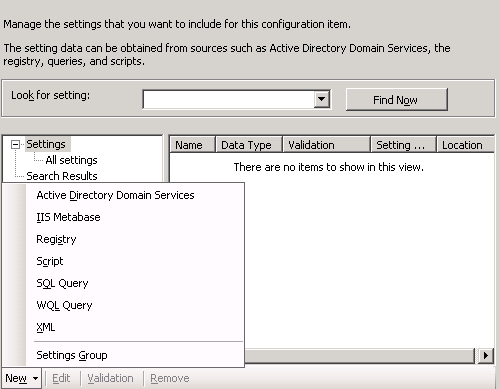
Enter the value of the registry setting
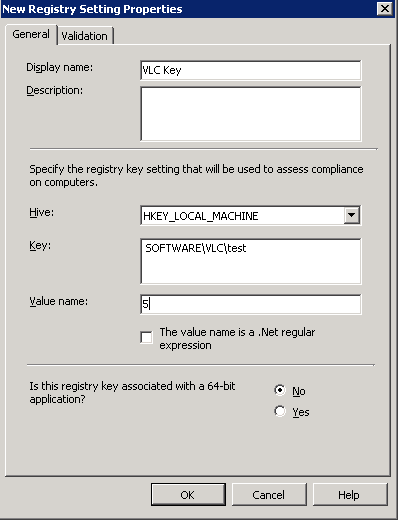
We’ve now added the value, we also need to now validate this (what happens when it discovers this key)
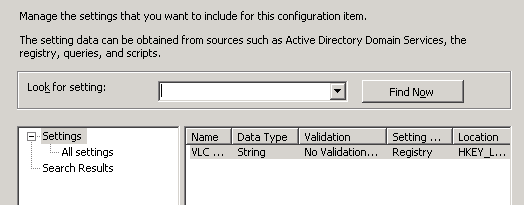
Click validation
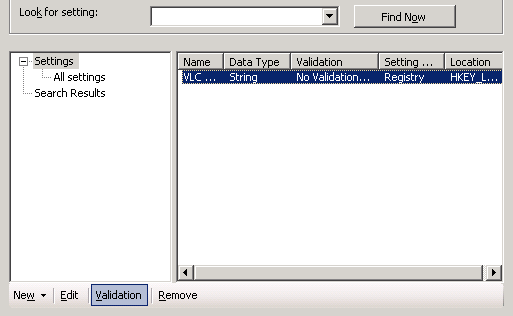
In this case if the value does not match 5 then alert with a warning

You can now choose which systems this is compatible with

Finally review the settings and click finish
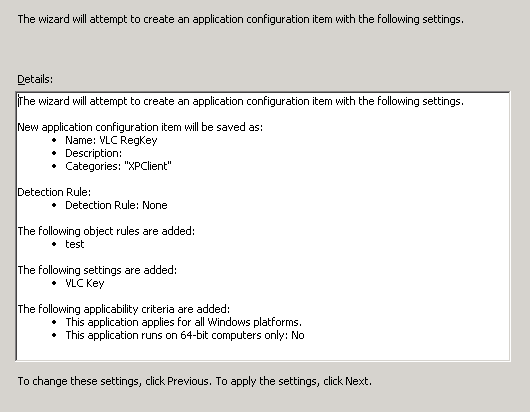
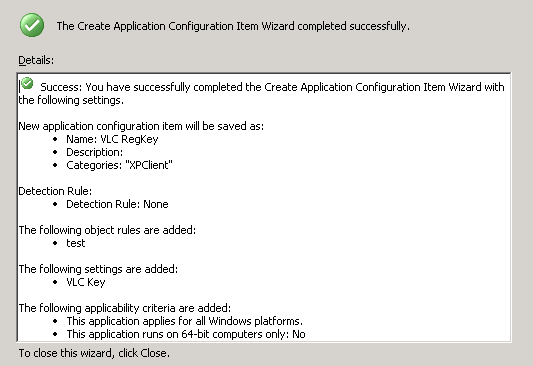
We now have our new configuration item

We can now define our base line policy (to which clients should ad-hear to).
Select new configuration baseline

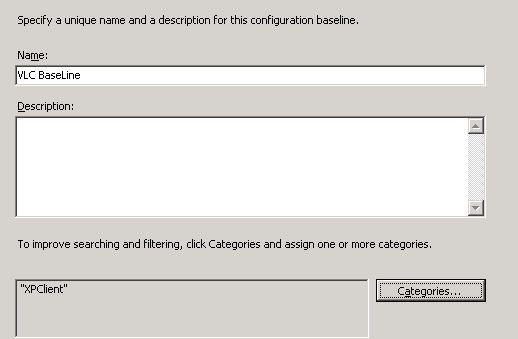
Fill out the below applicable to you (I’ve chosen to associate this with the XPClient group I created above)
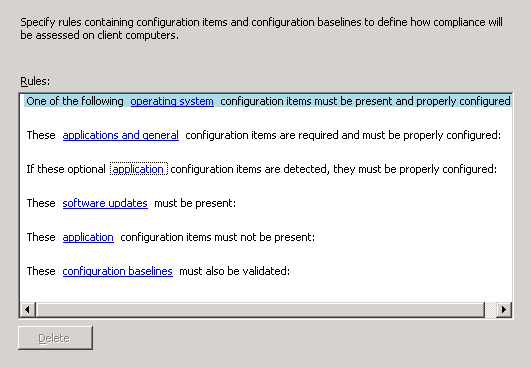
On the next page you will see the various different options we can use to define if a client is compliant.
In our case we will use the third option down

Select the configuration item we created

Once complete click next

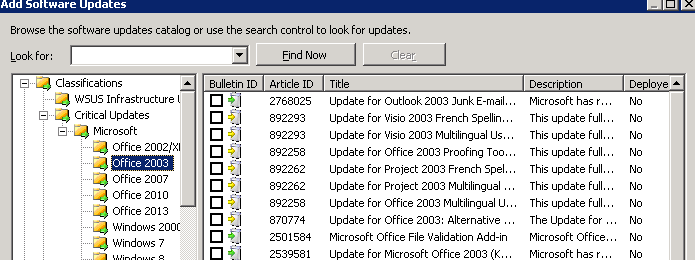
As a side note we don’t just need to select one option. We could also chose DCM to check certain updates are installed

Review the settings and click finish


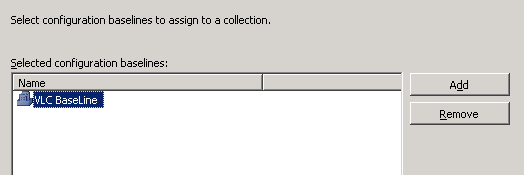
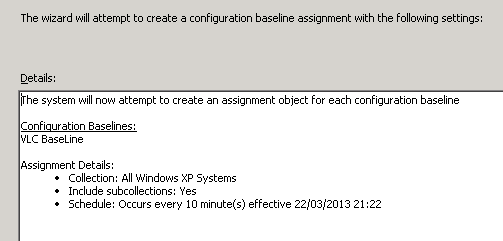
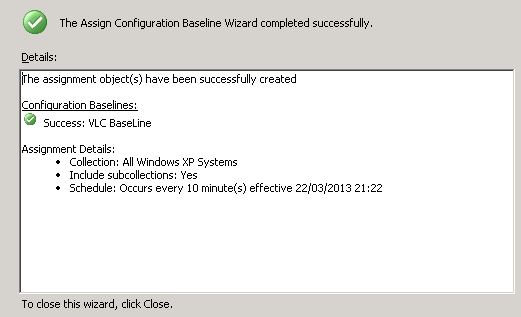
Now we have our baseline, we need to assign this to a collection. In this example I will assign to the XP Systems collection.
Select assign to a collection

Select the baseline you wish to use
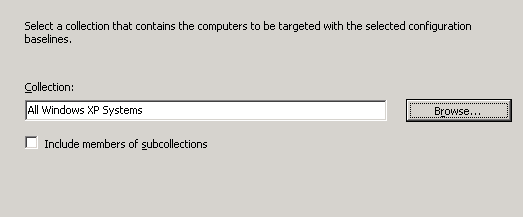
Choose the schedule you wish to use

Now we have defined our baseline we need to be able to report on it. If we click on to reports you will see a number of pre-defined reports for compliance
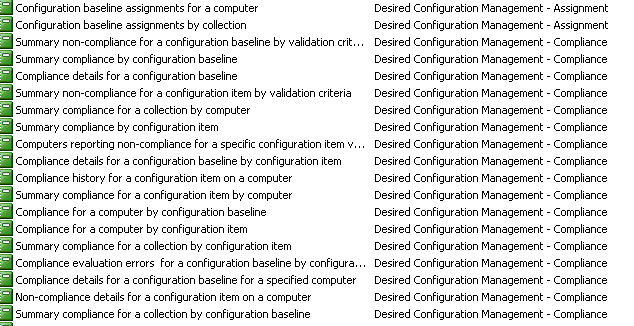
Select a report to run

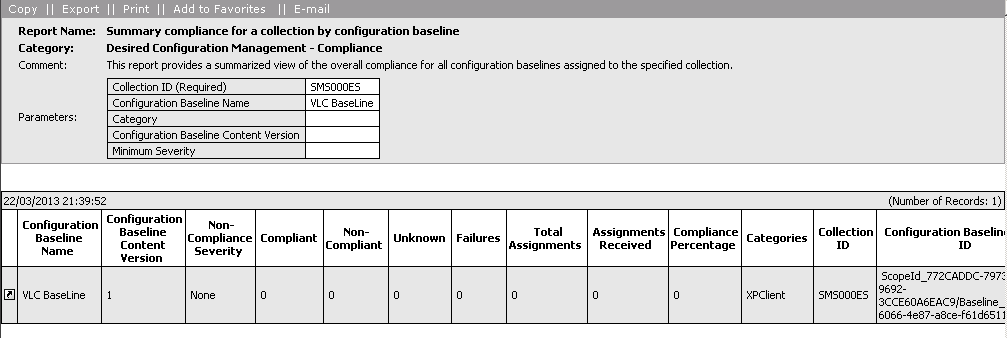
And fill out the required details

Obviously as the elapsed time has yet to run it will show no results but you get the idea..
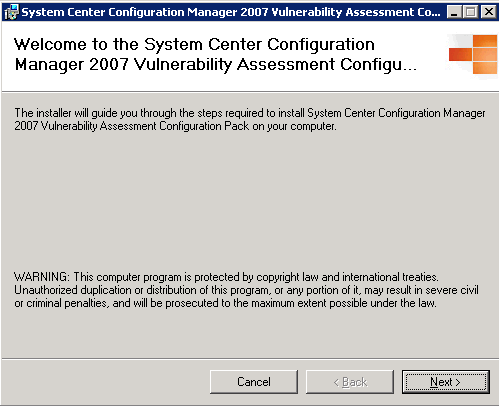
Finally I’ll show you a handy little download from Microsoft.
This configmgr pack contains a number of pre-defined base lines.

Install as usual

Now what we will do is import this .cab file in to SCCM

Right click > Import Configuration Data

Add the .cab file
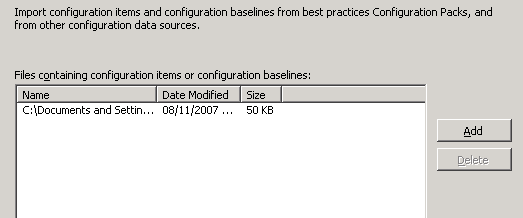
This show’s us the items it will be importing


Click finish to start the import


Now if we refresh the DCM folder, we will see these pre-defined baselines and configuration items

Baselines:
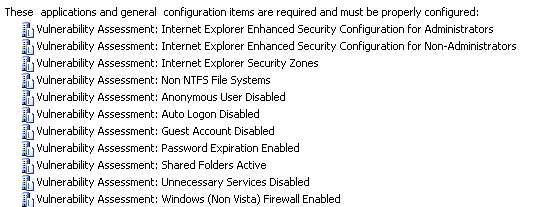
Configuration Items

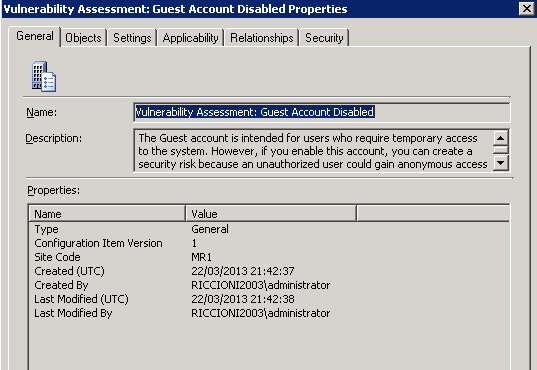
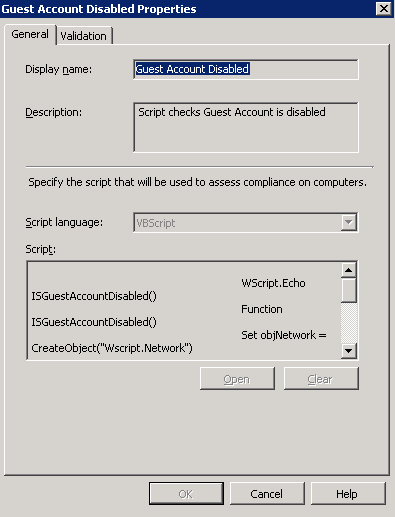
It’s always handy to have a browse through the settings of these pre-defined items just to get a better understanding of “how they work”.
There we have it for another blog, DCM = done.