
-
*How to* configure OpenFiler v2.99 iSCSI Storage with VMware ESXi 4.1
Posted on June 24, 2012 by Michael in Latest News, Tutorials
I’d imagine like *most* home lab setup’s (and even in some small businesses), my home lab ESXi setup has always used local disks for storage.
This is all well and good but if you really want to delve in to the advanced features of ESX (like HA, VMotion etc), then you need some sort of attached storage in place.
Realistically the first thing with everything like this is “what is the cost”, so as much as i’d like a fibre attached SAN (wouldn’t we all…), i’ll have to settle for something else in this instance.
Bring on the next best solution iSCSI.
I know there are a number of free options out there but i’ve heard good things about openfiler so I’ve decided to run with that.
I’m going to assume you’ve already instead openfiler (it’s honestly pretty straight forward and there are guides for both the GUI and text based installation on the website).
Now I needed to find something to run this on, as it’s only my home lab what the heck I decided to install it on an old laptop I had…
Brief overview of the spec’s:
- Intel(R) Core(TM)2 Duo CPU U7600 @ 1.20GHz
- 2 GB ram
- 75GB hard drive
- Gigabit NIC
So it’s not the first thing you would associate with a SAN….but it just shows you don’t need much to run this.
With the basic’s now covered, lets start
Openfiler Configuration
First we need to login to openfiler so we can configure this. In the initial setup you can specify an IP address to use so browse to: https://192.168.5.49:446 (this is the IP I am using in this example). Default username: openfiler Password: password
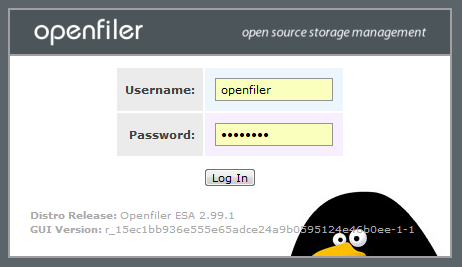
Next we need to create a volume, a volume grup and LUN. (again i’m going to assume you have a basic understanding of these) but to sum up:
- Physical Volume – This is where you assign space on the physical disk. This will be used in a volume group
- Volume Group – The volume group contains the physical volumes, which is then used for the logical volume
- Logical Volume (LUN) – This is what is presented through to the ESX/i server
Once we are logged in lets navigate to the volumes tab
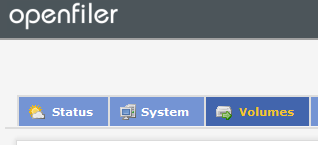
You will see an alert as we’ve not yet created any volumes

Below this alert you will see the local disk. Click on /dev/sda to edit the properties for this disk

You will see it display the original partitions created during the initial install

We now need to create a new primary partition (make sure you select Primary under mode and Physical Volume under partition type).
Select the starting and ending cylinder (how much space you wish to assign) and then click create

Once created you will now see the new partition you’ve created listed at the bottom of the table

We now need to create a volume group, so navigate to Volume Groups

I’m going to call this michaelv1, once happy (make sure to tick the little check box) click add volume group
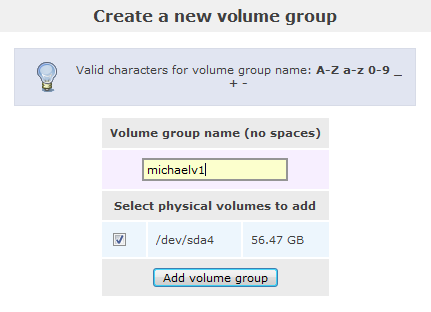
You will now see this new group created in the table

Now this is done, select Add Volume from the right hand menu
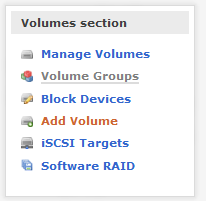
This is now where we will create a volume. Click on change

In the below example I’m creating the volume named mrtest, and have specified that the volume will use all the available space. Also make sure you select from the drop down box the (block (iSCSI, FC, etc)) option, and click create.

Once created we can see the new volume listed in a table

Once the above has been completed we now need to tell our “SAN” to enable the iSCSI target service. (otherwise we won’t be able to add an iSCSI target).
To do this navigate to the services tab

You will see the iSCSI Target service currently disabled and stopped. Click Enable
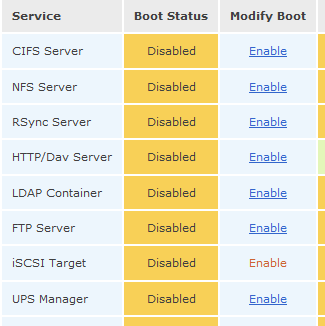
Now the service is enabled, click Start


Once this is up and running we need to create an iSCSI target. Select iSCSI Targets from the right hand menu
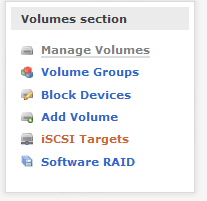
I always leave the Target IQN as the default, but if you want you can change it. Select Add

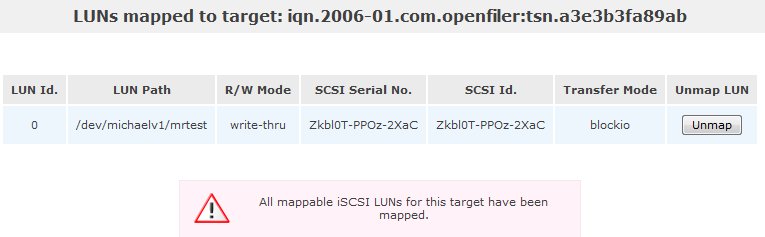
Next we need to select LUN Mapping, you will see there are currently no mapped LUN’s. Simply click the button which says Map.

You will now see all available LUN’s have been mapped
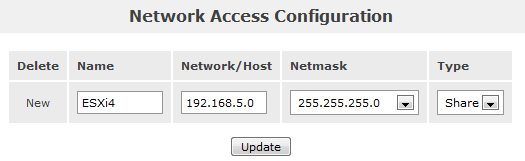
Next click the Network ACL tab. As we have not configured the network access you will be prompted with the below. Simply click the Local Networks link

Scroll to the bottom of the page (below the IP configuration of your host), and specify which network’s can access this device. As i’m running this in my home lab i’m allowing the entire 192.168.5.0/24 subnet as this is purely used for testing. You can call it anything you like, i’ve called mine ESXi4, and most importantly make sure you select Share from the Type drop down box, finally click update.
Return to the Network ACL tab and you will now see the below. Make sure you select allow from the access drop down box.

That’s it now from the openfiler side of things, we can now fire up our ESX/i host and continue with the configuration.
ESX/i Configuration
Firstly navigate to the Configuration tab

As you can see from the below, i’m currently running ESXi 4.1.0. I’ve just the one Vswitch (you can chose to create a new Vnetwork and run your “SAN” on a different network) but as this is only a test environment i’ve got everything on the same network. (Obviously in a production environment I would not recommend this!).
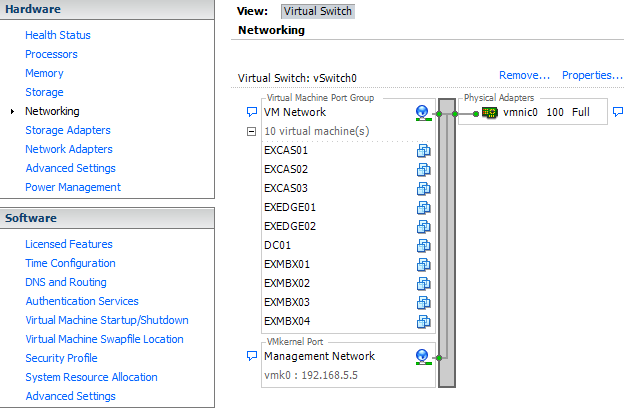
Click on to Storage Adapters, you will see there is already an iSCSI software adapter listed, but it’s not currently enabled.

Click on to the iSCSI software Adapter and select properties

This will open up a new window, simply select configure
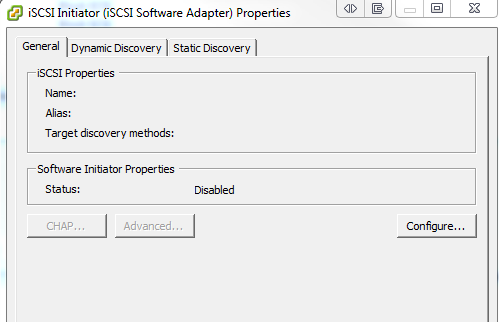
Then select the tick box next to Enabled.

Next select Dynamic Discovery, and click Add. Enter the IP address of your device (in this case 192.168.5.49), and select OK

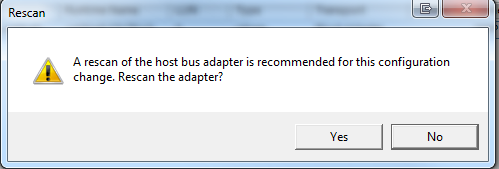
Once you click Close you will notice it prompt you asking if you wish to rescan. Select Yes.
You will now see under iSCSI Software Adapter, our newly created openfiler LUN.
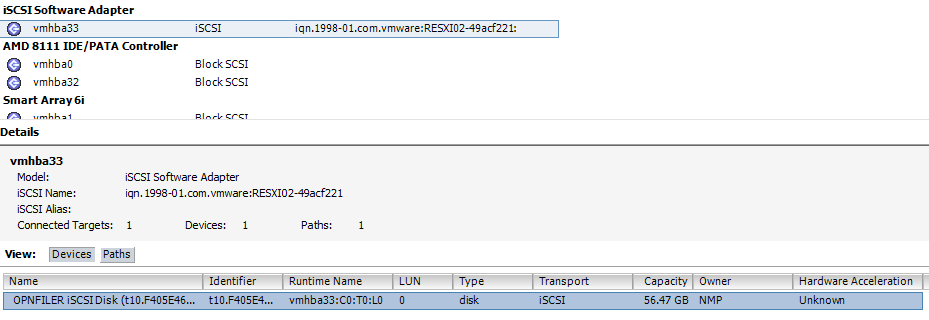
Great, we’ve now got this far and we can see ESXi picking up our newly created LUN. Now we need to configure ESXi to be able to use this LUN to store data on.
Create a new datastore within ESXi
Select Storage from the left hand menu (you will see the default Datastore currently listed). Click Add Storage

and now select Disk/LUN

Click next, and you will see listed our openfiler LUN. Select this, and click Next.

Select Next again

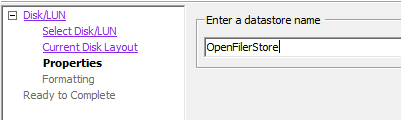
Chose a name for your datastore (I’ve chosen OpenFilerStore)
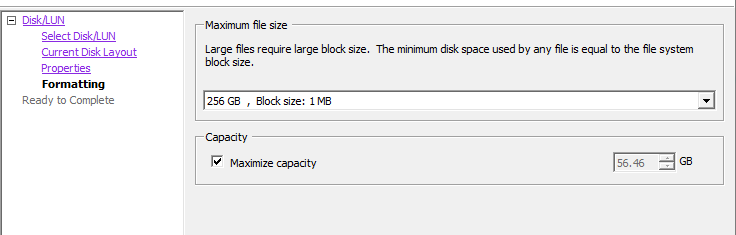
I also chose to leave the default block size, and maximum capacity check box ticked and then selected Next
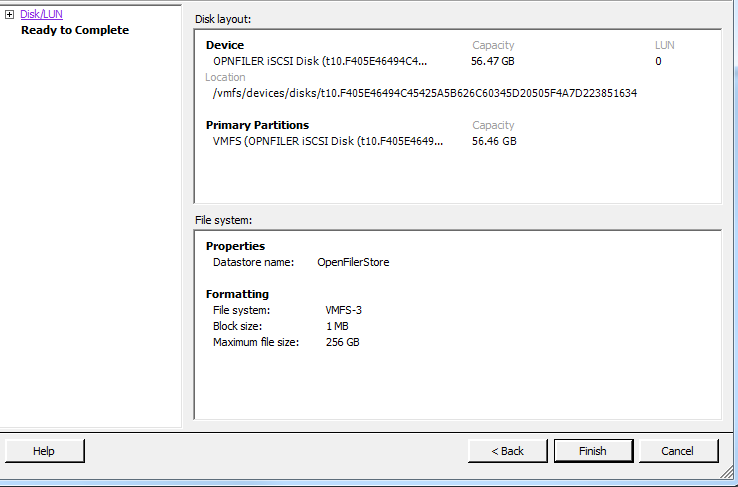
finally click Finish, this will now create the new datastore
When you view your datastores you will now see both the original, as well as our newly created store

Finally, to make sure you can now use this datastore, create a new virtual machine and when you get to the datastore options, you should see our newly created datastore available for selection

And there we go! (wasn’t so hard was it!)
We’ve now made use of that old laptop which you thought you could do nothing with, and extended it’s life by using it in your home lab setup!
Appreciating the time and energy you put into your blog and detailed information you offer. It’s great to come across a blog every once in a while that isn’t the same out of date rehashed information. Fantastic read! I’ve bookmarked your site and I’m including your RSS feeds to my Google account
Great tutorial! It made the whole OpenFiler configuration a piece of cake! Thanks!
Pawel
Very nicely done. I already knew how to do this but I was just checking it out.
Good Job!