
-
*How to* Port Security – MAC Address Security – Cisco Switch
Posted on September 9, 2012 by Michael in Latest News, Tutorials
A fairly short and sweet how to this time round, today we are going to look at port security and in particular allowing only a certain amount of MAC addresses to use a particular switch port.
I guess in an everyday SMB or production environment, if most of your users are desktop users or (laptop users with docking stations) then most switchports are only ever going to see maybe 1 or 2 MAC addresses day in day out.
Take the following scenario, all users have desktop computers, and nothing else is ever plugged in. Well in this example we could to help increase security and avoid rogue devices being plugged in to our network implement port security to stop any mac address other than the one belonging to the desktop to authenticate to the switchport.
Wouldn’t it be nice to have the switchport automatically shut down if someone tried to plug a non-authenticated / allowed device in to your network?
I’m going to show you how in this next example, and it’s is very straight forward. Like all things, you can’t just roll this out to a live environment, you need to put “some” planning behind it!
In this example, I’m going to configure switchport 0/1 to only allow access to one device. We are effectively telling the switch; on this port I want you to learn the first mac address, any other mac address other than that shut the port down.
As the port is going to be learning the MAC address dynamically we must set the port status to an access port (otherwise you’ll get the below warning).

I’m also going to enable portfast


From the above we are saying port-security maximum 1 (MAXIMUM of 1 address), and if there is a violation to shut down the port. The mac-address sticky command is basically saying learn it dynamically, otherwise if we wanted to manually enter a mac address we would do the following:
Switchport port-security mac-address xxxx.xxxx.xxxx
If we do a quick show port-security address you will see nothing has been plugged in yet so it’s currently blank.
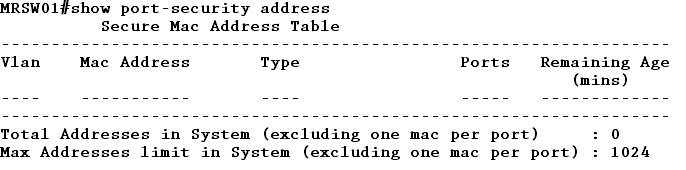
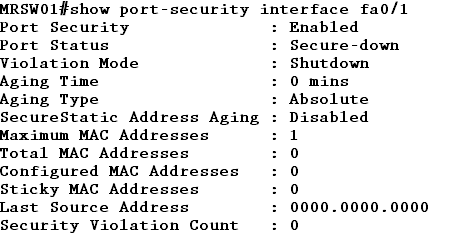
Running show port-security interface 0/1 shows that port security is enabled, and also the mode is to shut down the port
I’m going to connect the first laptop in to port fa0/1 and see what happens….
Well I’ve got an IP address from the DHCP server OK, looking at the switch the port is green, lets see what the switch is saying

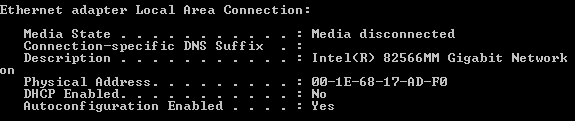
Before and After connecting the laptop in to switch port 1

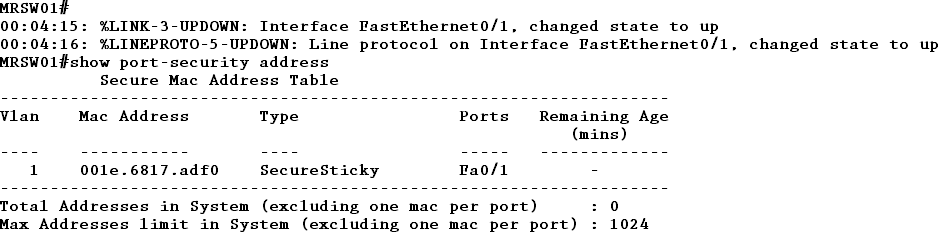
Everything looking good so far, if we check show port-security address we can see the MAC address of the laptop, and if we check the port statistics we can see the port looks to be up and active.
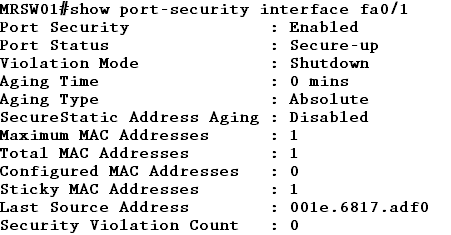
Let’s check the port-security interface, here we can see the total MAC addresses is now 1, and the port is showing as secure-up
I’m now going to connect another device in to this. Before doing so I’m just going to check the MAC address of the device

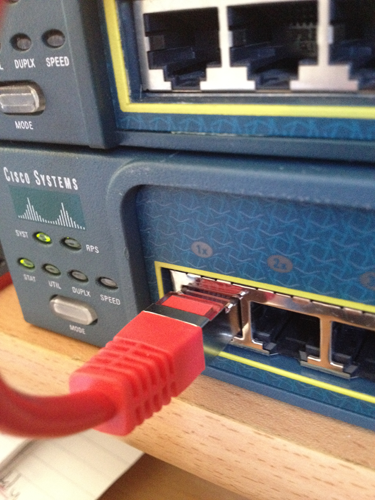
Right now to plug the device in, if we look at the front of the switch the light came on briefly but has now gone off, so let’s check out what the switch is saying.

OK that’s pretty straight forward, it’s showing it’s shut the port down and has moved the port in to the err-disabled state. We can also see it’s the same MAC address as shown in the print out above (from the second device).
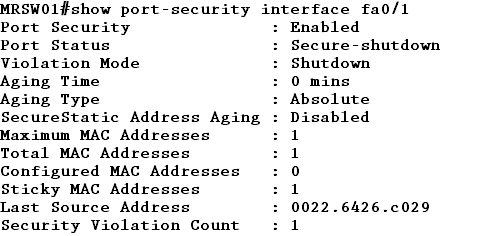
If I check the show port-security interface 0/1 command we can now see the status is secure-shut down.
Checking the interface is also a similar story, it shows the interface is down (err-disabled)

Ok so lets plug the original laptop back in now, strange the light has not come on? Does this mean the MAC address hasn’t actually been learnt?
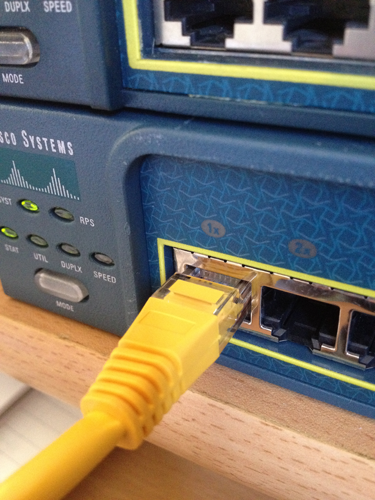
Well if you remember the switch has shut down the port, this means we will need to manually go to the port and shut and un-shut the port.

Now if we check the switch the light is back on, and looking at the port-security interface for fa/01 we can see the port is backup.
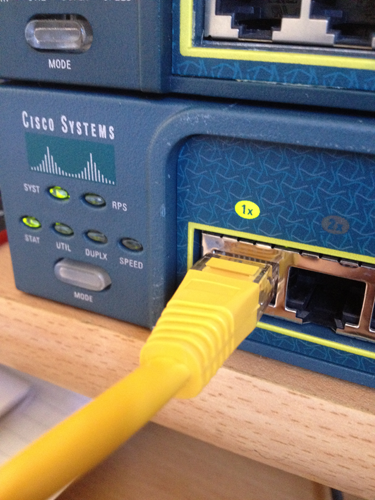
I’m now going to change the violation mode from shutdown to restrict, so switchport port-security violation restrict
Issue the show port-security interface fa0/1 command and we can now see the violation mode is set to restrict

Now if I connect the second device to the switch, you will notice the light now stays on. BUT if we move over to the switch to see what it’s saying you can see it’s alerting us that a security violation has occurred.
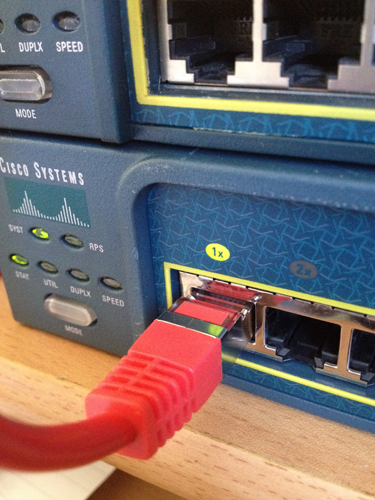

This means whilst the port is up, the packets are being dropped. (As shown I’ve not been given an IP address from the DHCP Server)

If I now connect the original laptop back in, then the port comes up without me needing to manually go in and un-shut the port.
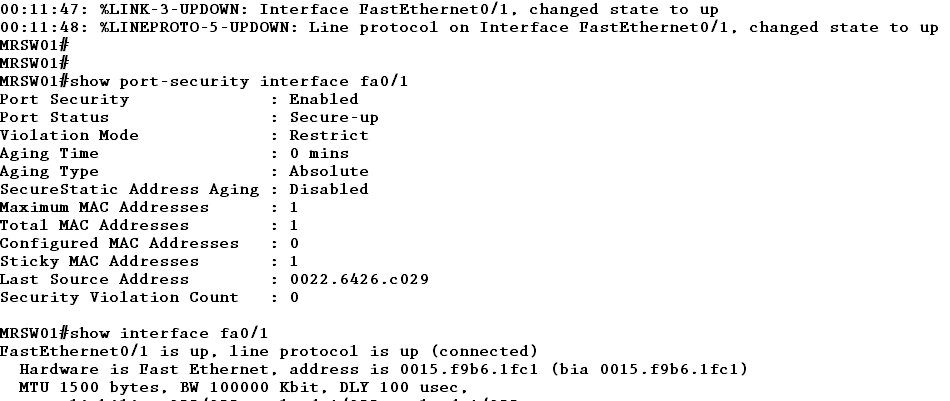
And that’s, that. The question I normally get asked is which option should you chose?
Well that’s up to you, personally I would prefer to have the port shutdown. If someone has plugged something in to my network which should not be plugged in I want to know about it, by simply restricting someone could try and if you are not monitoring it could go un-noticed as when the trusted device is plugged back-in the port functions as normal.
But I’ll leave you to decide what you would like to do with your network!…..
Thanks for this
This is really going to assist me and my classmates for our class project. By the way, I like the way you write.
Cool post .
I found what I was looking for. great article, thanks
good post, added you to my RSS reader.
Thank you Michael, may I say what a brilliant first name you have…
Just to let you know, this content looks a little bit weird from my android phone. Great post by the way.
I really appreciate what you post. You have a new subscriber now.
really nice post – thanks for taking time and actual effort to write this.
An impressive share, I just given this onto a colleague who was doing a little analysis on this. And he in fact bought me breakfast because I found it for him.. smile. So let me reword that: Thnx for the treat! But yeah Thnkx for spending the time to discuss this, I feel strongly about it and love reading more on this topic. If possible, as you become expertise, would you mind updating your blog with more details? It is highly helpful for me. Big thumb up for this blog post!
Thank you for the sensible critique. Me & my cousin were just preparing to do some research on this. We got a book from our local library but I think I learned better from this post. I’m very glad to see such great info being shared freely out there…
You shown another important information blog. Very well written
I quite like looking through an article that will make people think. Also, thanks for permitting me to comment!
This is the right blog for anyone who wants to find out about this topic. You realize so much its almost hard to argue with you (not that I actually would want…HaHa). You definitely put a new spin on a topic thats been written about for years. Great stuff, just great!
I dont know what to say. This blog is fantastic. You know so much about this subject. So much so that you made me want to learn more about it. Your blog is my stepping stone, my friend. Thanks for the heads up on this subject.