-
*How to* Cisco ASA 5510 – Failover
Posted on October 7, 2012 by Michael in Latest News, Tutorials
More now than ever, 100% uptime or as close to that as possible, is pretty much essential when it comes to computer networks.
With remote workers either working from home, or the other side of the planet, it’s become essential that your computer network remains up 24/7
Those of you familiar with HA (high availability) and its various forms within exchange/windows server, or Vmotion/Server clusters within VMware, all of these are in place to try and achieve constant availability of critical resources.
When it comes to networking (switches/firewalls/routers) this is no different. There’s really not much point having all this in place (and being able to boast 99.9% uptime) for access to email for example, if your router or firewall was to fail and effectively cut you off from the outside world.
Whilst internal users could still access resources on file servers etc, remote works will have just been cut off and be sitting there twiddling their thumbs.
This is where we use failover, and in this tutorial, failover on the Cisco ASA 5510’s.
Not that it would happen (because hey it’s a cisco!) and they are not programmed to fail, but god forbid if one of them did fail then it would be nice if you had a backup plan in place.
In terms of when you would configure failover (if configuring from scratch) I always do the failover as one of the last things, so I’ll configure the ASA with everything I need to get me up and running (inside/outside/ACL’s/NAT etc.) and then I’ll configure failover.
You could do this as one of the first steps, but each to their own.
Anyway let’s get on with this.
I’m guessing as we’ve just spent some time configuring one of the devices this will be our primary device. So let’s run the below:

This tells the device this will be the primary unit.
Next I’m going to configure the failover interface, so in this example I’ve got Eth0/0 as outside, Eth0/1 as inside Eth0/2 as DMZ, and will be using Eth0/3 as the failover link.

For the failover link I’m going to use the ip range 172.16.1.0/24. 172.16.1.1 for primary device and 172.16.1.2 for the failover device.

- failover interface ip FAIL_OVER_LINK 172.16.1.1 255.255.255.0 standby 172.16.1.2
Once done, I’m now going to configure eth 0/3

Now let’s get on to the secondary unit and run the following.

We now need to tell the secondary unit where to find the primary unit and what IP the primary unit is on

then we can configure the interface

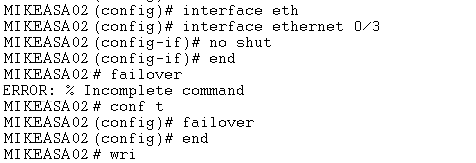
- failover interface ip FAIL_OVER_LINK 172.16.1.1 255.255.255.0 standby 172.16.1.2
If we quickly go back to the primary ASA and do a show failover, we can see failover is currently on and this is the primary unit, BUT it is currently unable to see the secondary unit (as it’s still replicating the changes to the secondary unit)
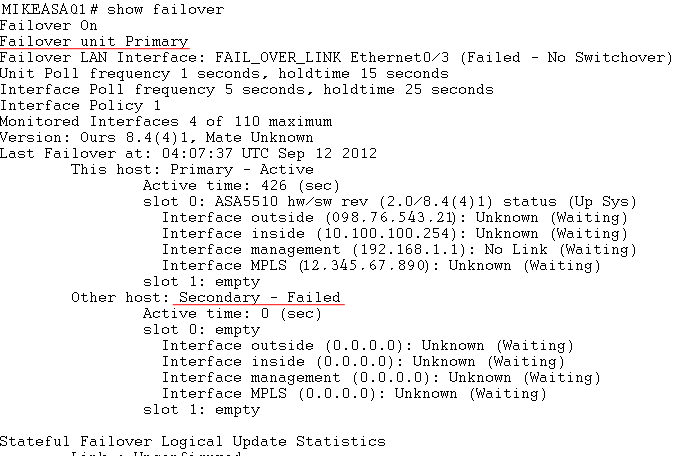
You will notice the following (if you are configuring via the CLI)

now if we do a show failover you can see the secondary unit is showing as Standby Ready.
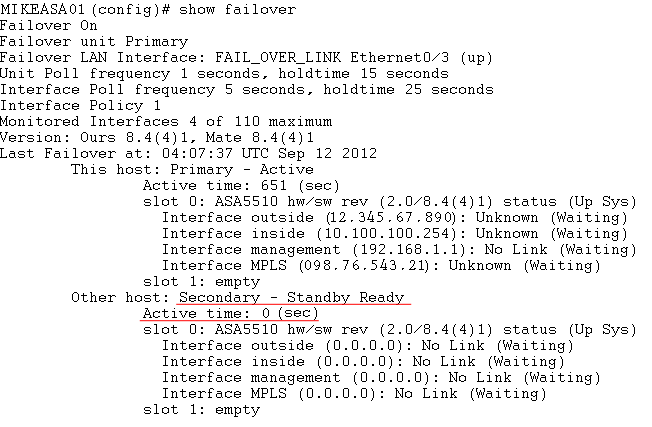
Now you will see if you console on to the secondary unit it shows the name of primary unit, BUT if you try to configure the unit, it will prompt you with the following:

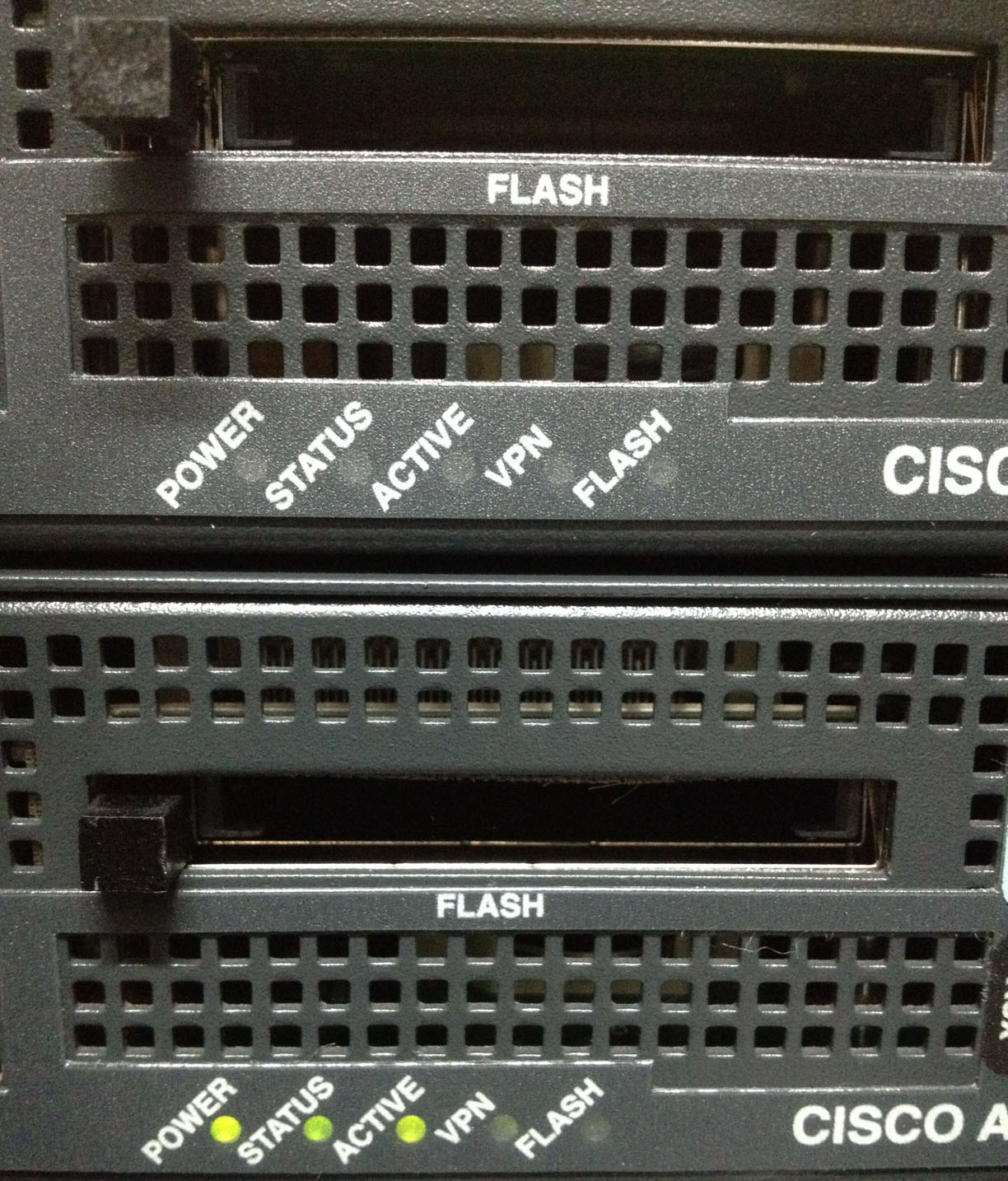
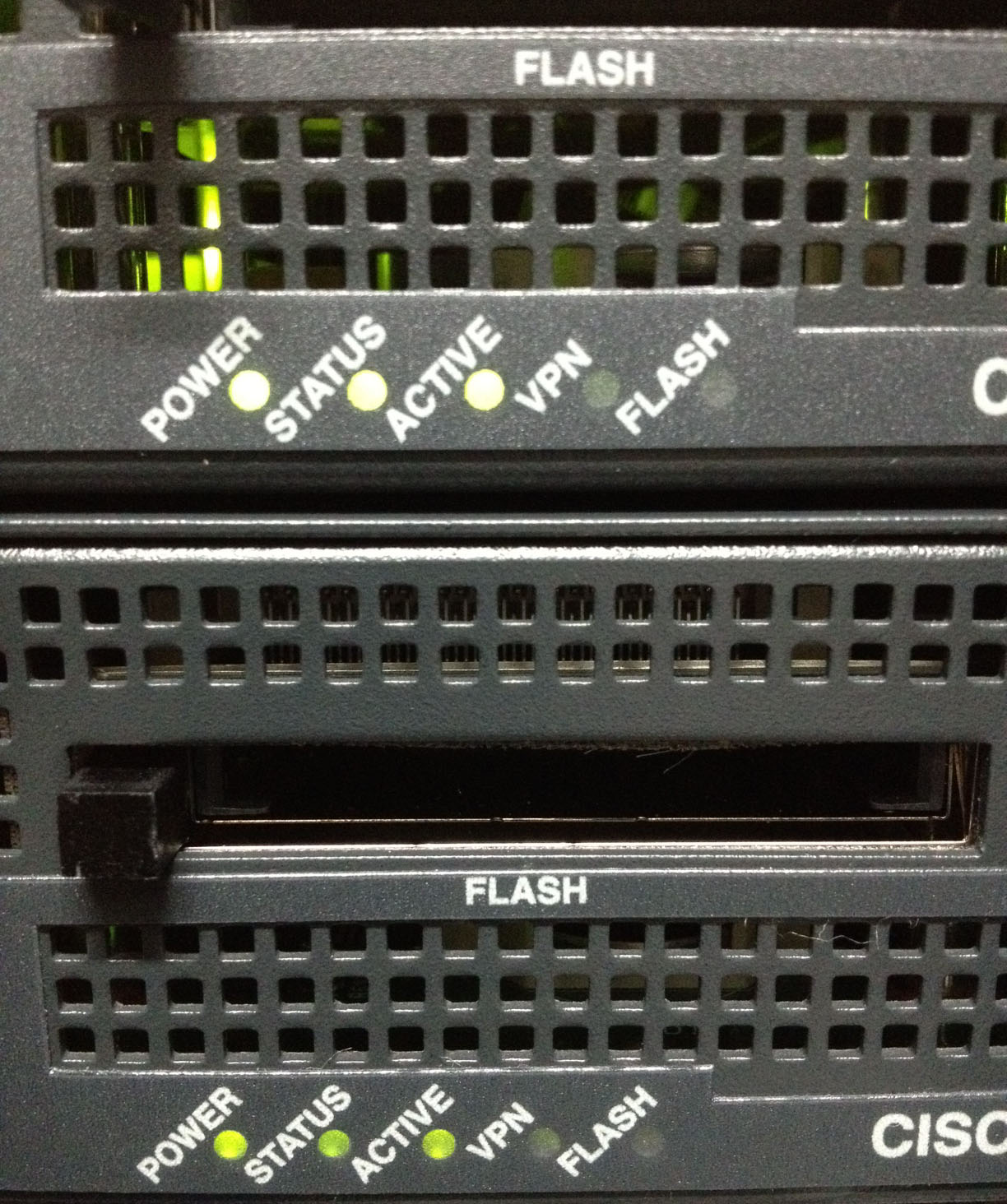
So what happens in a failover? Well what I’ll do is setup a constant ping to google’s DNS server and then simply switch off the primary ASA. (in the image below the top ASA)
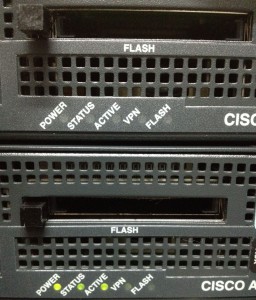
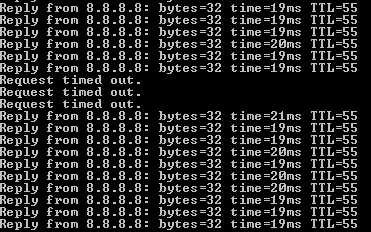
As you can see if your primary ASA ever decided to blow up or fail then you’ll lose a couple of packets but nothing major!
From the console we can see the secondary device switches to active, and when the first device comes back online (or you reconfigure a new device) you then see


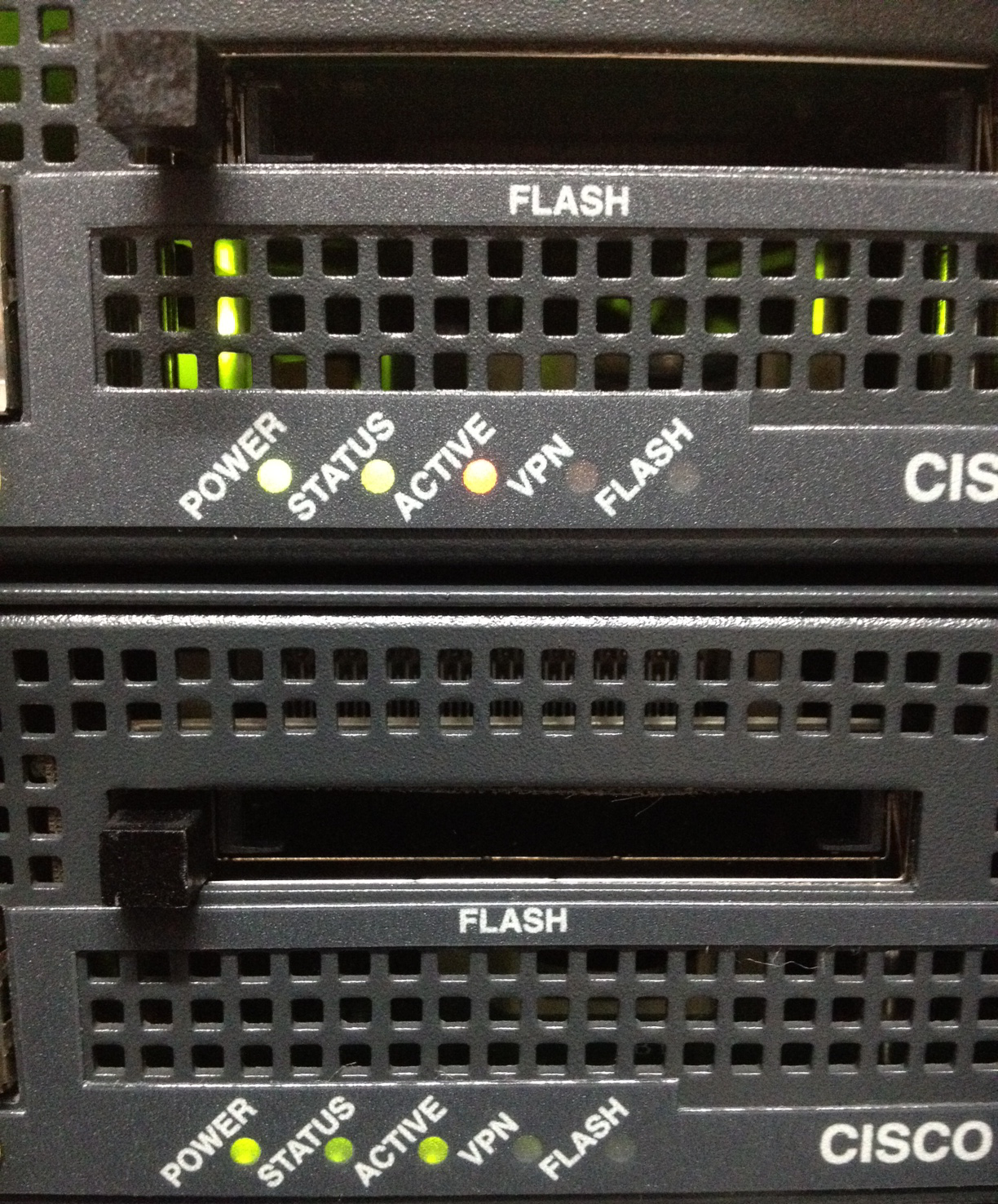
Lets now turn the Primary ASA back on
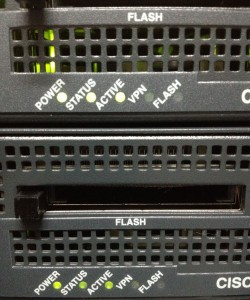
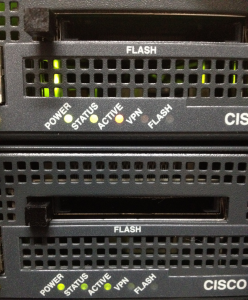
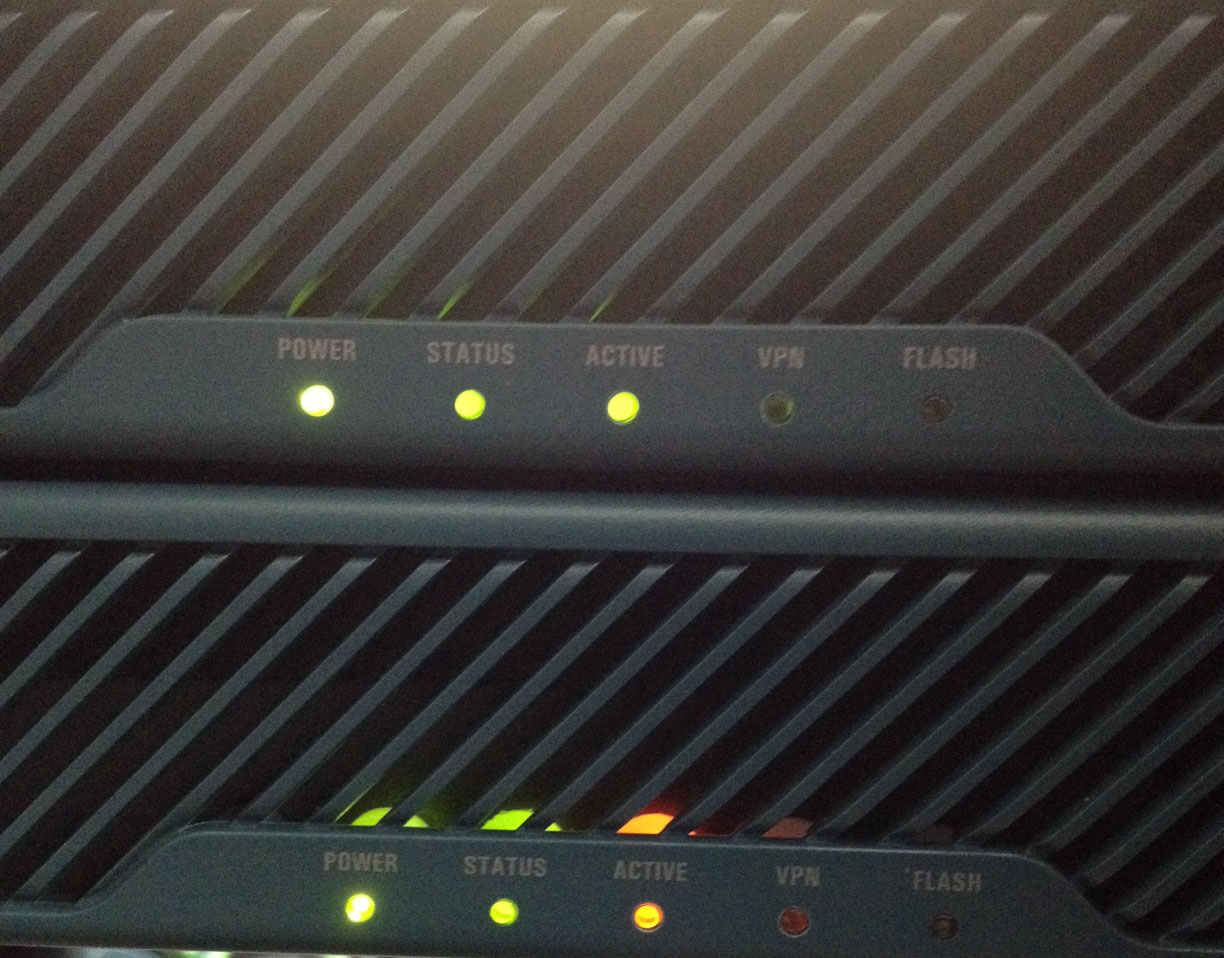
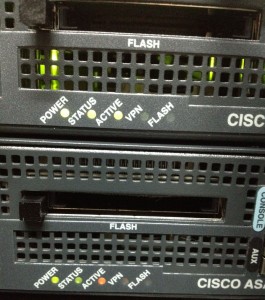
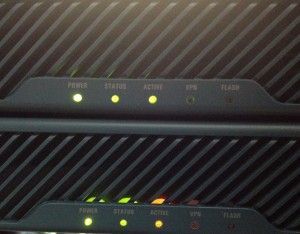
As you can see the primary ASA now it’s been turned back on/replaced is now the standby ASA. (as indicated by the orange light under ACTIVE)
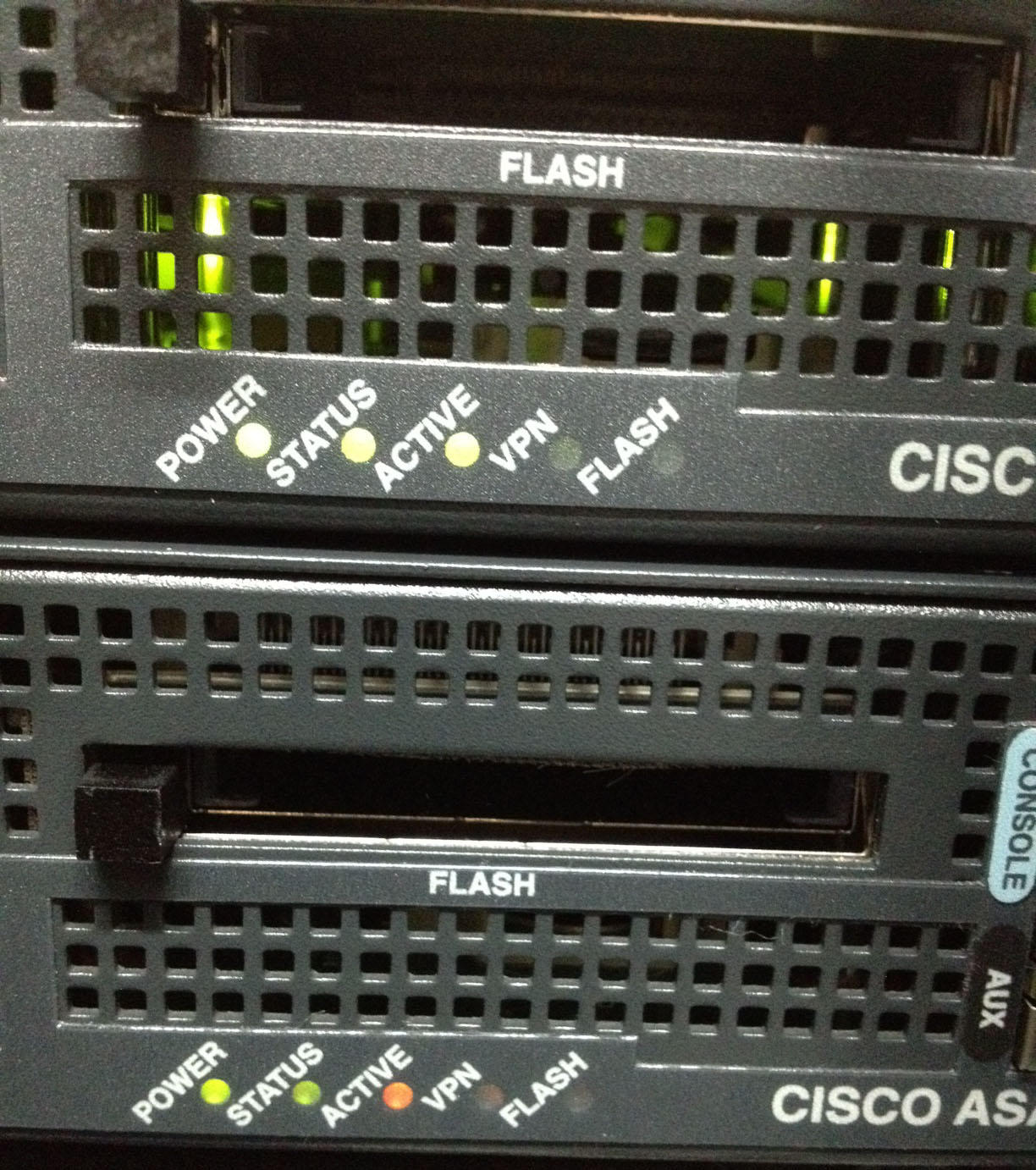
If you want to make the primary device the active ASA again then run the below and this will manually failover the device.
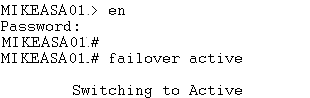
Now if we check the ASA’s again we can see the primary ASA (top ASA) is once again the primary ASA, and the secondary ASA is the standby ASA.
Once again that’s that…