
-
Windows 8 has arrived….
Posted on October 29, 2012 by Michael in Latest News, Tutorials
Well I took the plunge to upgrade to windows 8 and see what all the fuss is about and I must admit my experience so far has been a good one.
OK the lack of start menu is a tad strange at first, but once you get your head round the new metro screen being effectively a big start menu then it starts to fall in to place.
The menu’s and layout makes sense, the shortcut keys help you to navigate around windows quicker than ever before.
The whole experience for me is that windows 8 is faster, slicker, smoother, and easier to use than any other windows operating system.
But let’s go back to the start, installing Windows 8.
Hand’s down the fastest windows OS I’ve installed to date (and windows 7 was a considerable improvement over XP’s install times).
I wasn’t keeping an exact stop watch going but install time was around 10/12 minutes (on a standard 250gb 7200 RPM hard drive).
First boot time once you’ve setup your account is amazingly fast. From the moment you turn your computer on you are literally at the login screen within 10 seconds.
But once you’re logged in, then what?
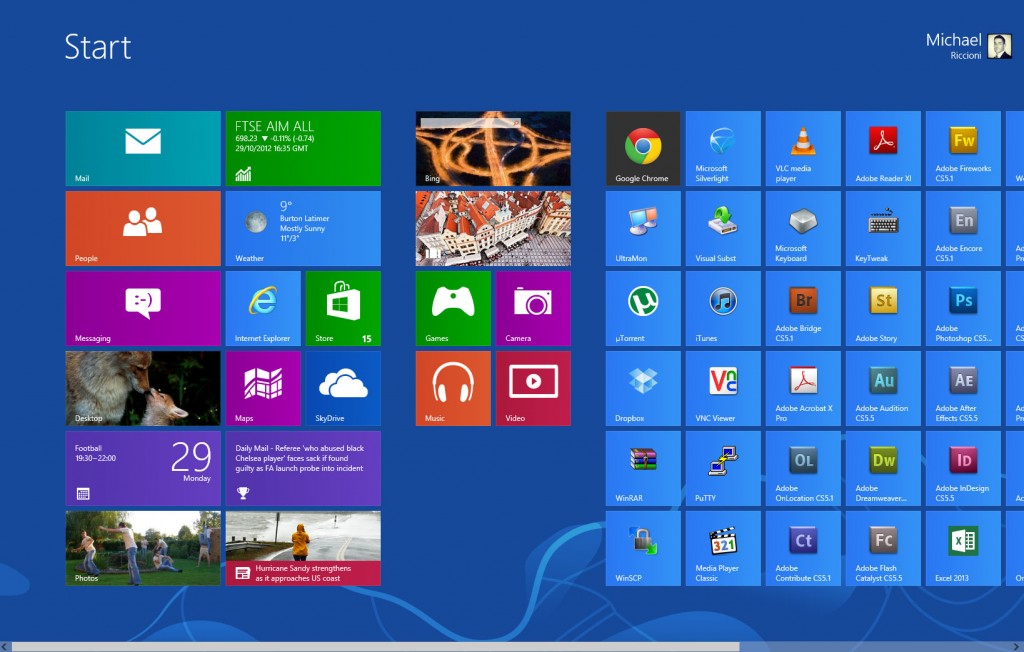
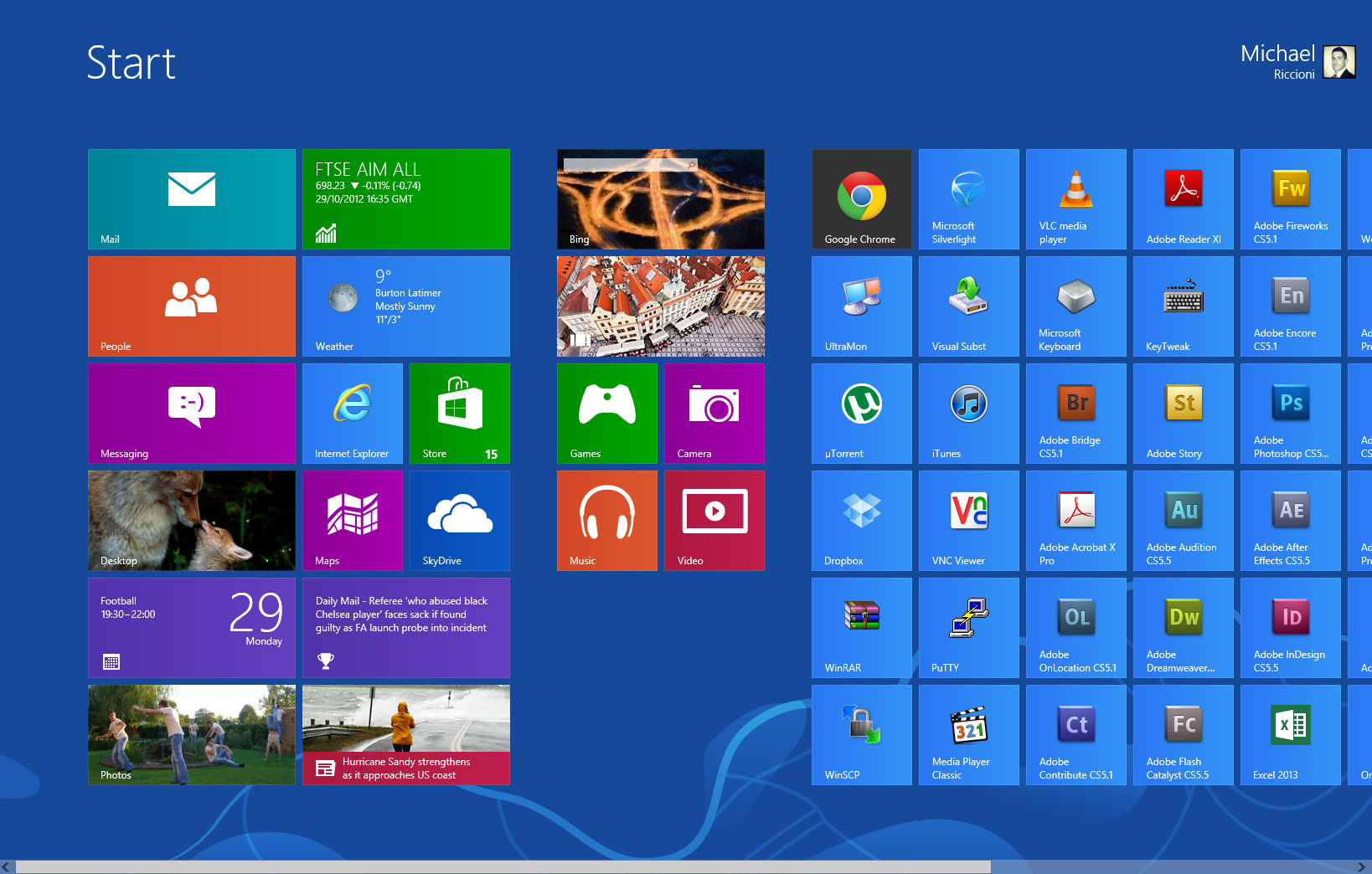
Well you are presented with “the metro screen”…Now don’t be scared, if you look at this logically as a BIG start menu (scroll to the right to view all your installed apps) then it makes perfect sense.
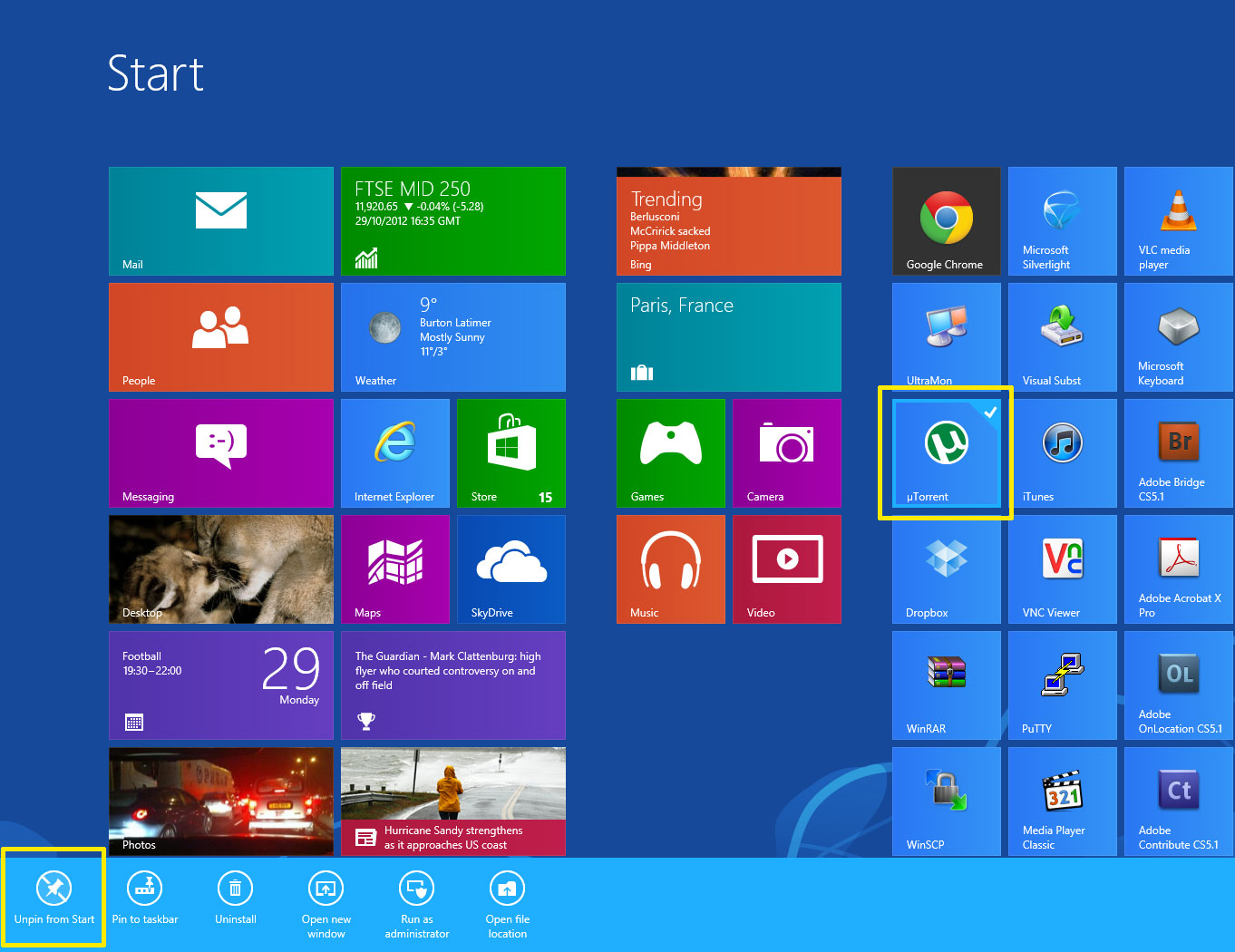
You can easily right click on (for example the utorrent tile and select remove) if you do not wish it to be shown.
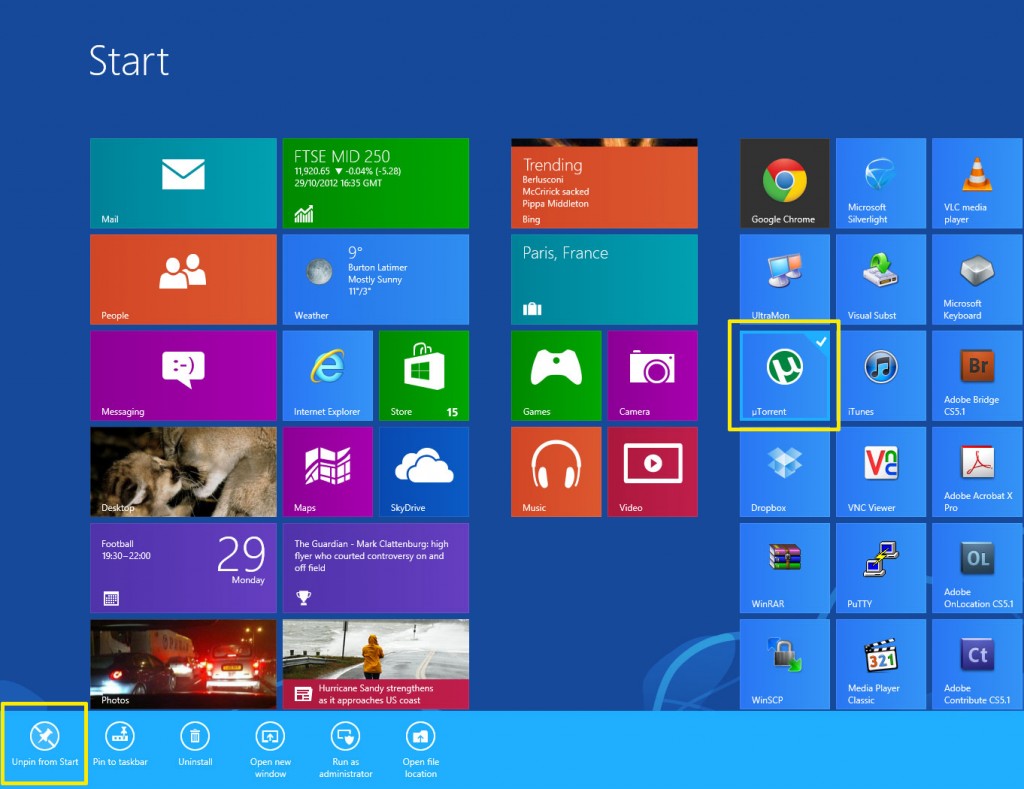
Scrolling your mouse wheel down (scrolls to the left) and up (scrolls to the right), allow you to scroll through all your programs, making it easy to navigate through the applications installed as well.
So how do you get out of this and to your desktop? Simply click desktop or click windows key D.
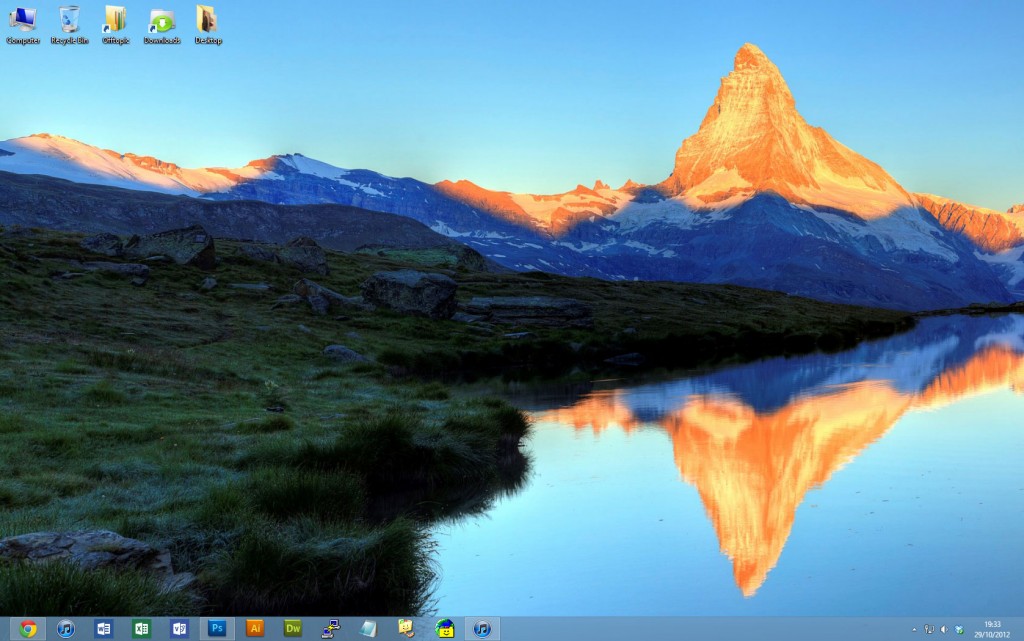
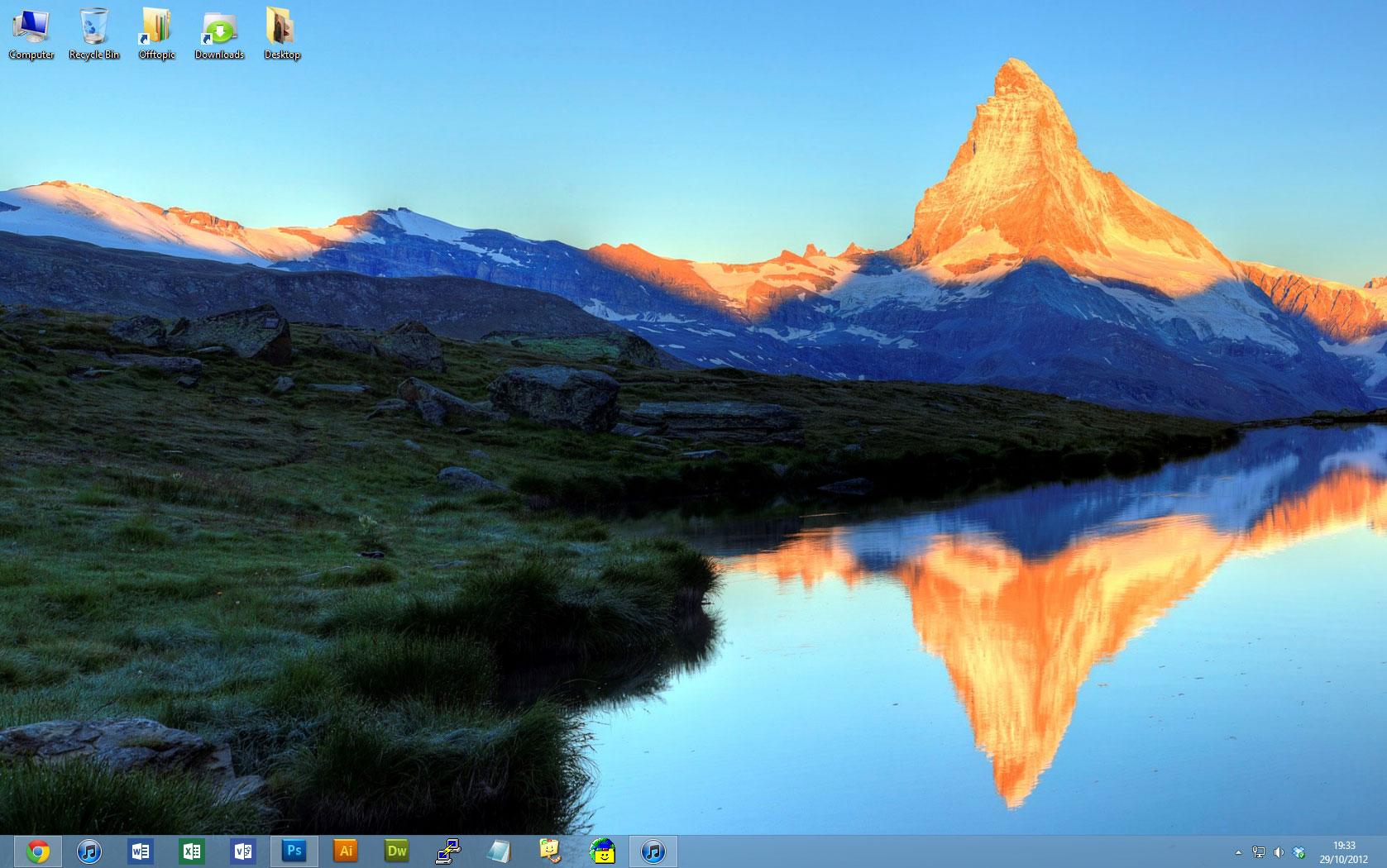
And here we have your familiar desktop. You’ll see I’ve pinned a number of items to the task bar (effectively ruling me out requiring a start menu anyway!), but what if I need to quickly find an application or access the control panel?
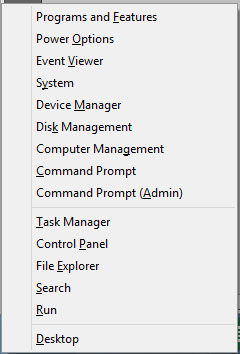
Well Windows key + X brings up this handy menu, or simply right click in the bottom corner where the start menu used to be, brings up the exact same menu.
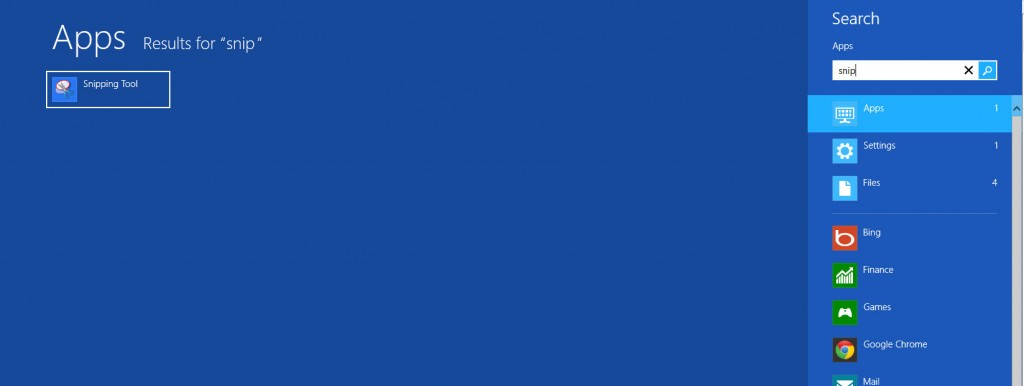
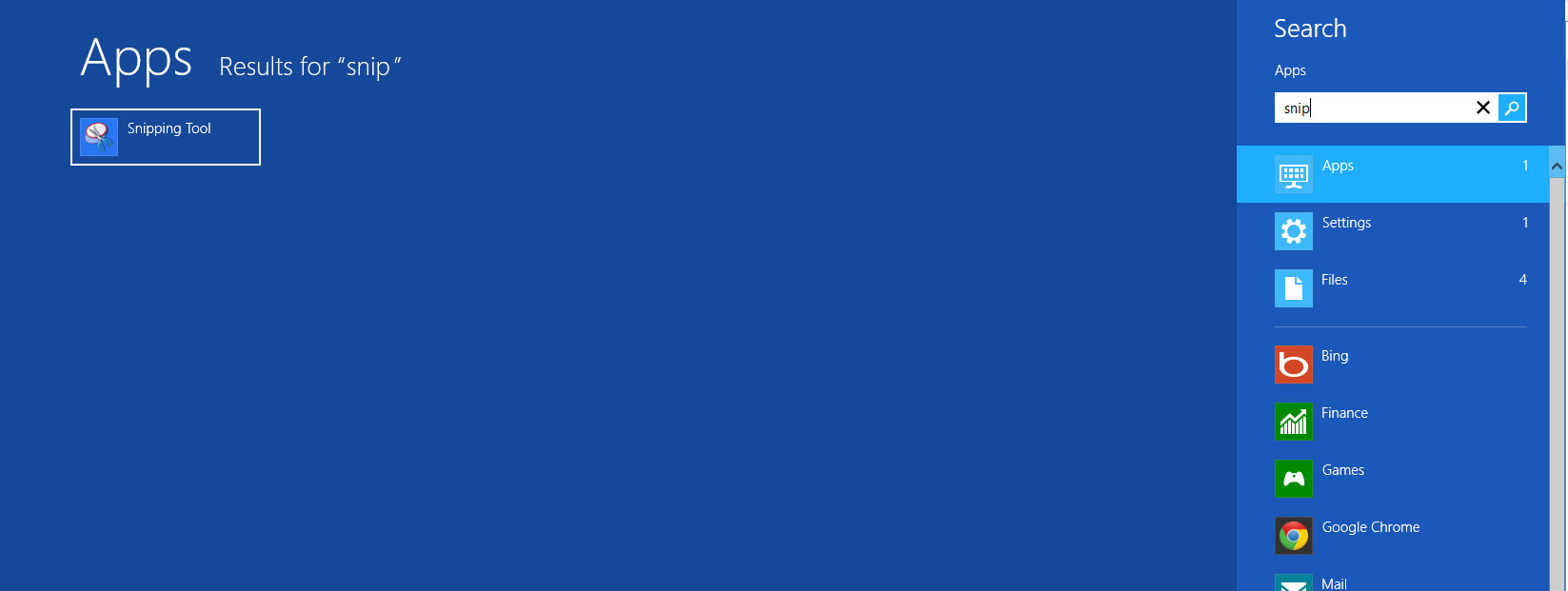
How about a program then? Windows Key + F brings up this handy search screen and you can then type what it is you are looking for. In this case an application, but what about a file? Well simply select file and type the name. Simple right?
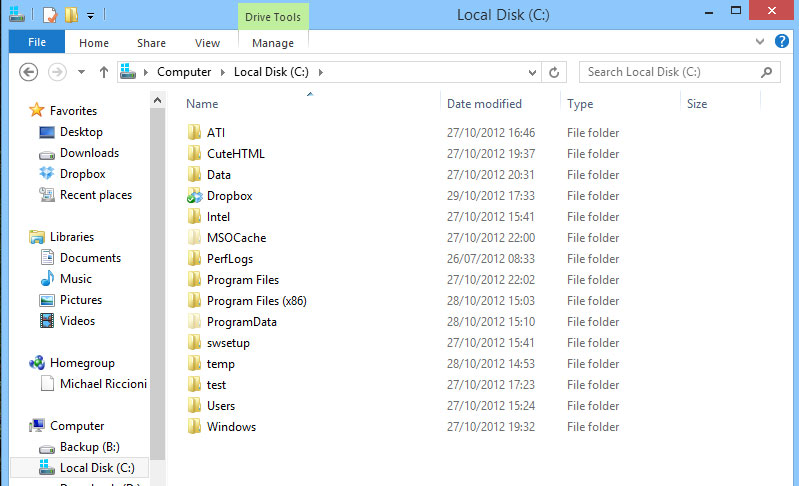
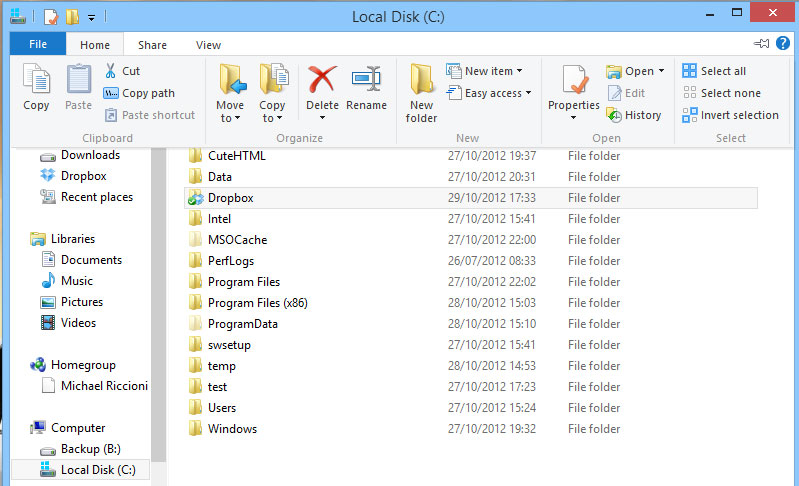
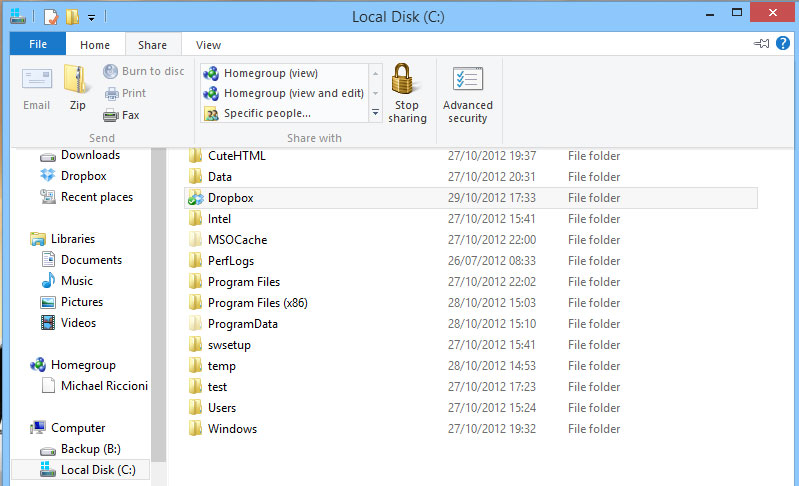
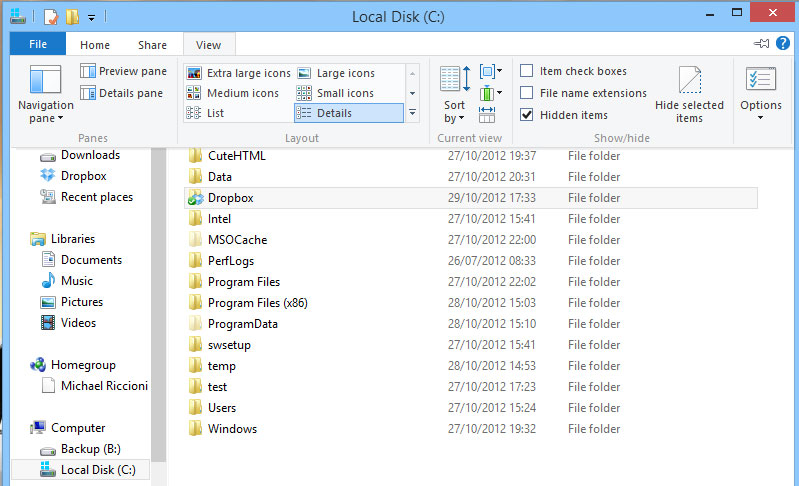
I also like the way so many more options are available at a click or two instead of flicking through menus, for example browsing to the root of your drive. Looks fairly compact, but if you click along the tabs just look at how many options are available. No more tools > options > this tab > that tab > this check box. It’s all there at a click or two.
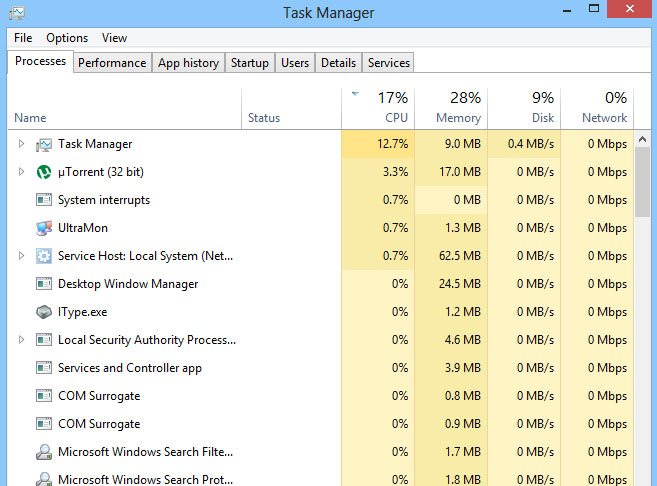
The task manager has also been updated and now you are presented with a much more intelligent task manager providing you with feedback on every process which is running along with exactly what resources it is using.
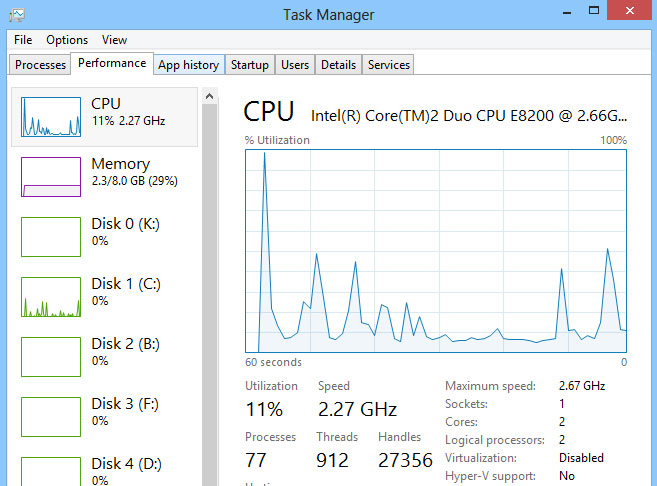
A switch over to the performance tab gives us nice little graphs of our processor, memory, network etc..
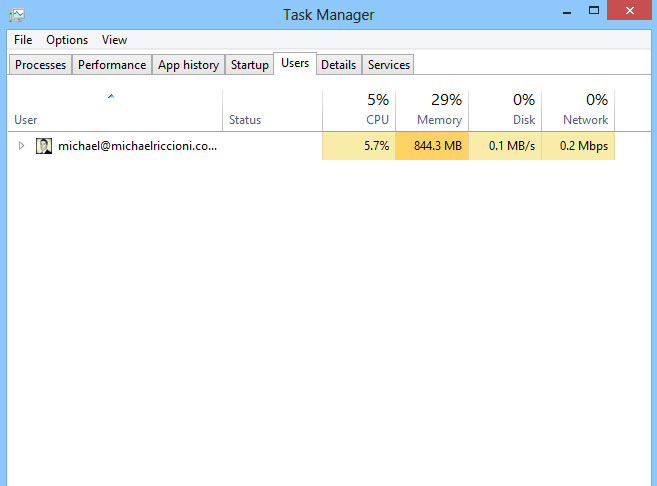
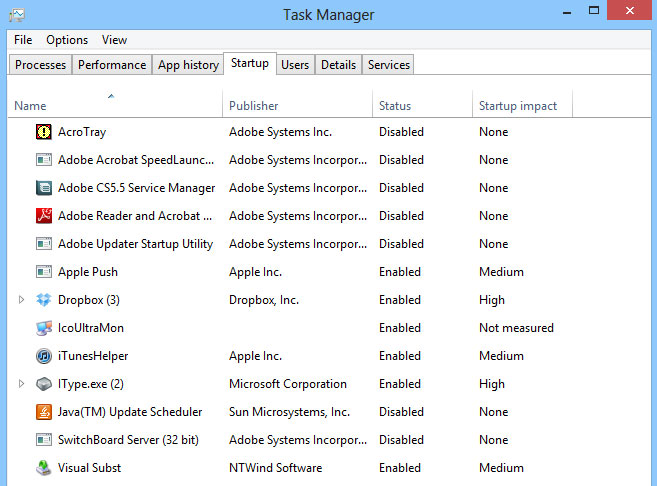
Startup items now has a new home as well, no longer is msconfig > startup items there. (Well it is but it just links you to the task manager). You now manage this via the new task manager. Simply click once then click disable/enable and job done.
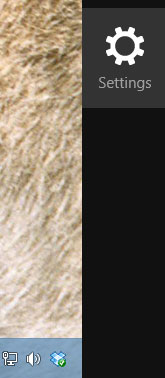
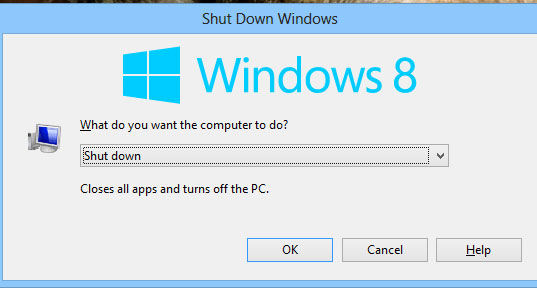
How about shutting this thing down? Well once you know how (it’s easy!), and there’s a few ways you can do this. Hover over the bottom right hand corner, then click the little setting wheel
you are then presented with the following screen, and simply select Power.
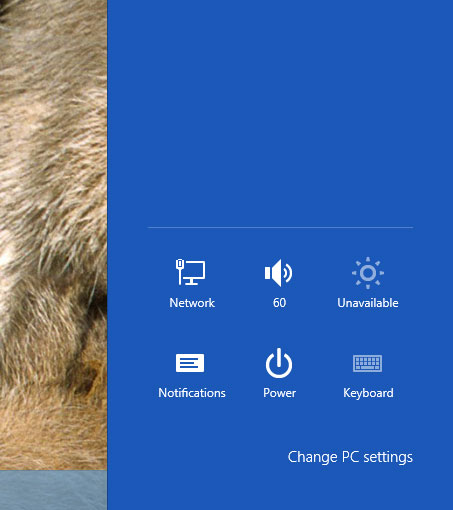
Windows Key + I also brings up this windows (above) for easy access, and finally good old fashioned Alt + F4 (whilst on the desktop), brings up the old fashioned shut down prompt
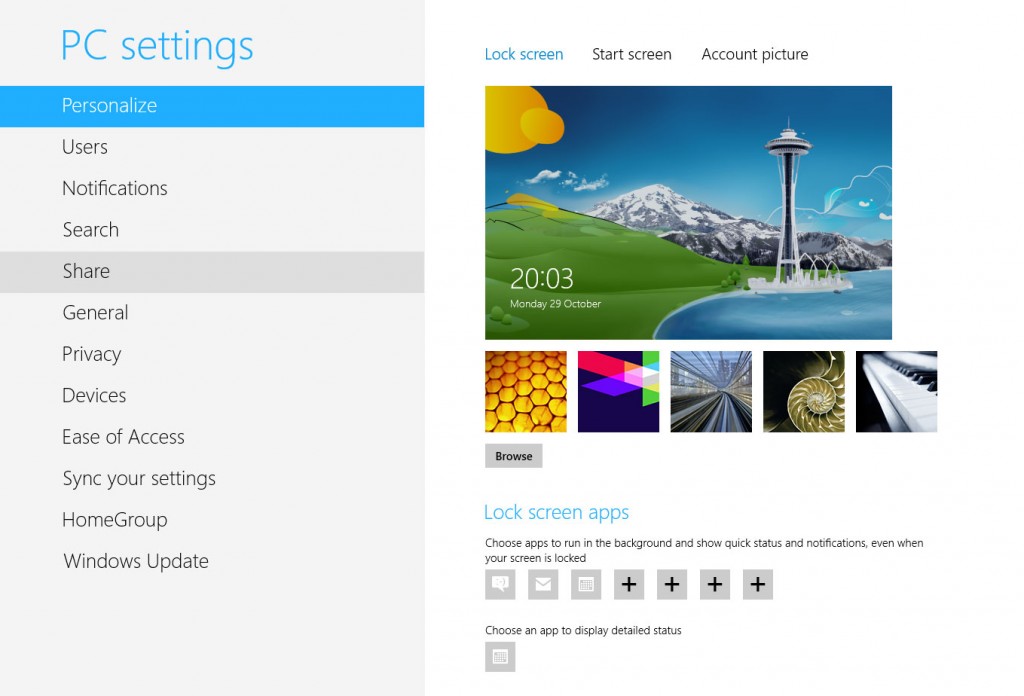
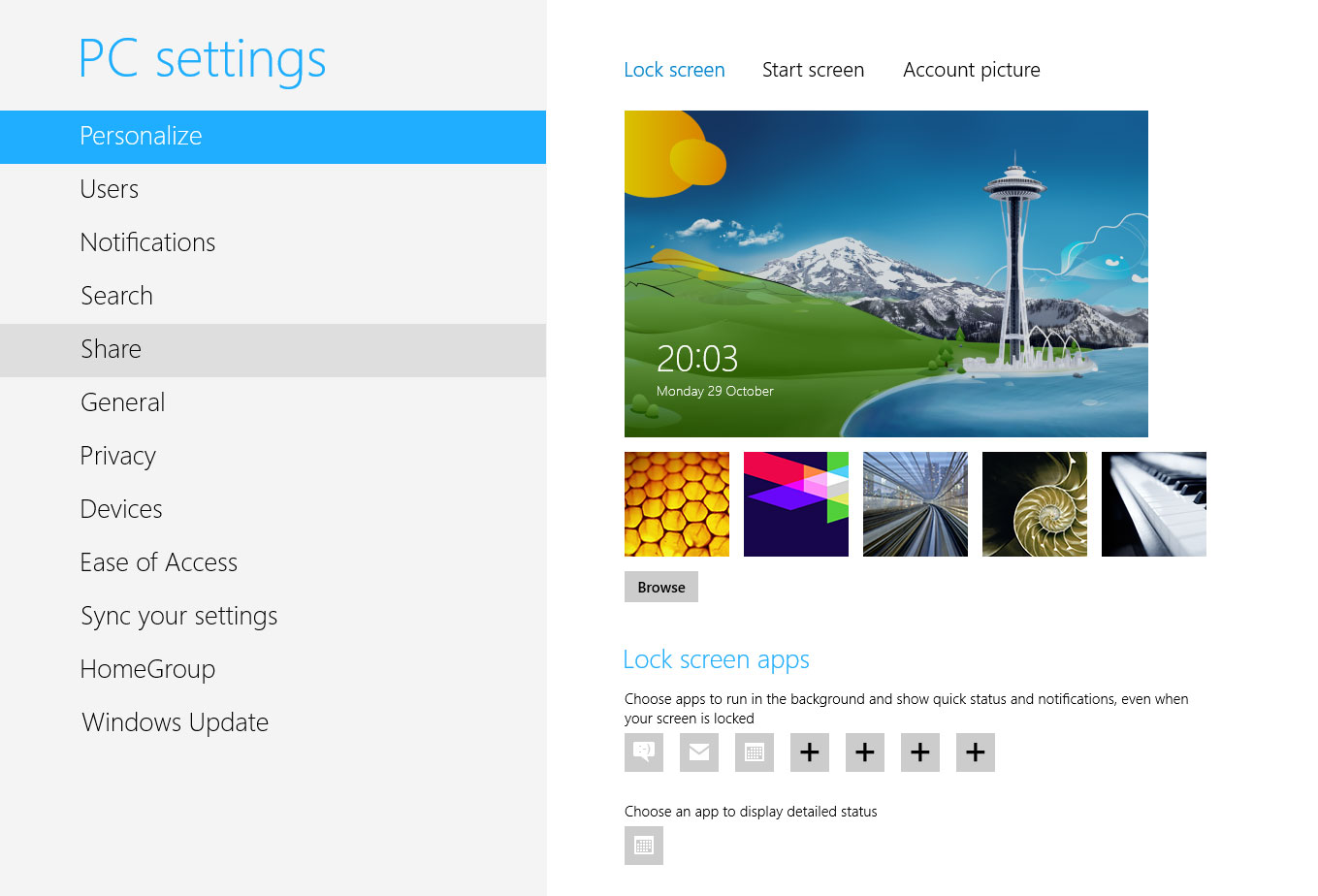
Personalisation is also very simple. Once again hover over the bottom right hand corner (or windows key + I) and select “Change PC Settings”
To be honest, I’d imagine I’m only just scraping the surface with what’s new/changes in Windows 8, and I’ll discover more as I go, but I have got to hand it to Microsoft, I am very impressed with their new OS so far.
Key things to remember
- Windows Key bring’s up the metro screen
- Windows Key + D takes you to your desktop
- Windows Key + I brings up the personalisation menu (I believe microsoft’s name for it is the “charm bar” I could be wrong though).
- Windows Key + X more administrative options menu.
Compatibility issues (always a worry)?
Well so far I’ve had none. All my drivers, have been found or I’ve manually installed. Even my trusty USB to Serial adapter I use works under windows 8 (which is a very good thing seeing as I’ve also installed it on my work laptop….)
Finally a site I agree with. I have read some real rubbish today, so its a treat to read something useful.
My partner and I absolutely love your blog and find a lot of your post’s to be exactly I’m looking for. can you offer guest writers to write content available for you? I wouldn’t mind writing a post or elaborating on most of the subjects you write concerning here. Again, awesome web site!
Seeing your website really helped me to find out something today. Thanks a lot for placing these details.
so considerably good information on here, 😀
Hi there, just became aware of your blog through Google, and found that it’s truly informative.