
-
Active Directory 2003 to 2012 R2 Migration – Part 2 – AD Health & Pre-Requisites
Posted on February 5, 2015 by Michael in Latest News, Studying, Tutorials
Right then now we get to the business side of things. Before diving head first in to a migration, we need to make sure the current environment is in a “migrate-able” state.
It’s always wise to run a few of the support tools on your environment to make sure AD is in a good and healthy state, or for those large environments you may even chose to get Microsoft in to run their own active directory health check service.
For this example, I’m going to be using our trusty support tools Dsquery, Repadmin and Dcdiag.
Most specifically, we will be running 15 different checks on active directory using the above.
1. Replsummary operation quickly and concisely summarizes the replication state and relative health of a forest.
repadmin /replsummary2. Synchronizes a specified domain controller with all replication partners, and reports if the sync was successful or not
repadmin /syncall /e
repadmin /syncall /Aped
A ( All partitions ) P ( Push ) E( Enterprise ) D ( Distinguished Name )3. Forces the KCC on targeted domain controller(s) to immediately recalculate its inbound replication topology
repadmin /kcc *4. Find the last time your DCs were backed up, by reading the DSASignature attribute from all servers
Repadmin /showbackup *5. Output all replication summary information from all DCs
Repadmin /showrepl *6. Displays inbound replication requests that the domain controller has to issue to become consistent with its source replication partners.
Repadmin / queue *7. List all the Domain Controllers in Active Directory
DSQUERY Server -o rdn8. Identifies domain controllers that are failing inbound replication or outbound replication, and summarizes the results in a report.
Repadmin /replsummary9. Displays calls that have not yet been answered, made by the specified server to other servers
repadmin /showoutcalls *10. List the Topology information of all the bridgehead servers
repadmin /bridgeheads * /verbose11. Inter Site Topology Generator Report
repadmin /istg * /verbose12. Displays a list of failed replication events detected by the Knowledge Consistency Checker (KCC).
repadmin /failcache *13. Lists all domains trusted by a specified domain
Repadmin /showtrust *14. Displays the replication features for, a directory partition on a domain controller.
repadmin /bind *15. Dcdiag analyzes the state of domain controllers in a forest or enterprise and reports any problems to help in troubleshooting
dcdiag /c /e /vPersonally, I find it easier to script the above and output the results to a .txt file to make it easy reading.
Below shows the output from a snapshot of a few of the commands
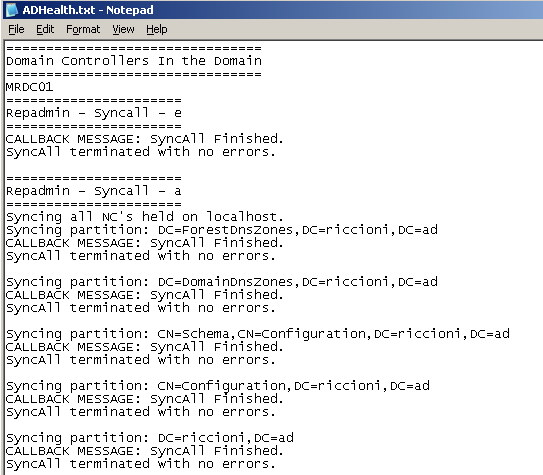
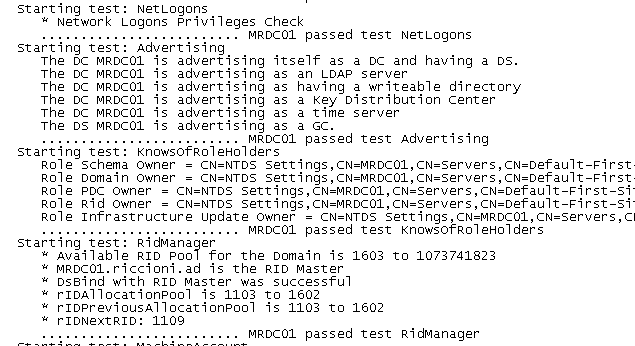
Obviously the above is only going to be useful if you know what you are looking at, so if you are unfamiliar with these tools I suggest you take a read of the tools and their descriptions / switches as per Microsoft website.
Finally it’s always good to run a quick DNSlint

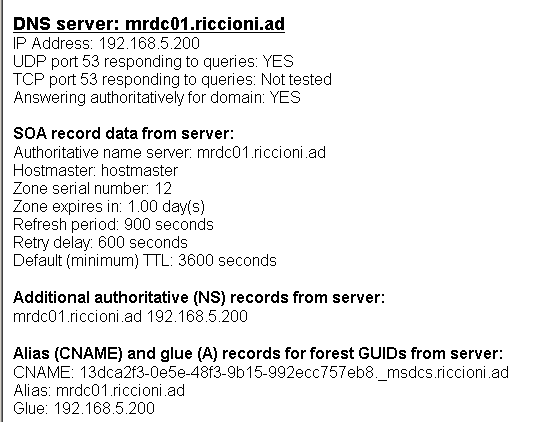
Again, if you are unfamiliar with dnslint please make sure you read up on the tool first, so you can understand the output.
It’s always wise to run the below command to check the current schema version of active directory:
- Dsquery * cn=schema,cn=configuration,dc=riccioni,dc=ad -scope base -attr objectVersion

The schema versions are as follows:
- 13 = Windows 2000 Server
- 30 = Windows Server 2003
- 31 = Windows Server 2003 R2
- 44 = Windows Server 2008
- 47 = Windows Server 2008 R2
- 56 = Windows Server 2012
- 69 = Windows Server 2012 R2
Finally a quick netdom /query fsmo to confirm all fsmo roles sit where they should be sitting
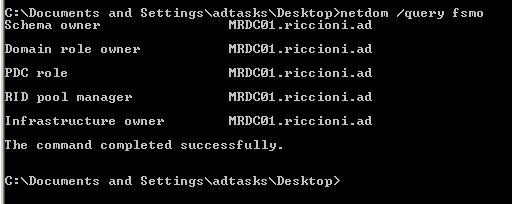
Once the above has been reviewed, and any outstanding items corrected we now need to make sure both the forest and domain levels are windows server 2003.
Open Active Directory Domains and Trusts, right click ADDT and select Raise Forest Functional Level…
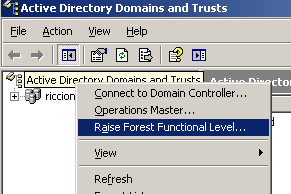
As shown below, the forest level is current Windows 2000. This needs to be at least Windows Server 2003. Select this from the drop down box and click Raise.
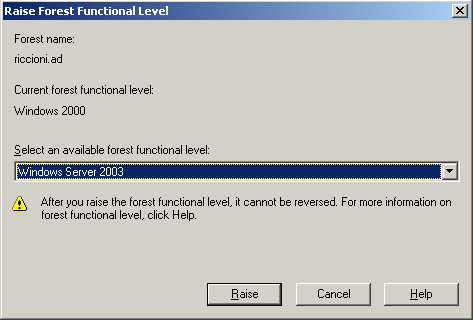
Click OK once complete

Next browse to dsa.msc (Active Directory Users and Computers), and right click the domain.
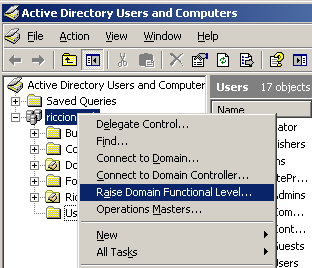
We will now do the same but this time for the domain
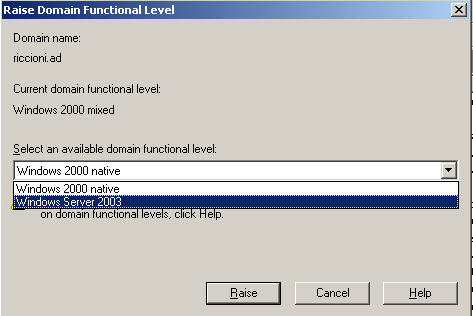
Click OK to raise the level to 2003

The information prompt should show the level as being raised OK

If you check the Directory Services event log you should also see the following event:
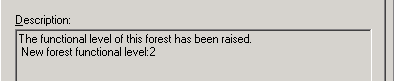
For reference the forest function levels are as follows:
The new forest functional level shows as level “2” which is Windows Server 2003 as shown in the list below.
- 0 = Forest functional level: Windows 2000
- 1 = Forest functional level: Windows Server 2003 interim
- 2 = Forest functional level: Windows Server 2003
- 3 = Forest functional level: Windows Server 2008
- 4 = Forest functional level: Windows Server 2008 R2
- 5 = Forest functional level: Windows Server 2012
- 6 = Forest functional level: Windows Server 2012 R2
It’s important to note if you have a multi child forest, and only wish to deploy 2012 R2 to one of the child domains, you MUST update the forest functional level, but you only need to raise the domain level for the child domain you will be introducing the 2012 R2 Dc in to. For example
- Riccioni.ad parent
- michael.riccioni.ad child domain
- mark.riccioni.ad child domain.
michael.riccioni.ad child domain will be migrating to 2012 R2. This means we raise the forest level of riccioni.ad, and the domain level of michael.riccioni.ad. Mark.riccioni.ad does not need its domain level raising.
Once the above is complete, we are now ready to proceed with building and deploying our first 2012 R2 server into the environment. Look out for Part 3 coming very soon….