
-
Upgrading Your Skills to MCSA Server 2012 – Installing (70-417)
Posted on September 23, 2013 by Michael in Certifications, Studying
Before we dive in to the installation, I’m going to cover off exactly what versions there are in 2012 as this has changed from the 2008 model.
As you will see Microsoft have killed off Enterprise edition, instead we have Standard and Datacenter.
- Windows Server 2012 Standard edition
- Windows Server 2012 Datacenter edition
- Windows Server 2012 Essentials – 25 User limit
- Windows Server 2012 Foundation edition – 15 User limit
For most organisations Standard and Datacenter will be the applicable versions. Smaller organisations may choose Essentials/Foundation.
Specification wise, the minimum requirements for installing Server 2012 is:
- Processor architecture x64
- Processor speed 1.4 GHz
- Memory (RAM) 512 MB
- HDD space 32 GB
But good luck to anyone who chooses to run it on that specification!
If you are looking to upgrade from 2008 to 2012, you can perform an in place upgrade from any version of 2008 / 2008 R2 to either the same or higher version of Server 2012. You can also migrate using the Windows Server Migration Tool if you prefer.
As you will see there are only two installation options with Server 2012. Either Server Core or Full Installation.
If you’ve not used Server Core before it’s basically Server 2012 without the GUI. All you are presented with is a command prompt. The improvement they have made in 2012 is if you do install server core, you can later install the GUI, and likewise if you install the full installation (GUI), you can configure the server then remove the GUI leaving you with effectively server core.
Some benefits of Server Core are:
- Features default minimal installation option
- Reduces update requirements
- Requires fewer hardware resources
- Supports most Windows Server 2012 roles and features
So now I’ve explained a little about it, lets continue with the installation.
I’m going to be using the following setup for the coming labs:
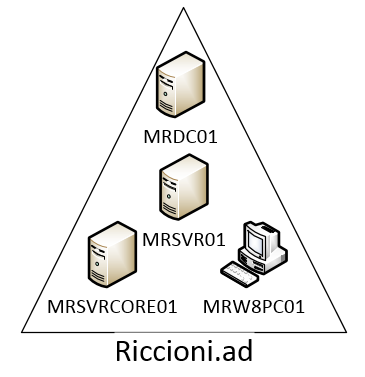
- Domain: Riccioni.ad
- MRDC01 – Server 2012 Domain Contoller
- MRSVR01 – Server 2012 GUI Installation
- MRSVRCORE01 – Server 2012 Core Installation
- MRW8PC01 – Windows 8 Installation
Let continue with the installation….As you can see below (and as mentioned above) you only get the two options (core and GUI). Core is the default option. In this example and as i’ll be installing MRDC01 I’ve selected the 4th option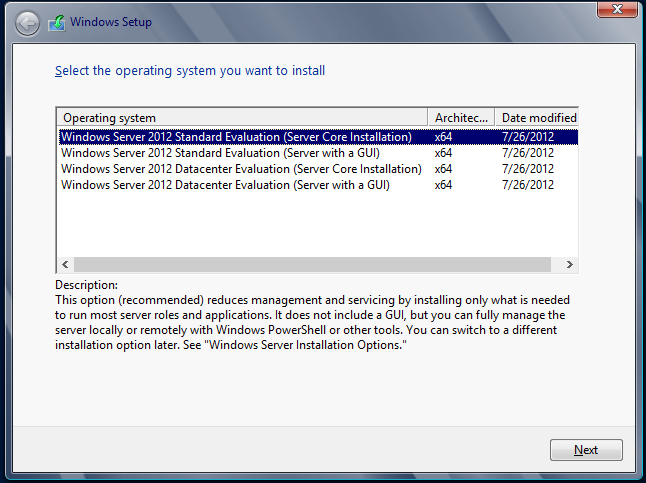
Likewise for MRSVRCORE01 I’ve selected the 3rd option
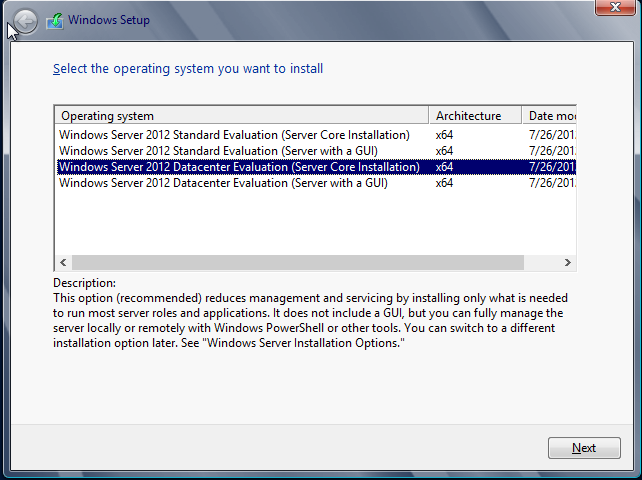
If you’ve installed Windows 7/8 / Server 2008 this will be familiar to you by now..
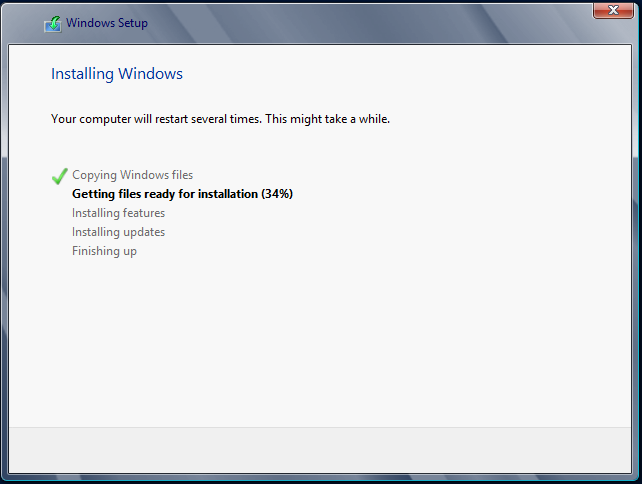
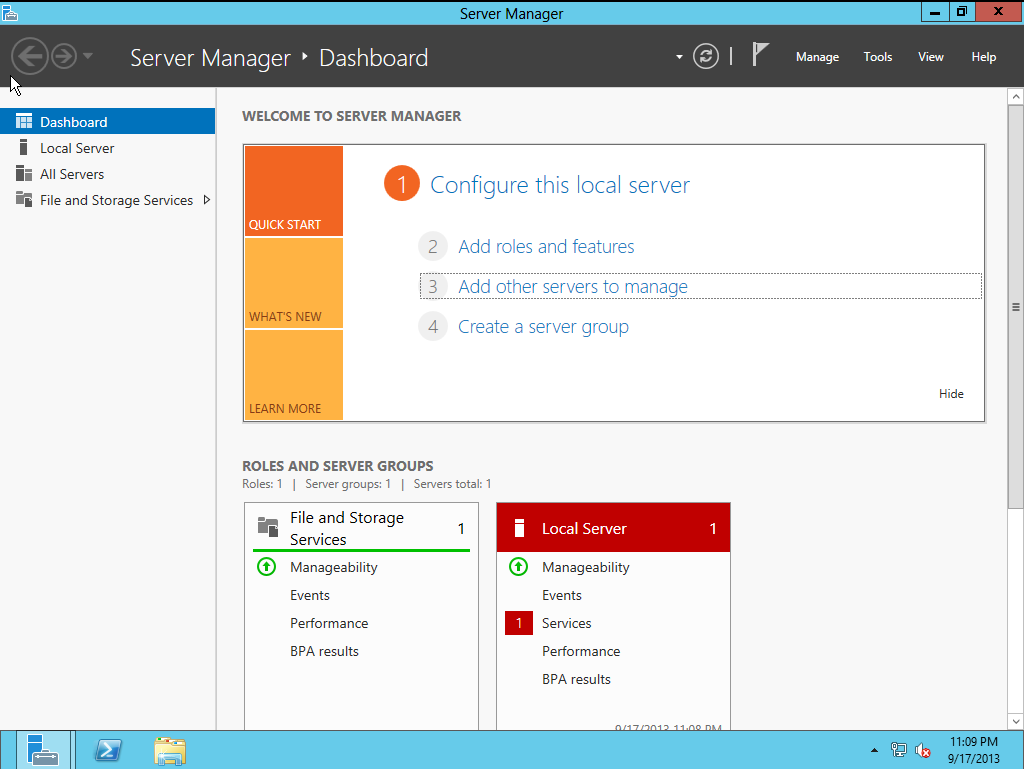
And once the GUI installation has finished, you will be booted in to your windows desktop. You will notice Server Manager open’s automatically.

Server Manager is essentially the hub where you can monitor, maintain and configure everything from. The main dashboard gives you a quick over view and a quick look at “whats good – green” and “whats not – red”.
As you can see from the below Local Server is flagged RED, indicating an issue
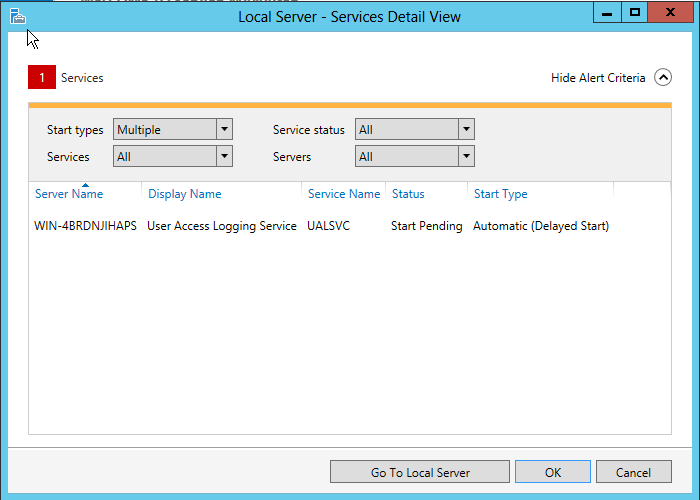
If we click on “Services” as that’s where the issue lies we can see it’s due to a service which has yet to start yet….give this a few seconds and once it’s started you will see it’s now gone from the services detail view…
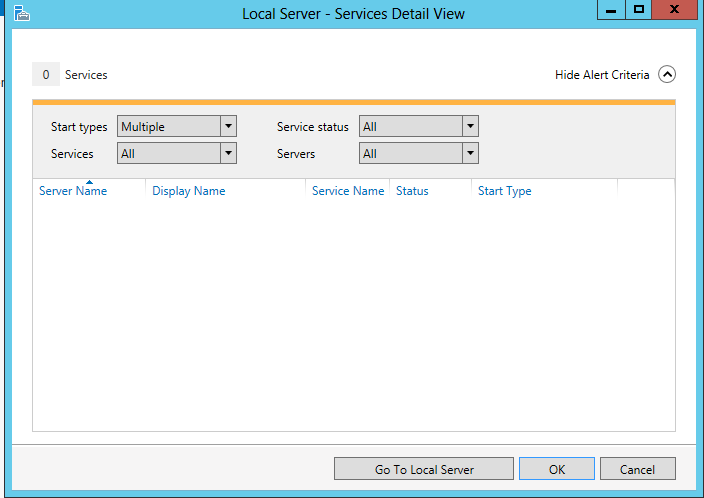
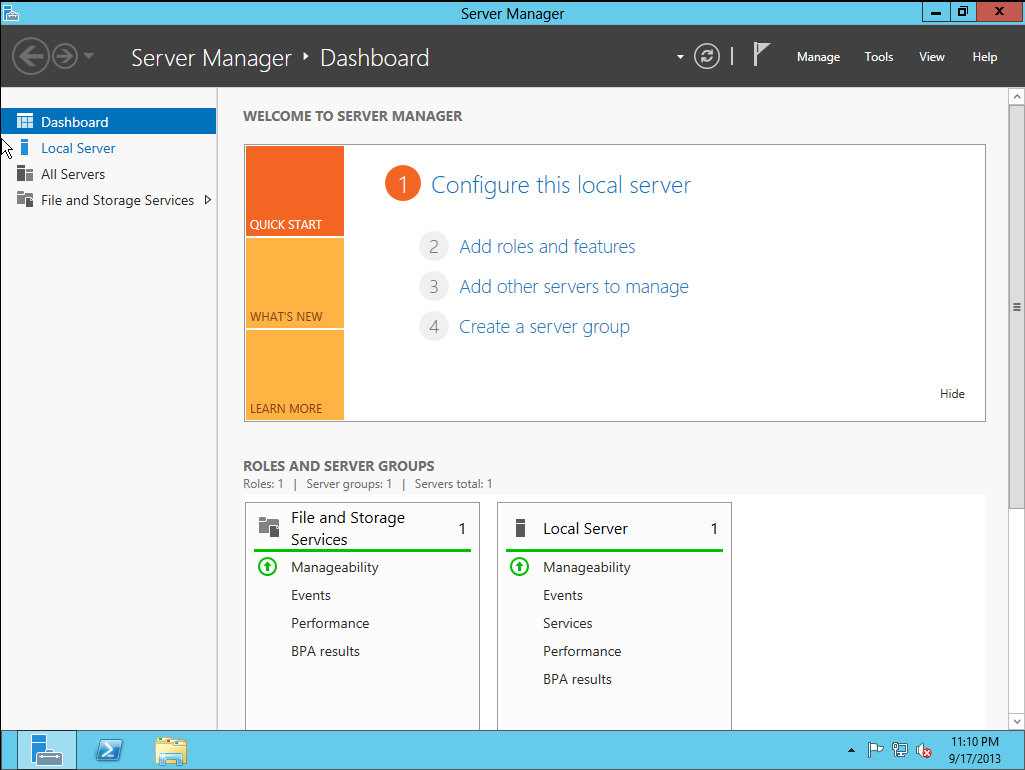
And if we exit out (click ok) you will see the local server is now showing as green.
Switching over to MRSVRCORE01, you will see we are presented with a very different screen. All we have to work with is a simple command prompt window.

That covers off installation (the boring part), the next topic will be a lot more in depth as we dive in to basic configuration of your newly installed server…