
-
Microsoft System Center Configuration Manager 2007 – Queries & Query Based Collections (Part 7)
Posted on March 16, 2013 by Michael in Latest News, Studying, Tutorials
Another weekend of nothing but rain, means perfect time for some extra revision!
In this blog I’ll be looking at queries and query based collections within SCCM.
Why is this useful?
Well say you have 100 PC’s in your environment. Some are XP, some are Vista, Some have office 2007, some office 2003. If you want to deploy updates or software you may only want to target (for example) those Vista machines with office 2007. Being able to use a query based collection means we can specifically target those machines.
Let’s start by taking a look at the built in queries.

You will notice each one of these queries matches up to an existing collection (as mentioned in the previous blog).
What we are going to do is create our own, to show us only those XP systems with Microsoft Word installed on them.
Firstly right click Queries and select new > query

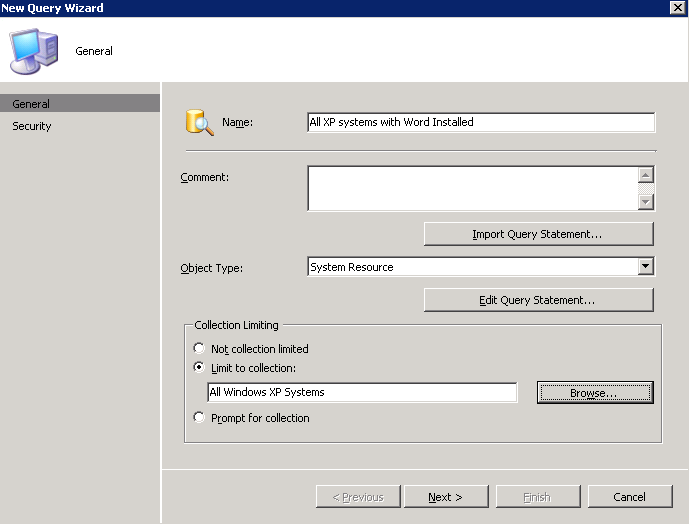
I’ll name the query “All XP systems with Word Installed”.
For Object type select system resource and then select “Edit Query Statement”
We will be selecting a simple value so click select

From attribute class select “software files” and attribute select file name. Click OK to return to the above window

Now we are back on the new query page select “value”.
You will see there are already hundreds of file names populated from the inventory’s which have already been run against the systems. We need to find winword.exe from the list
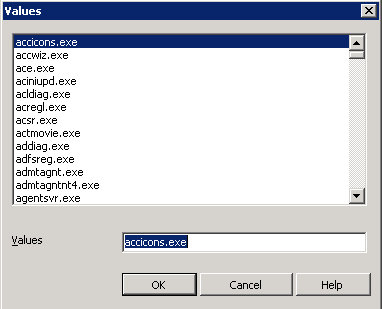

Click OK to the above, and we now have a fairly simple criteria for the query. Select OK

Now we’ve create our new query, right click properties and from here we can see the query statement which gets run

If you are familiar with SQL (and the SQL language) then you will start to see similarities, as guess what…..the SCCM language is pretty similar to SQL.

Now let’s RUN the query we’ve just created and we should see the below.

Here we can see the only system with winword.exe on it is MRPCXP02.
This gives us a quick way to find out information, but what about if we want to deploy software to this machine? well this is where we have to use a query based collection.
What I’m going to do in this example, as we already have an XP collection, is simply create a “sub collection” or child collection contained within the All Windows XP Systems collection.
Right click > New > Collection

Name the new collection

On the next window select the little yellow cylinder icon, and here we find ourselves on the query rule page we have just looked at.
Fill out the information as we did previously, and select “limit to collection” (and make sure you select All Windows XP Systems”

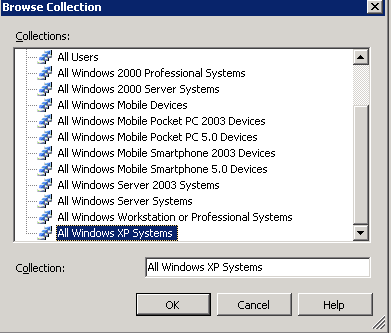

Click OK to return to the new collection wizard, and we can now see there is a new membership rule.

click Next and Finish


and we’ve now created our first query based collection. IF you refresh the view you will see within “All Windows XP Systems” we now have a new entry

If we go in to this new collection we can now see the MRPCXP02, and as we have saved this collection (come later blogs) when I show you software distribution, this will now enable us to push software to just machines which match this criteria.

As mentioned at the start of the blog, it’s another wet weekend here in London, so i’d expect quite a few more blogs to follow this weekend!…..
Nice post. I was continuously checking this blog and I am impressed! Very useful information specifically the last part 🙂 Thank you and best of luck.