
-
Microsoft System Center Configuration Manager 2007 – Reports & Dashboards (Part 8)
Posted on March 16, 2013 by Michael in Latest News, Studying, Tutorials
Well I hope you’ve got your SQL hat’s on….as we will be briefly looking at SQL queries in this blog, as well as reporting and reporting dashboards
Before we go any further we need to install the reporting server component
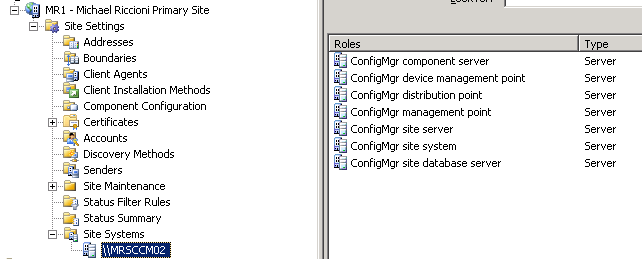
Right click > New Roles

Select Next

We now want to select “reporting point”

Leave the default values as is (but make a note of the URL below)
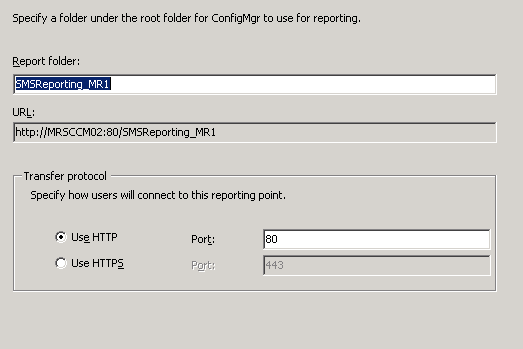
Select Next, and then Finish
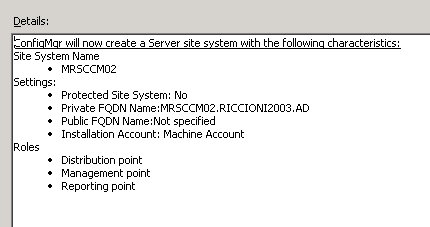
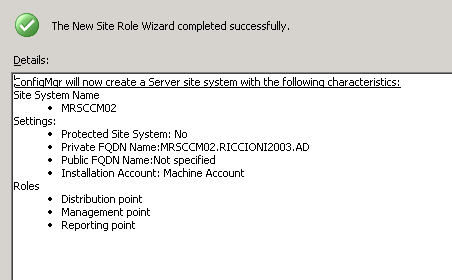
Now we can take a look at the reports which are installed by default. You will see there are around 330 pre-installed reports, covering pretty much every basic report you will need.
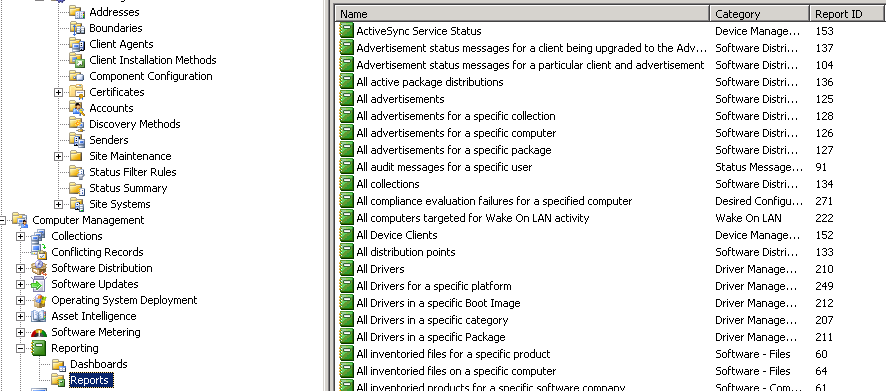
We are going to pick one (in this example number 239) software recently used

Right click > Run and it will ask you to select a computer. In this example I’ll use MRPCXP02


Select Display and you can see those executable files which have been most recently run

If you select the little arrow (before the computer name) it will open a new window where you can drill right down in to the computer and find out all sorts of information regarding the setup / hardware / software.

We will now create a new report to show us all those clients with Microsoft Word installed. Right click > New Report
Fill out a name and the category we will be using is Software – files.
Click “Edit SQL Statement”

This brings us to the SQL part of this blog. Now depending on how you are with programming languages/SQL language the SQL Statement may or may not make much sense to you.
Basically it’s saying in this report we will select ALL entries from the v_R-System table where the value Netbios_Name0=Computername
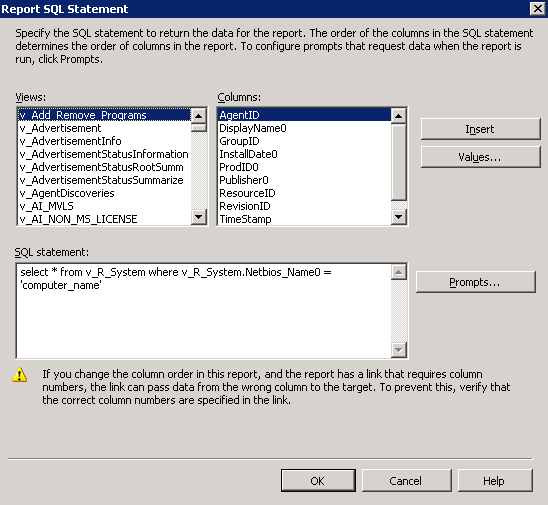
I’ll admit, it’s not easy to see what you are doing here, and what are all those V_ entries?
Well they are different views. Let me explain more….If we open up SQL management Studio and drill down in to the database, you will if we right click views > new view > and select the views tab


The view we will be dealing mostly with (and which most reports link to in some way) is the v_R_System view which contains all the system information for all those end points with agents on them.
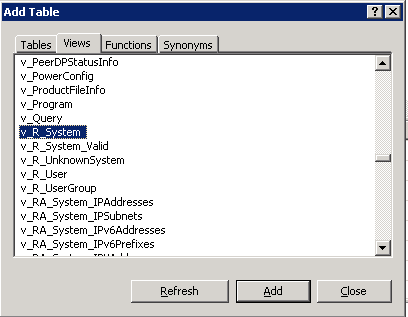
Click Add.
We’ve now added the view to our workspace. (if you’ve used access before this again may seem familiar).

If we look through the System View we will find some common values we will want to use. In this example we will list the username and computer name

At the very top of the view you will notice the Resource ID column. This is a common column throughout the views, and allows us to link these views together to produce reports which query multiple views.

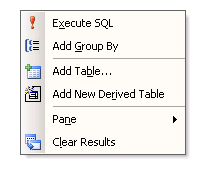
If we right click execute SQL query we will see the below output
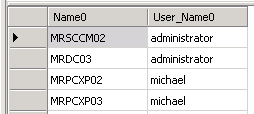
Simply showing us the last logged on user to the clients. Fairly straight forward. Now let’s add another view to this.
Right click > add Table
Select the views tab again, and this time select v_GS_SoftwareFile
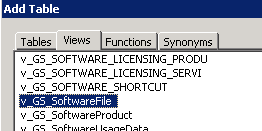
This is the view which has all the information regarding software file information

What we are now going to do is link the two ResourceID columns to create a link between the two tables
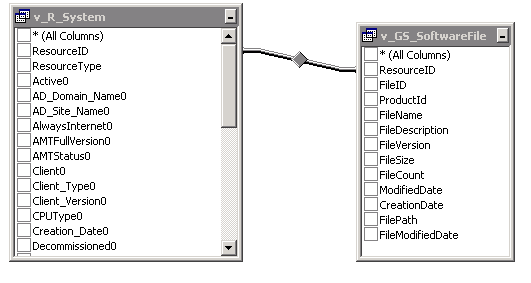
In the SQL output window you can see the SQL code is getting pretty complicated now

From the v_GS_SoftwareFile table select FileName, FileVersion and FilePath and in the filter for FileName enter: =winword.exe

If we execute the SQL statement now we see the below

It’s also given us the complex SQL code we require to produce this. Here’s where doing it this way (via SQL studio) helps make our lives a little easier. We can link tables, select the values we want then simply copy and paste the output in to SCCM.

Paste the output in to the SQL Statement field, and we now have a working SQL statement (which we know will work) as oppose to trying to either:
- Type it out for ourselves
- Use SCCM to try and create the statement

We can specify how often we wish this report to update

If we wish to link this report to another report, or computer
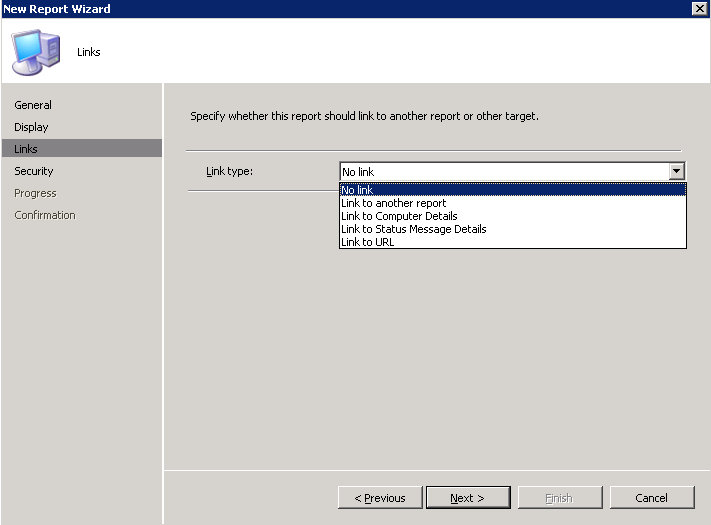

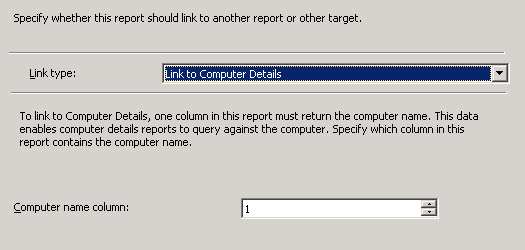
In this example we will link this to computer details. Computer Name Column (simply means where you want that little arrow to be displayed) which opens up additional information for the client
Leave the security settings as is

Finally click finish to create the report
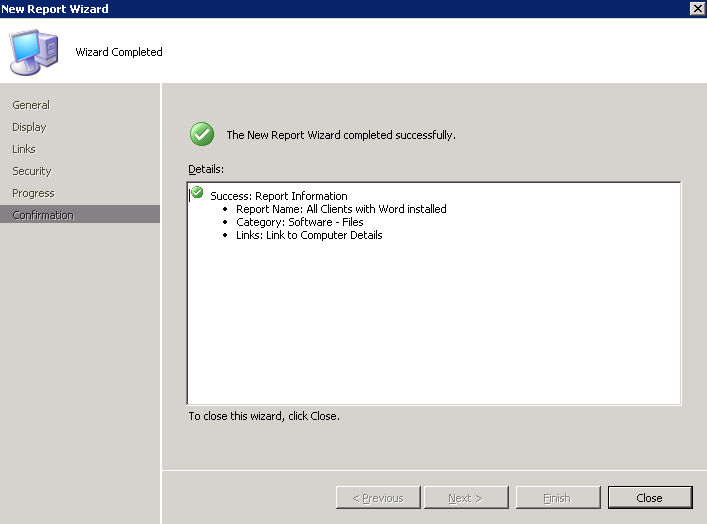
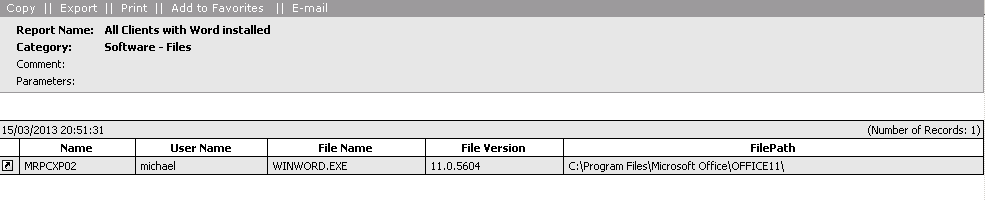
There we have it, our own report.

Right click > Run and you will see the report produces exactly what we want. Very handy if you are ever asked “can you show me all machines with XP or 512mb ram” etc..
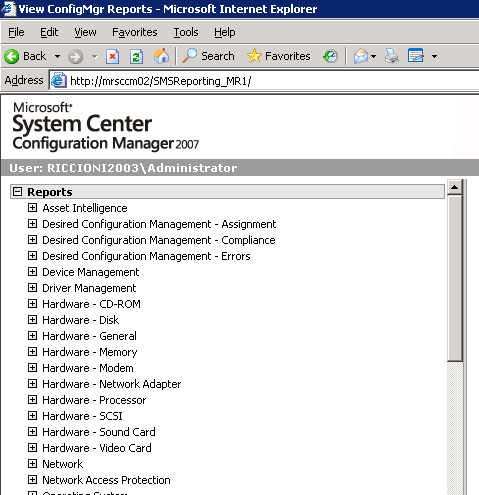
Now remember I said to make a note of that URL when we installed the reporting component?
Well let’s browse to that URL:
You will see all the reports are available for users to run. This means you don’t need to give user’s access to the SCCM MMC in order to view reports. (Later on we will cover security/allowing certain groups access to certain reports)
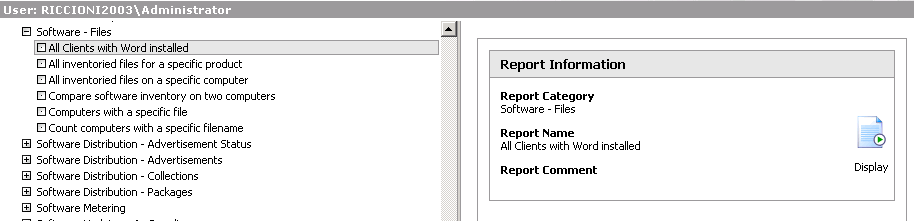
The user can then find the newly create report and run it

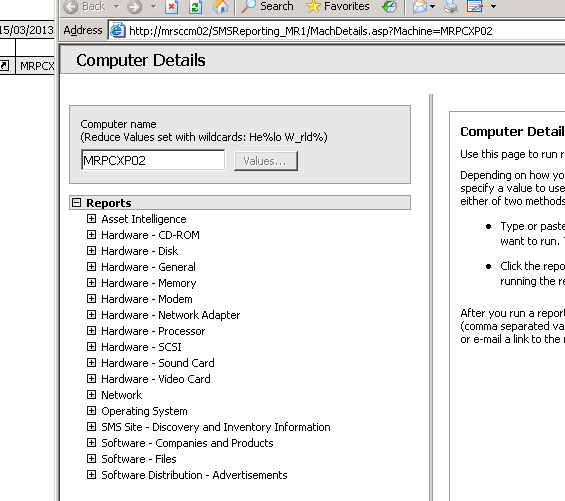
Again click the little shortcut arrow to bring up additional details
That’s reports covered off, which is handy, but what about those situations where it would be nice to have say 4 reports open at once?
This is why we create a dashboard. Within the dashboard we can specify many reports to view allowing us easy access to view information at a single glance.
By default there are no dashboards, so let’s create one
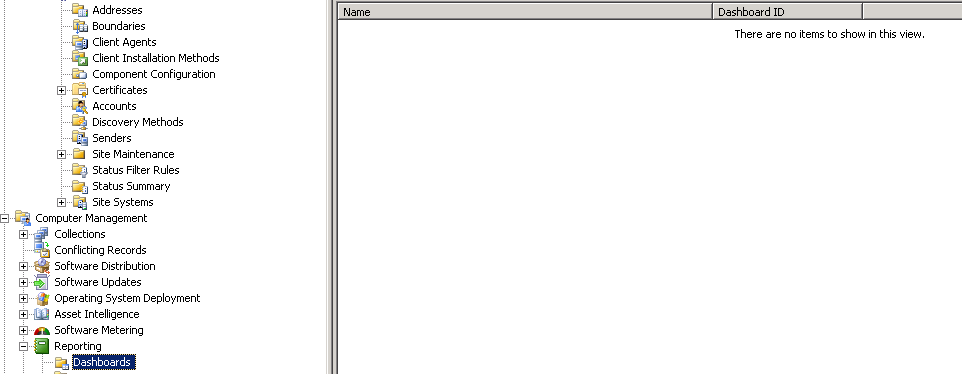
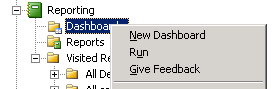
Name the dashboard, you can also choose to limit the cell height if required

Select next, and this is where we will define what information is shown within the dashboard.
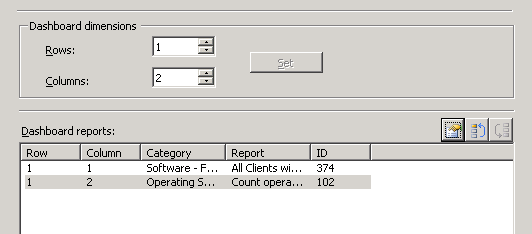
In this example I only really need two columns one will be displayed on the right one on the left. So change the value in Rows from 2 to 1

Click the first line and select the properties button (hand with a bit of paper under it)
Find the report you wish to use

Select the second entry and click properties to find the second report you wish to use

In this example I’m showing all XP systems with word installed, as well as all clients operating systems and which services packs are installed
Click finish

We can now see our newly created dashboard

Let’s run the dashboard and see what’s displayed
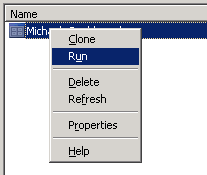
As you can see, on the left we have which XP systems have word installed, and on the right all those clients which have an operating system installed and which service pack

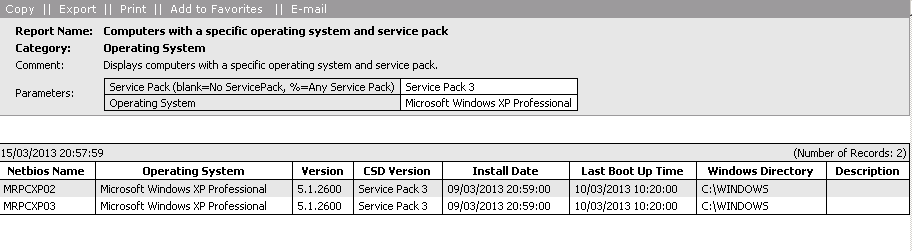
Select the little arrow to view more information (I’ve clicked the arrow next to Microsoft Windows XP Professional). This shows us both MRPCXP02/03 have XP SP3 installed
And there we go, another section covered off. I think most people will find this useful and will certainly use reports and dashboards in their own environment mainly for time saving.
“I wonder which machines out there have 1GB ram”. Now all it takes is a few clicks and you know….